Attachment Loading Rules
First grid in the Configure report attachments form defines the rules for loading documents available in D365FO as document management attachments.

Each line in the grid describes one rule in the following way:
- Where to look for the document management attachments. Related fields:
- How to filter the documents found on the specified Load from location. All fields in this group are related to the fields in the D365FO Document management attachment form. Notice that some fields on that form have been added by Docentric, to support more efficient filtering. Related fields:
- What to do if there isn’t any applicable document. Related fields:
- How to attach the attachment to the master document and what to do if the attachment document doesn’t have a compatible format for the selected action. Related fields:
- How to name the document when it’s attached to the report. Related fields:
Rule fields
Each rule has the following fields:
Load from
This field specifies one or more records where the D365FO Document management attachments are located. These are common records linked to the journal being printed, e.g. order, account, items, etc. We also refer to these records as attachment sources.
These are record types from which we can load the attachments:
- Global attachments: select this option to load the documents attached to the current legal entity, having the Global flag set. Examples are your company legal documents like T&C. Read more about the Global attachments setup >>
- Source table: select this option to load the documents attached to the report source table. Report source table is report specific and not always applicable. For example:
- Several reports on sales side (Sales order confirmation, Sales invoice, Sales packing slip) have the Sales order as a source.
- On purchasing side, Purchase order is often the related source table.
- Number of workers report is one example where source table is not applicable.
- Source table lines: load the documents attached to the report source lines (e.g. Sales order lines, Purchase order lines, etc.)
- Account table: load the documents attached to the related Customer table (for customer-facing reports) or the Vendor table (for vendor-facing reports). Not applicable to all reports.
- Journal: load the documents attached to the related journal, if applicable. For example:
- When printing the Customer invoice report, it will be Invoice journal.
- For the Purchase order report it will be Purchase confirmation journal, etc.
- Journal lines: load the documents attached to the journal lines (i.e. posted transactions).
- Items: load the documents attached to the items on the journal lines where applicable.
- Item variants: load the documents attached to released item variants where applicable. Variants of the items on the journal lines are considered.
- Context record: this selection represents the underlying entity (record) that the report is invoked from. Usually, it will be equal to Journal or Source table. The documents attached to this record are candidates for report attachments.
- Custom record: if none of the previous options suits your needs, you will implement a custom logic in the resolveReportAttachmentRecord() method of the related DSP class The implemented logic should return one record where the attached documents can be found.
- Custom records: similar to the previous option, it is used when more than one table record can be source for additional attachments.
Notice that Global attachments are known already at the time of specifying the rules for their retrieval, while all the other attachment source types require resolving their underlying record in runtime and retrieving the documents attached to that record. For that reason, we also refer to them as Dynamic attachments.
Category ID
From all the documents found on the specified source, take only those with the matching value in the Category ID field. If no Category ID is specified, don’t apply filtering by this criteria.
Note: this field has been added by Docentric to the Document management attachment form.
Attachment description
If provided, take only the documents with the matching value in the Description field.
- If source is Global attachments, then this field is a lookup into a list of all available global attachments (i.e. attachments having the Is global attachment flag turned ON) for the current legal entity and the DAT legal entity. Lookup is initially filtered to display only the documents for the current legal entity, but the filter can be removed to display also the DAT documents.
- For any other source, this is a free editable text field, where you can specify the full attachment description (for example: “Item specification”), or only the partial description by using the wildcards * and ? (for example: “Item*”, “*spec*”, “?tem*”). You can also use the report placeholders in this field. A list of applicable placeholders for the current report is available under the menu item Insert placeholder. For example, “@InvoiceAccount@*” on the Sales invoice report for the US-001 customer will return the documents where the description starts with US-001.
File type
If provided, take only the documents with the matching value in the File type field (for example: pdf, docx, png, etc.)
Document type
If provided, take only the documents with the matching value in the Type field (for example: File, Image, etc.)
Restriction
Retrieve only the documents with the corresponding Restriction (External or Internal). Select Both internal and external if you don’t want to filter by the Restriction field.
Language
This selection applies additional filtering by the value in the Language field specified on the attachment. There are following possibilities:
- Any language: choose this if you don’t want to apply any filtering by language.
- Only the matching language: this option will select only the documents having the same language as the report runtime language.
- The matching language, if not found then without language: this option will first try to find the documents with the same language as the report runtime language. If no such document is found, as a fallback it will search for the documents without any language specified.
- Both the matching language and without language: this option will look for the documents with the same language as the report runtime language and the documents without any specified language.
- Note: this field has been added by Docentric to the Document management attachment form.
Tags
if provided, take only the documents that contain all the specified tags. You can separate the tags by comma or semicolon.
Note: this field has been added by Docentric to the Document management attachment form.
If not found
Select which action should be taken if no document was retrieved based on the given rule. You can cancel printing (and raise exception), or continue anyway, with or without the warning.
Print as
This field has been introduced with v3.5.1.
It specifies how to combine the attachments with the report document. Available options are:
- Separate attachment: attachments loaded based on this rule will be printed alongside the report document.
Note: this was the only available option prior to v3.5.1. - PDF attachment: attachments will be embedded into the report document. Only applicable if the output report format is PDF.
- Merged attachment: attachments will be merged with the report document. Only applicable if the output report format is PDF and the attachments are PDF, Word or Excel. The latter are automatically converted to PDF during the merging process.
If not valid output format
This field has been introduced with v3.5.1.
It specifies what should happen if some of the loaded attachments doesn’t have a valid format, considering the selected Print as value.Available options are:
- Skip without warning
- Skip with warning
- Cancel printing
Display name
Specify the filename (without the file extension) which should be given to the retrieved document(s) that are going to be attached to the main report document. You can use placeholders; particularly useful are the first two placeholders from the Insert placeholder dropdown: @ORIGINAL_DESCRIPTION@ that stands for the Description field of the original document and @ORIGINAL_FILENAME@ that stands for the File name field of the original document. For example, “@ORIGINAL_DESCRIPTION@ - @InvoiceAccount@” for the Sales invoice report for the US-001 customer and the document with Description “Quotation” will result in the following attachment name: “Quotation – US-001”.
Resulting attachment name
The read-only result of Display name and File type representing the final filename (with the file extension) of additional attachment(s).
Rule order
Rules are processed in the same order as they appear in the grid. You can change their order by using the Up and Down buttons.
Placeholders
You can use the placeholders for Dynamic (Non-Global) attachments in the Attachment description, Display name and Tags fields. You can type in a placeholder in the position where you need it, or you can use the Insert placeholder button. The selected placeholder will be added to the end of the currently active field. Notice the first two placeholders in the right image below, they appear if the placeholder dropdown form is invoked from the Display name field.


@ORIGINAL_DESCRIPTION@ stands for Description of an attachment in the Attachments form, and @ORIGINAL_FILENAME@ stands for its File name.

Examples
Examples below show results in case of Docentric Email print destination, but the same concept applies to any other Docentric print destination.
Example 1: Load T&C from Global attachments
Global attachments:

Rule:

Result:

Example 2: Load from Global attachments, filter by Category
Global attachments:
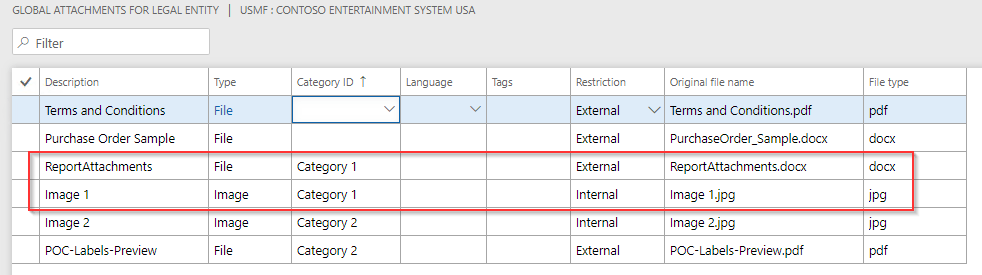
Rule:

Result:

Example 3: Load all attachments from Sales table
Attachments on the related Sales table:

Rule:

Result:

Example 4: Language configuration
Here is one possible way to utilize the Language parameter: you can have the Terms & Conditions document in French, Spanish and English language as 3 different attachments on your legal entity. You can specify French and Spanish language on the first two documents respectively, while you leave the English document without the language.
Global attachments:

Rule:
When you configure the rule for loading from the Global attachments, you specify the Language condition as The matching language, if not found then without language.

Result:
If the report runtime language is French or Spanish, the French or the Spanish document respectively will be attached. For all the other languages (including English), the English document will be attached.
Reference: Resolved table for commonly used reports
Sales Invoice
| Load from | Resolved table | Resolved table technical name | Pro-forma supported |
|---|---|---|---|
| Source table | Sales orders | SalesTable | Yes |
| Source table lines | Order lines | SalesLine | Not in case of multiple Sales orders |
| Journal | Customer invoice journal | CustInvoiceJour | No |
| Journal lines | Customer invoice lines | CustInvoiceTrans | No |
| Items | Items on journal lines | InventTable | No |
| Context record | Same as source table | No |
Free text invoice
| Load from | Resolved table | Resolved table technical name | Pro-forma supported |
|---|---|---|---|
| Source table | Customer free text invoice | CustInvoiceTable | Yes |
| Source table lines | Customer free text invoice lines | CustInvoiceLine | Yes |
| Journal | Customer invoice journal | CustInvoiceJour | No |
| Journal lines | Customer invoice lines | CustInvoiceTrans | No |
| Items | Items on journal lines | InventTable | No |
| Context record | Same as source table | No |
Sales order confirmation
| Load from | Resolved table | Resolved table technical name | Pro-forma supported |
|---|---|---|---|
| Source table | Sales orders | SalesTable | Yes |
| Source table lines | Order lines | SalesLine | Yes |
| Journal | Sales order confirmations | CustConfirmJour | No |
| Journal lines | Confirmation lines | CustConfirmTrans | No |
| Items | Items on journal lines | InventTable | No |
| Context record | Same as source table | No |
Sales quotation
| Load from | Resolved table | Resolved table technical name | Pro-forma supported |
|---|---|---|---|
| Source table | Sales quotation | SalesQuotationTable | Yes |
| Source table lines | Quotation lines | SalesQuotationLine | Yes |
| Journal | Quotation journal | CustQuotationJour | No |
| Journal lines | Quotation lines | CustQuotationTrans | No |
| Items | Items on journal lines | InventTable | No |
| Context record | Same as source table | No |
RFQ
| Load from | Resolved table | Resolved table technical name | Pro-forma supported |
|---|---|---|---|
| Source table | Request for quotation cases | PurchRFQCaseTable | Yes |
| Source table lines | Request for quotation case lines | PurchRFQCaseLine | Yes |
| Journal | Request for quotation journal | VendRFQJour | No |
| Journal lines | Vendor – request for quotation lines | VendRFQTrans | No |
| Items | Items on journal lines | Items on journal lines | No |
| Context record | Same as source table | Same as journal | No |
Purchase order
| Load from | Resolved table | Resolved table technical name | Pro-forma supported |
|---|---|---|---|
| Source table | Purchase orders | PurchTable | Yes |
| Source lines | Purchase order lines | PurchLine | Yes |
| Journal | Purchase order confirmations | VendPurchOrderJour | No |
| Journal lines | Purchase lines history | PurchLineHistory | No |
| Items | Items on journal lines | InventTable | No |
| Context record | Same as source table | No |
Project invoice
| Load from | Resolved table | Resolved table technical name | Pro-forma supported |
|---|---|---|---|
| Source table | Invoice proposal | ProjProposalJour | Yes |
| Source table lines | Invoice proposal lines (Expense, Item, Hour, Fee) | ProjProposalCost ProjProposalItem ProjProposalEmpl ProjProposalRevenue |
Yes |
| Journal | Project invoice | ProjInvoiceJour | Yes |
| Journal lines | Project invoice lines (Expense, Item, Hour, Fee) | ProjInvoiceCost ProjInvoiceItem ProjInvoiceEmpl ProjInvoiceRevenue |
Yes |
| Items | N/A | N/A | N/A |
| Context record | Invoice proposal | ProjProposalJour | Yes |
Improved attachments form
Docentric metadata settings
The Docentric metadata settings fast tab is added to the standard D365FO Document management attachments form:

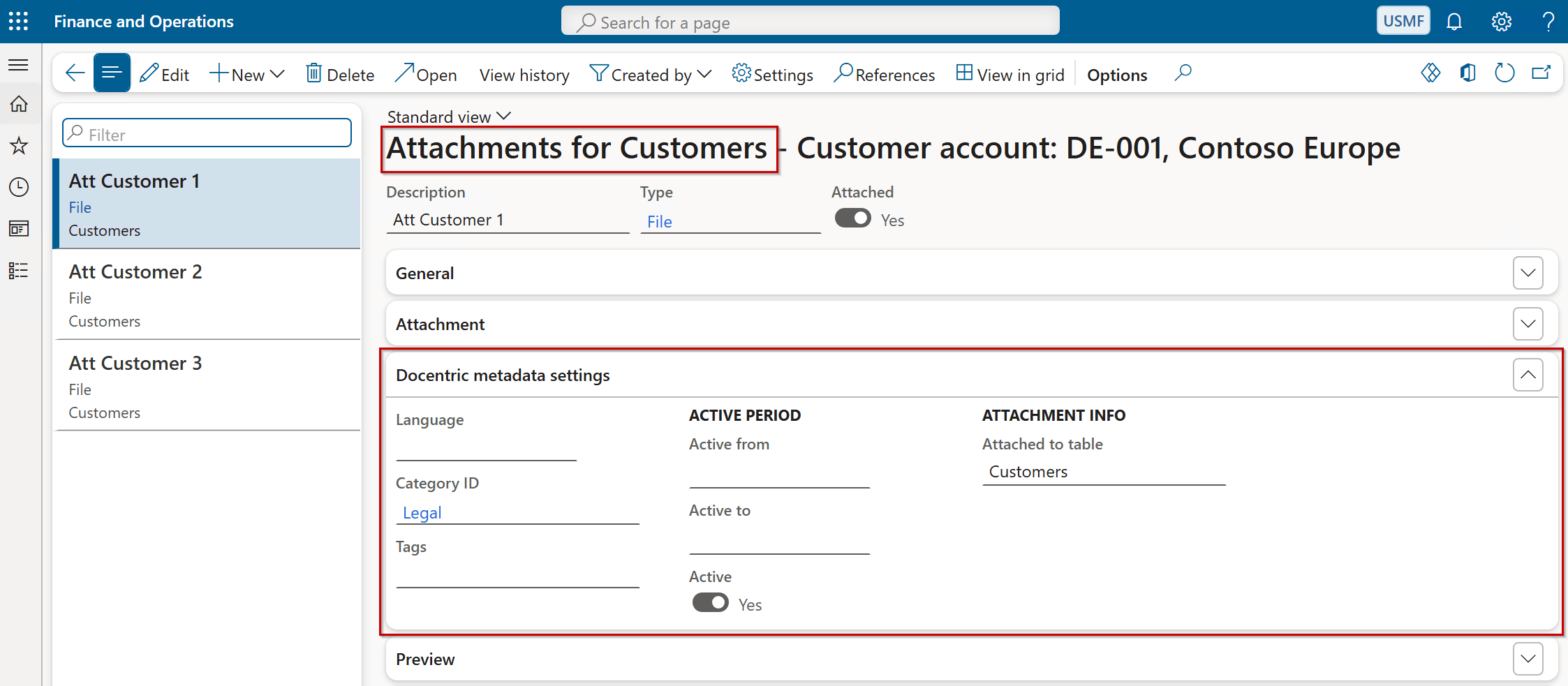
It contains the following fields:
- Language: allows refining the list of documents to be attached to the report, by matching the report runtime language with the language specified on the document.
- Category ID: enables a simple way of categorizing the documents, so that all the documents marked with a given category can be filtered. To maintain the attachment categories, go to Docentric AX Workspace > Additional setup > Attachments > Attachment categories form.
- Tags: provided to make it easier to describe the document purpose and to identify it later.
- Active period (Active from, Active to, read-only field Is active): allows specifying the period when the attachment is active.
- Global attachment: visible and applicable only on the Attachments form for legal entities (see the left image above). If the attachment source is Global attachment, then only the current legal entity’s attachments with this option turned on are candidates for report attachments. For other types of the attachment sources this flag isn’t applicable.
We introduced these fields to enable more flexible and efficient filtering of additional loaded report attachments, but you can use these settings in your custom scenarios as well.
You can specify these Attachment settings when saving reports to Attachments via Docentric File print destination.
Attachments grid view
Notice a new menu item View in grid on the Attachments form. It opens a form which lists all the attachments in a tabular way, more convenient for editing.
Below is example of the grid view of Attachments for one Customer.

Global attachments
Go to Docentric AX Workspace > Additional setup > Attachments > Global attachments to open the Global attachments form:

Global attachments form provides a convenient summary overview of Global attachments per legal entity. For each of legal entities, we can see the following information in the grid:
- Number of attachments: represents the total number of attachments, both Global and Non-Global, attached to a legal entity. Equals to the number shown by the paperclip in the top right corner of the form.
- Number of Global attachments: shows the number of Global attachments (documents with the Global flag turned ON) per legal entity.
- No. per language: provides a list of all languages used on the documents with the number of documents for each language.
- No. per category: gives a list of all categories used on the documents with the number of documents for each category.
Notice the Global attachments menu item. It opens the form where you can view and edit all the information relevant to the report attachments (Description, Category ID, Language, Tags, Restriction).

See also
Report Attachments >>
Attachment Generating Rules >>
ZIP Settings >>