Installation via Deployable Package
Docentric AX can be deployed using the following deployment options:
- Model files,
- Deployable package.
Apply Docentric AX deployable package
Docentric AX deployable package contains complete Docentric AX reporting solution for Microsoft Dynamics 365 for Finance and Operations. It has no dependencies or external services to install. Docentric AX will become fully functional immediately after you have successfully installed Docentric AX deployable package.
There are multiple ways to apply a deployable package on a D365FO system:
- Manual installation.
- By using LCS (Lifecycle Services).
- By using PPAC (Power Platform Admin Center), in case of unified environment .
Learn how to create an all-in-one deployable package >>
Manual installation of Docentric AX deployable package
While a deployable package is mostly applied using Dynamics Lifecycle Services (LCS), you can also use the command line to manually achieve the same.
To manually install Docentric AX deployable package, follow the steps described here:
Manually apply a deployable package to a D365 for Finance and Operations environment.
Docentric AX deployable package installation using LCS
In order to install Docentric AX deployable package using LCS, you need to take the procedure described here:
Apply a deployable package to a D365 for Finance and Operations environment.
Apply Docentric AX unified package on unified environment
Before proceeding with the installation of the Docentric AX unified package on a unified environment, please make sure that the Power Platform CLI is installed on your environment:
- Check if Power Platform CLI is installed >>
- Install Power Platform CLI >>
- See Power Platform CLI commands list >>
If you have a standard Docentric AX deployable package, you will first need to convert it to a (Power Platform) unified package, which you can do by following the instructions under the Apply Docentric AX deployable package on unified environment, which you can find below.
If you already have a Docentric AX unified package, then you can proceed with the deployment by following these steps:
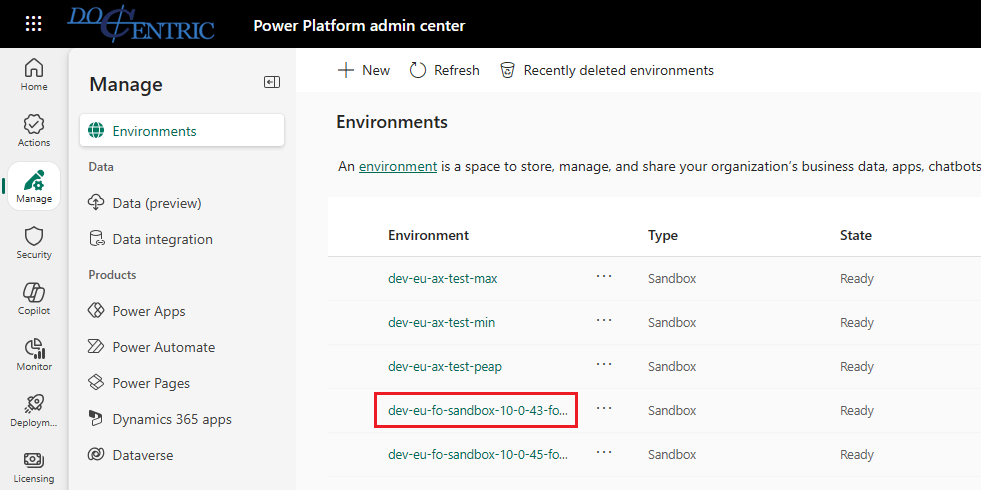
- Connect to your PPAC (Power Platform Admin Center) and open the Environments tab (link):
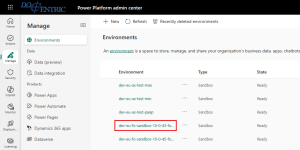
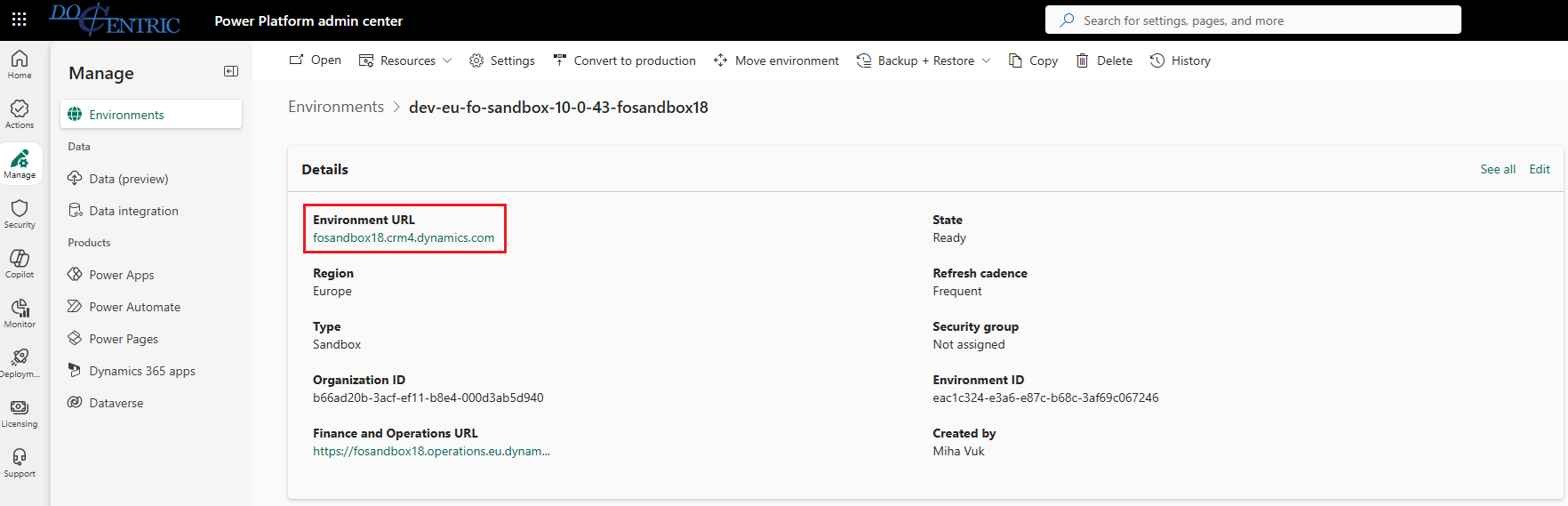
- Click on the environment that you would like to deploy the unified package to and make note of the Environment URL:
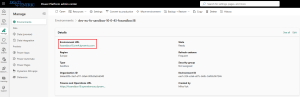
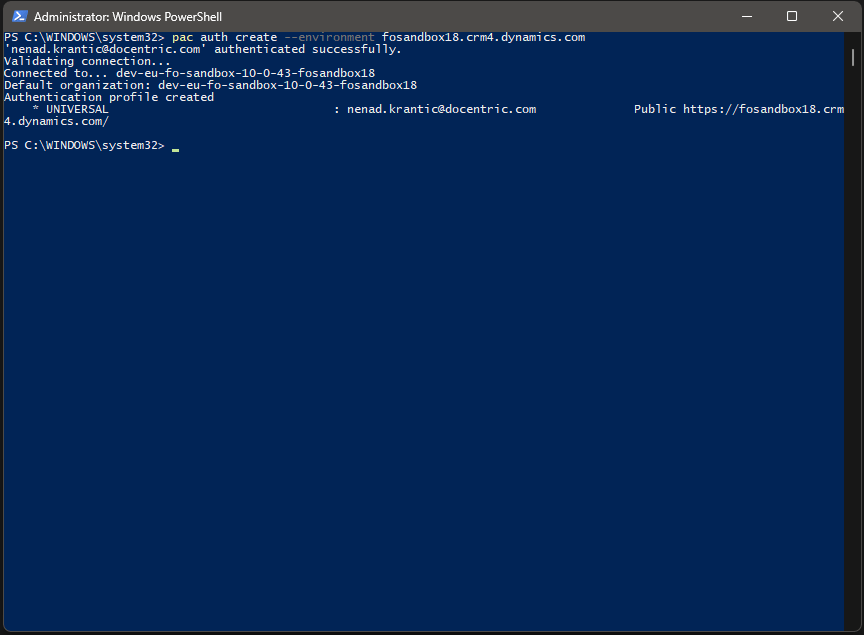
- Open up an instance of Powershell as Administrator and run the following command to connect to your unified environment:
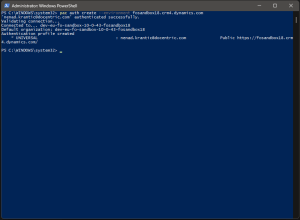
Example command:
1pac auth create --environment fosandbox18.crm4.dynamics.com - Execute the following command to begin the deployment of the new unified package to the unified environment:
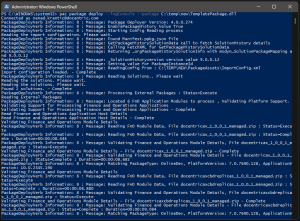
Example command:
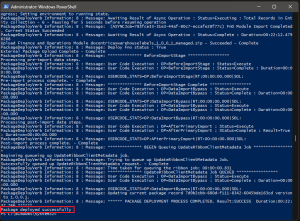
1pac package deploy --logConsole --package C:\temp\new\TemplatePackage.dll - You will know when the deployment is complete, when you see the Package deployed succesfully message:
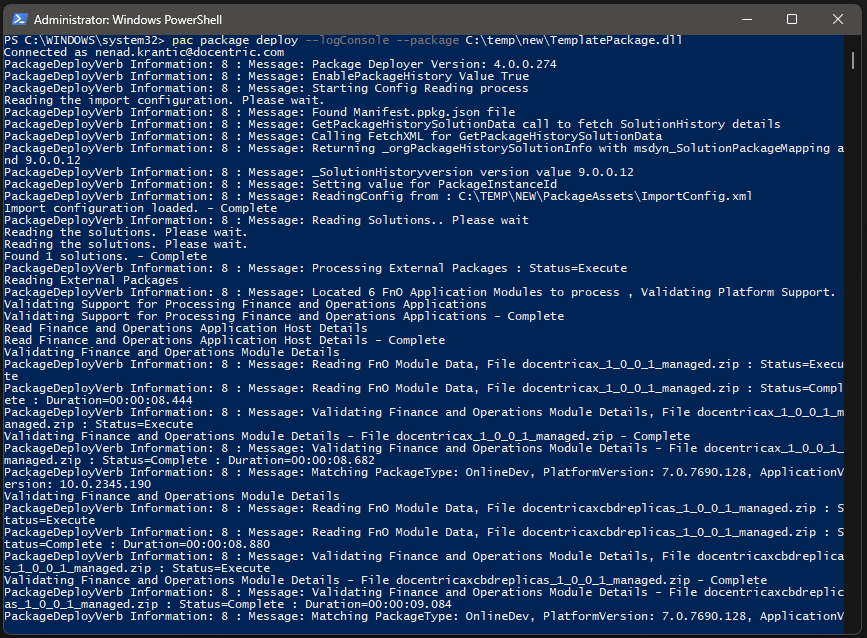
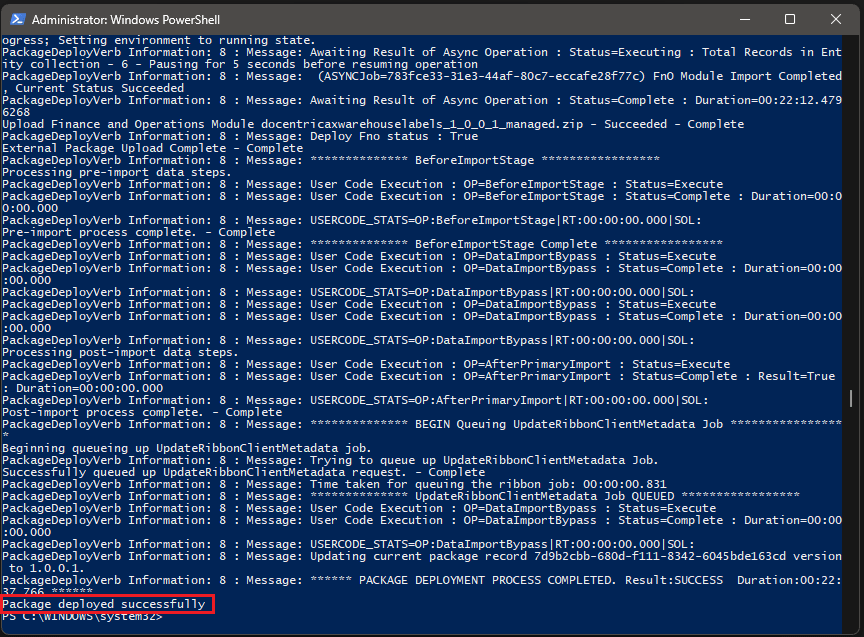
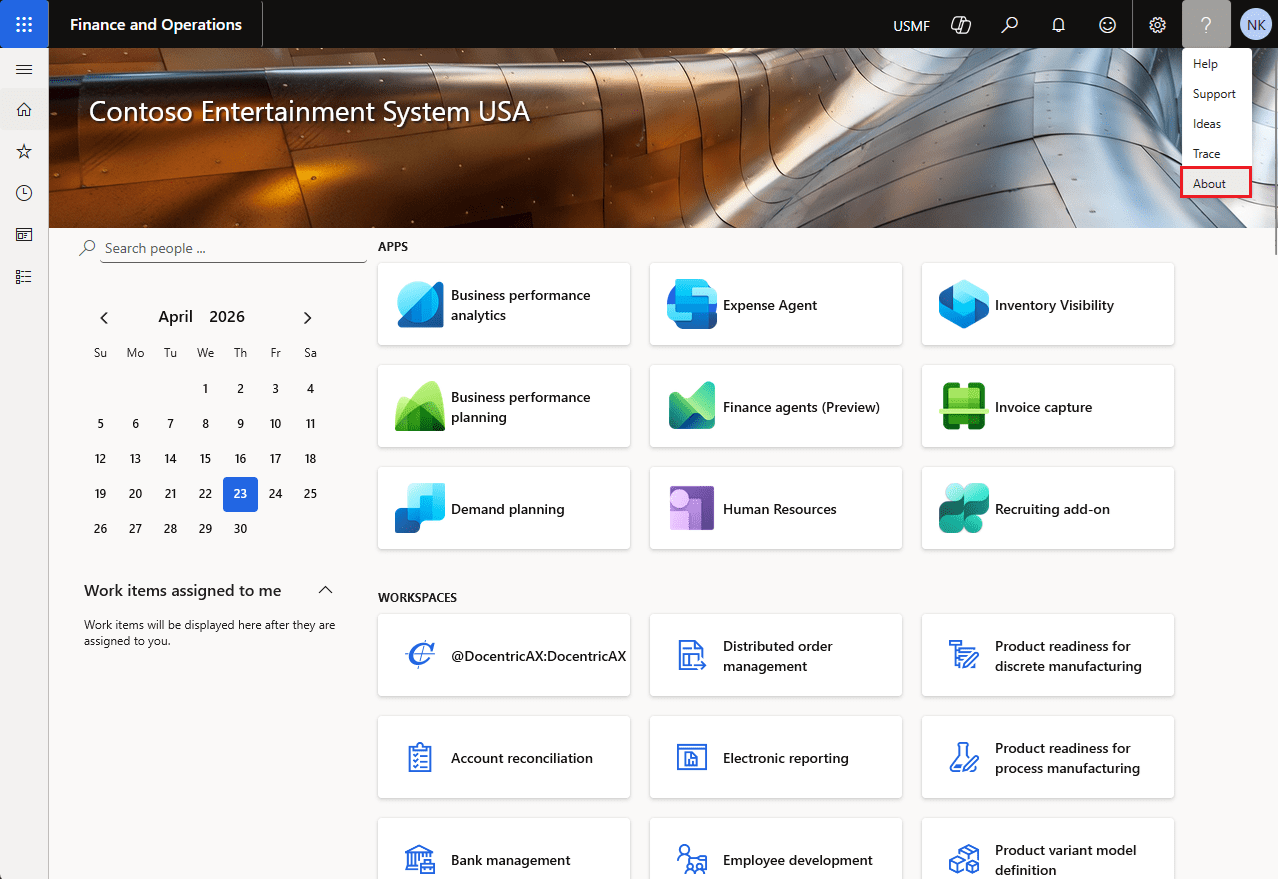
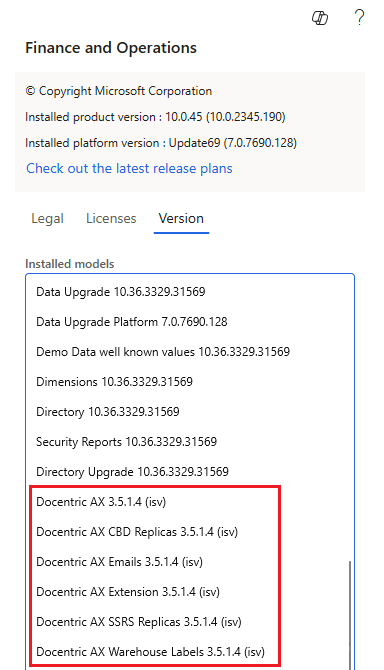
Once the deployment is complete, we can check the Docentric AX model versions on the unified environment to make sure that the upgrade has been successful:
Apply Docentric AX deployable package on unified environment
Before proceeding with the installation of the Docentric AX deployable package on a unified environment, please make sure that the Power Platform CLI is installed on your environment:
- Check if Power Platform CLI is installed >>
- Install Power Platform CLI >>
- See Power Platform CLI commands list >>
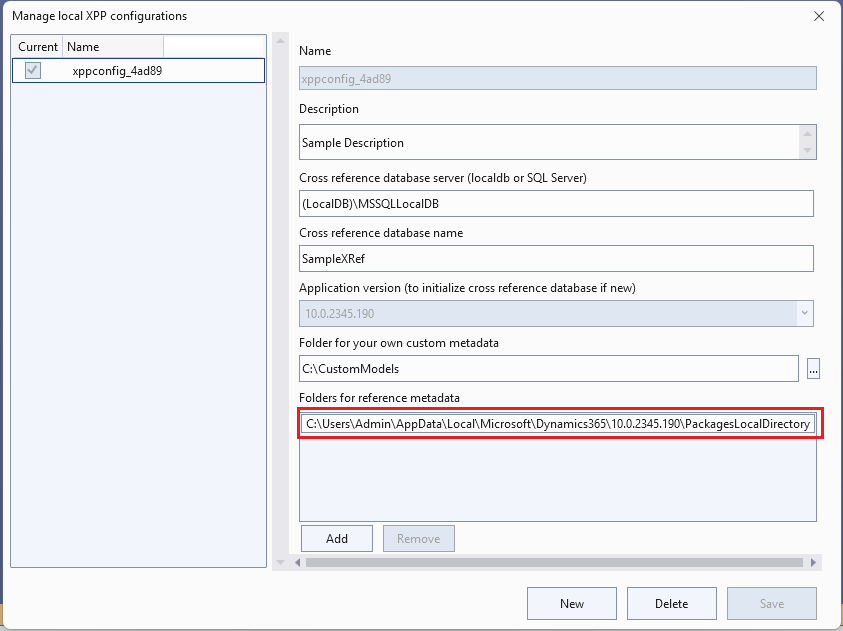
Additionally, it is important for us to know where the PackagesLocalDirectory is located on our environment, because we will need the ModelUtil.exe tool from that directory:
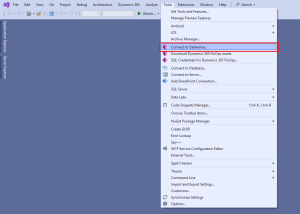
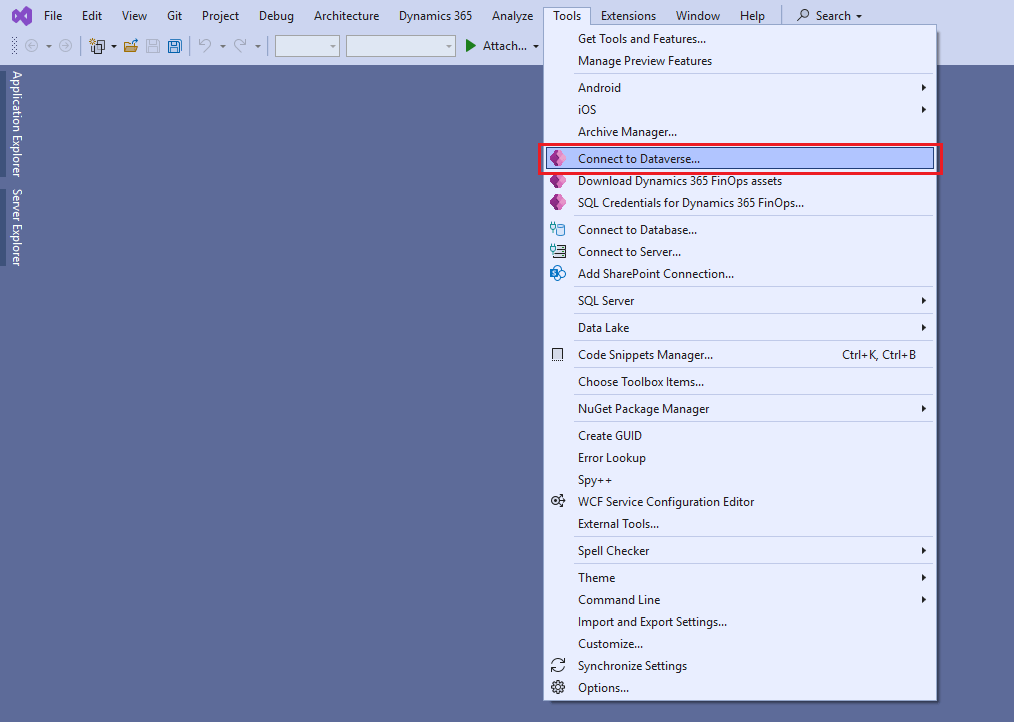
- Click on Tools > Connect to Dataverse:
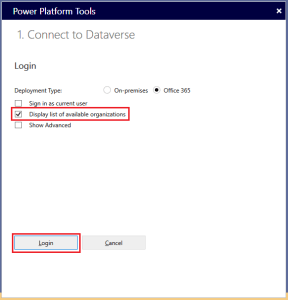
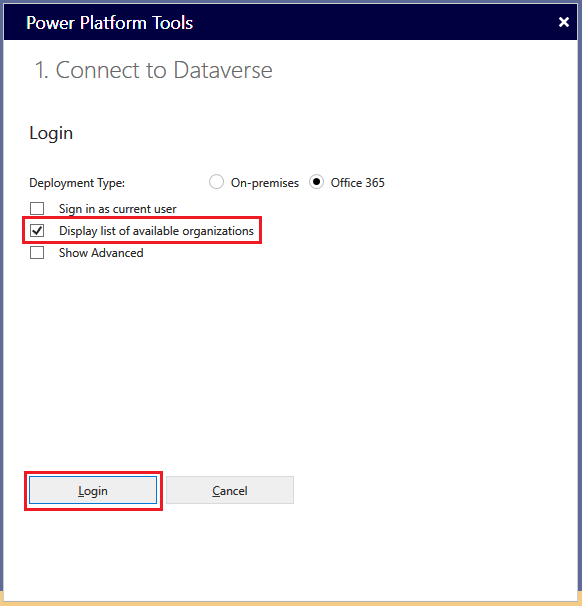
- Only check the Display list of available organizations checkbox and click Login:
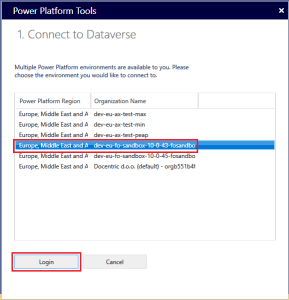
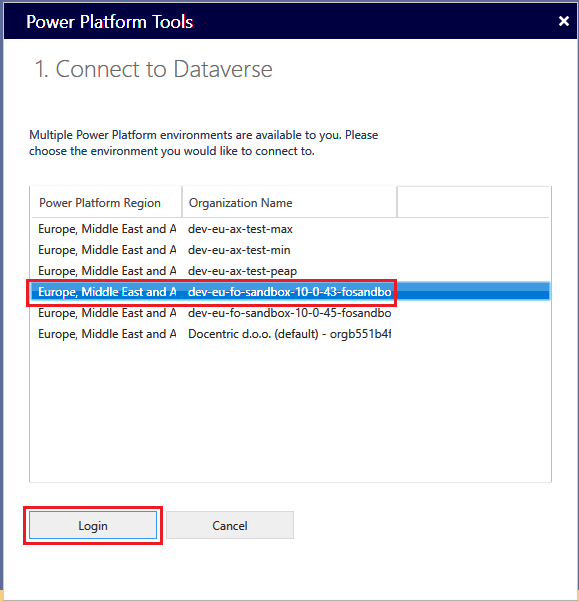
- Choose the environment you want to connect to:
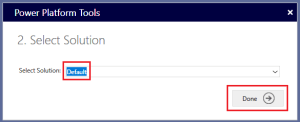
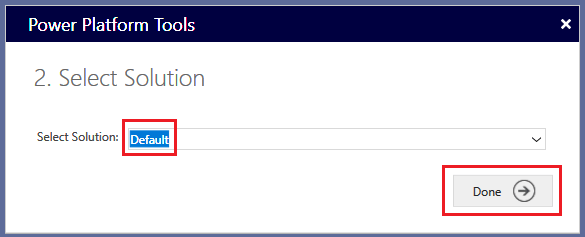
- Choose your solution, you can leave this on Default:
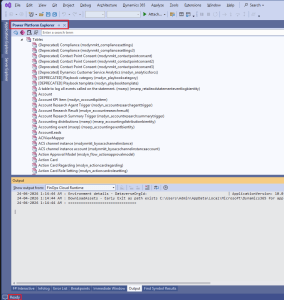
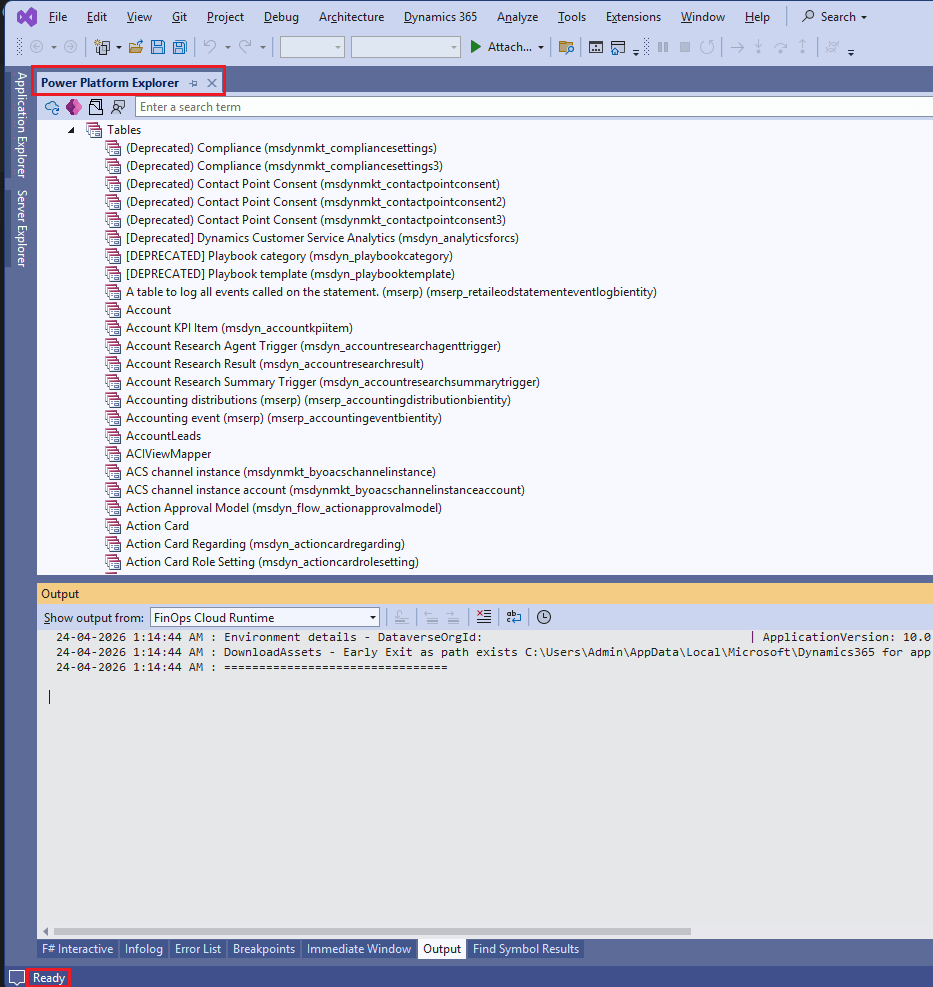
- It takes a while for Visual Studio to connect to the environment, so wait until the Power Platform Explorer pops up and Visual Studio is in the Ready status (in the bottom left corner):
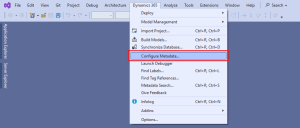
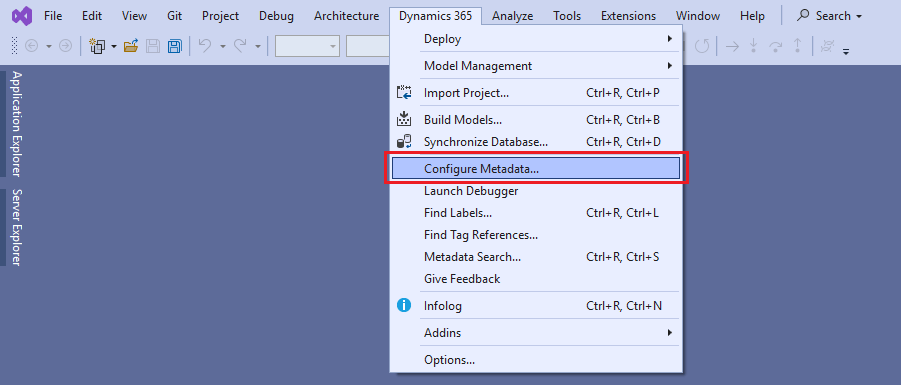
- Click on Dynamics 365 > Configure Metadata (note that the Dynamics 365 menu item can also be hidden inside the Extensions menu item):
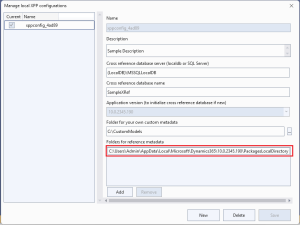
- Open up the Configure Metadata form and find where the local PackagesLocalDirectory folder is located:
To install the Docentric AX deployable package, we first need to convert the deployable package into the correct format for environment environment, which is usually called a unified package:
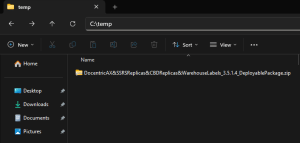
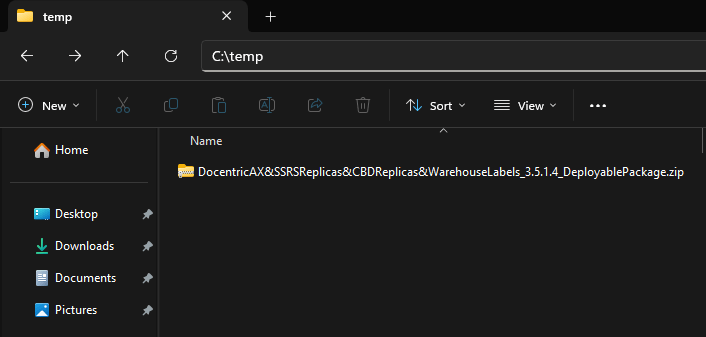
- Copy the deployable package .zip to a directory, in this case we will use C:\temp (we recommend to use a directory with a short name, to avoid Destination path too long errors):
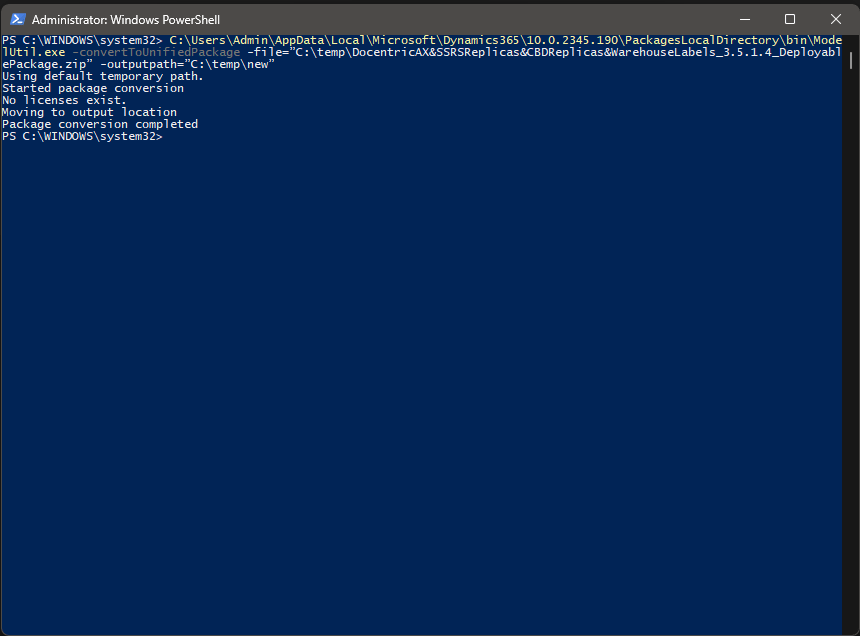
- Open up an instance of Powershell as Administrator and run the following command to create a new unified package of the correct format for unified environment:
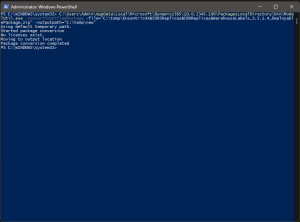
Example command for Docentric AX v3.5.1.4:
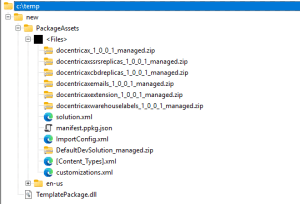
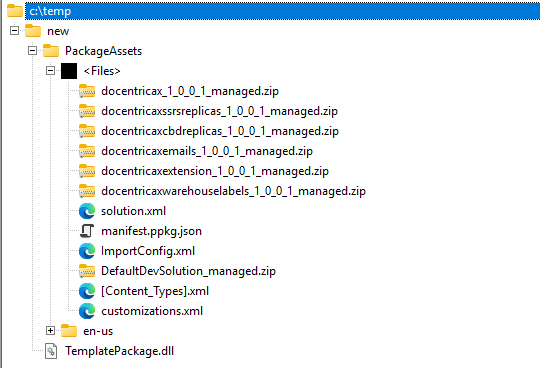
1C:\Users\Admin\AppData\Local\Microsoft\Dynamics365\10.0.2345.190\PackagesLocalDirectory\bin\ModelUtil.exe -convertToUnifiedPackage -file="C:\temp\DocentricAX&SSRSReplicas&CBDReplicas&WarehouseLabels_3.5.1.4_DeployablePackage.zip" -outputpath="C:\temp\new" - This is what the structure of the new unified package will look like:
To deploy the new unified package you have created, please follow the instructions in the Apply Docentric AX unified package on unified environment chapter located above.
See also
How to Unlock the Product >>
How to Install Docentric AX Designer >>
How to Set Up Docentric AX >>
How to Install Docentric AX via Models >>