
 Tags:
Tags: 
Introduction
A Sales quotation is usually sent to the person who requested it. In Dynamics 365 Finance & Operations (D365FO), you select that person as a Contact on the Quotation header. A Contact person can have multiple email addresses, each with a different Purpose. We'll show you how to email the Sales quotation using only the Contact person's email address with the Quote Purpose.
We'll additionally cover two common variations:
- Send the Quotation to all Customer Contact persons with the Quote Purpose.
- Use all email addresses of the selected Contact person as a fallback when no email address with the Quote Purpose exists.
Requirement
Let's start with the business requirement.
A Customer can have multiple Contact persons, but you can select only one of them on the Sales quotation header:
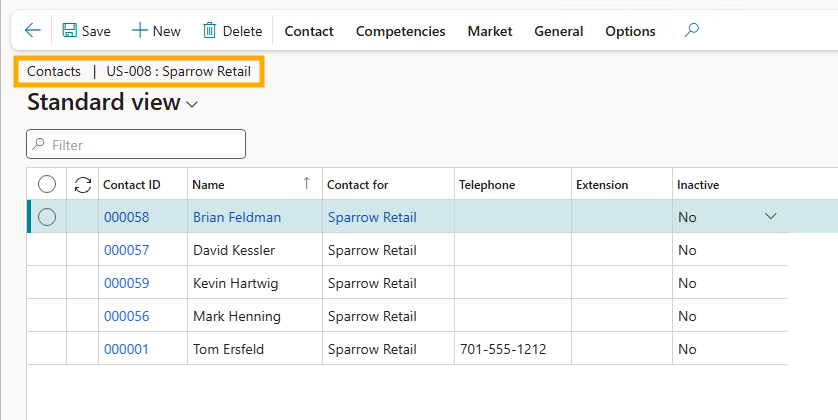
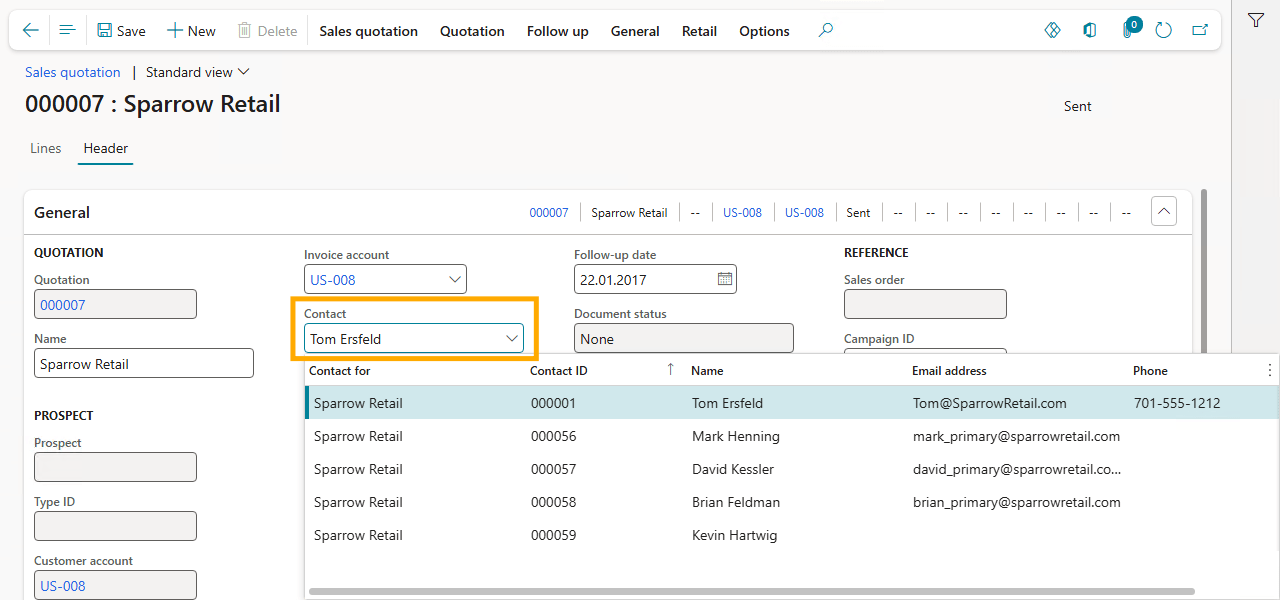
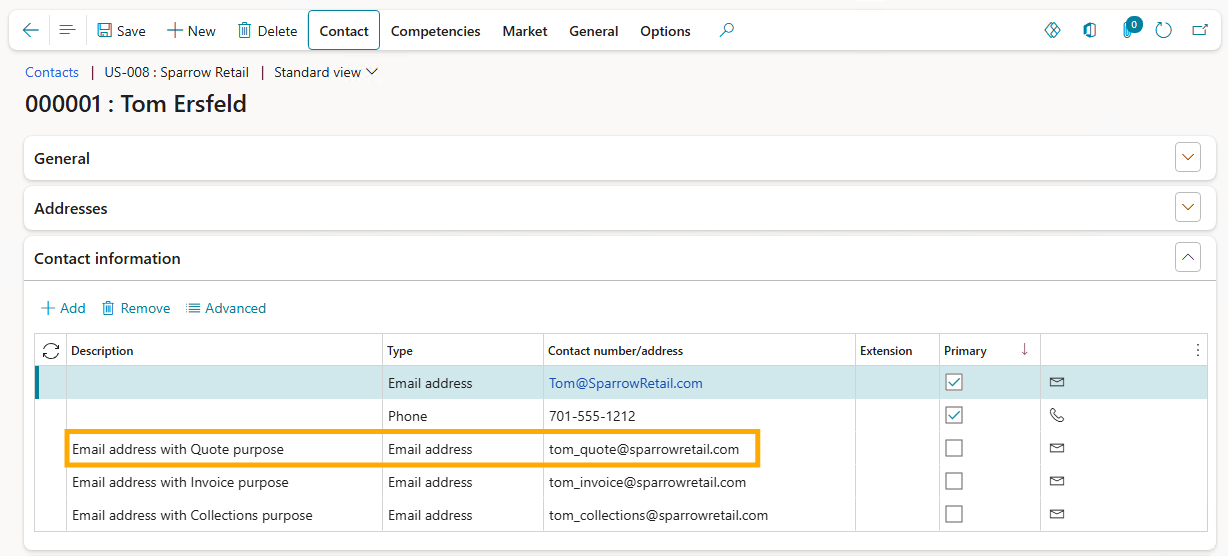
Open the selected Contact person and review the Contact information FastTab.
One Contact person can have multiple email addresses, each with its own Purpose. In our example below, only one email address has the Quote Purpose.
Let's configure Docentric to use that email address when emailing the Sales quotation.
Configure the Advanced email token
Open the Advanced email tokens form and create a new token.
Configure it as shown below:
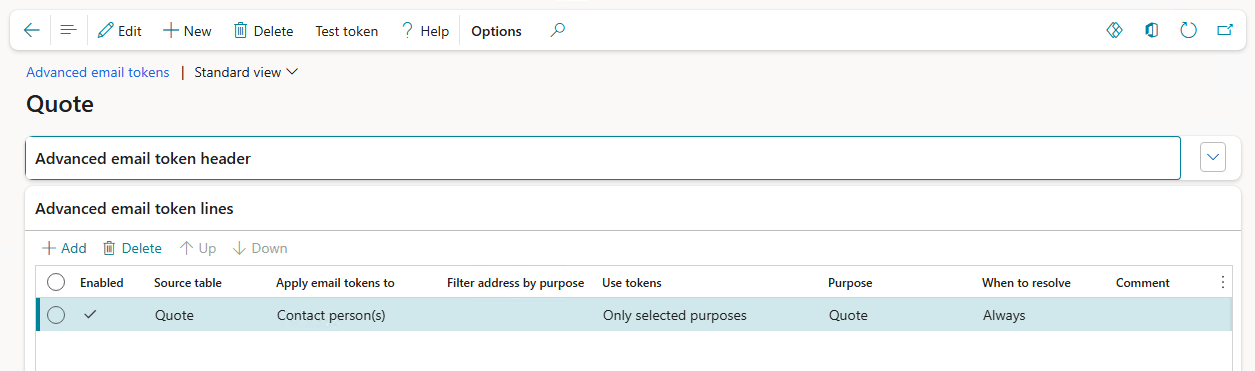
Use the following settings:
- Source table: Quote
- Apply email tokens to: Contact person(s)
- Use tokens: Only selected purposes
- Purpose: Quote
- When to resolve: Always
The Source table defines where Docentric starts resolving the token. When you select Quote, Docentric starts from the current Sales quotation, resolves the selected Contact person, filters their email addresses by the Quote Purpose, and returns the matching email address.
Test the token
Test the token before you use it in the Docentric Email print destination.
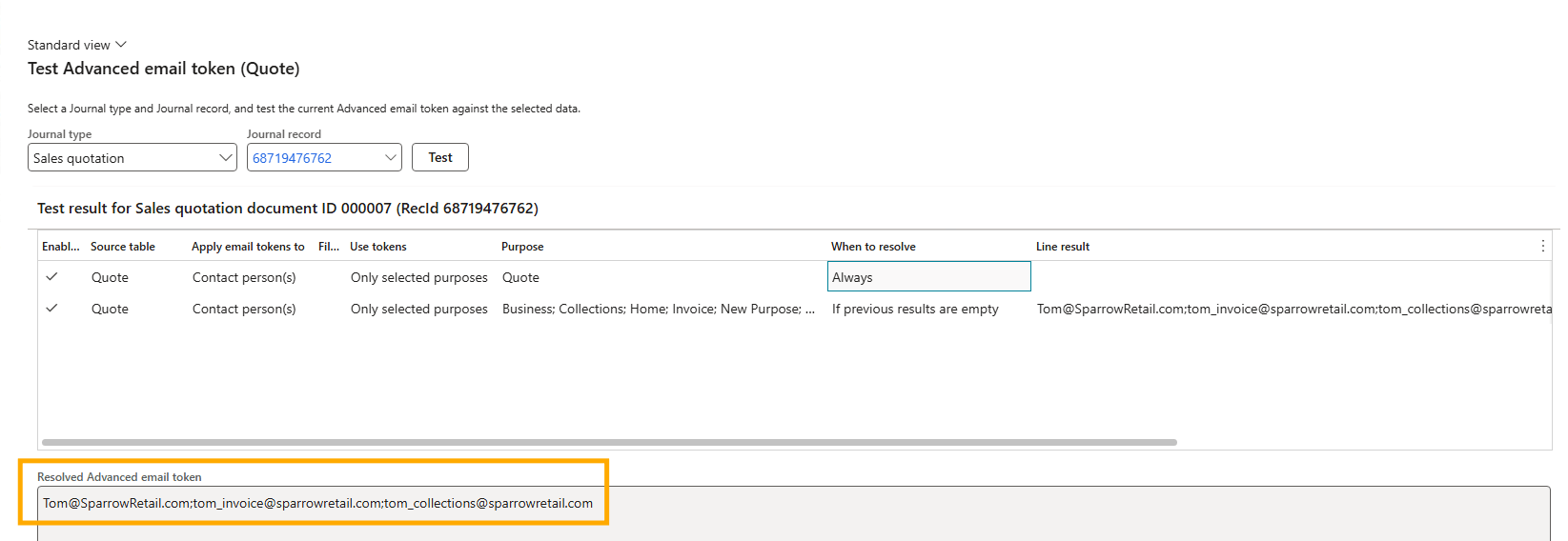
Click the Test token button. In the Journal type lookup, select Sales quotation. Then, in Journal record, select the Sales quotation you want to test against and click Test.
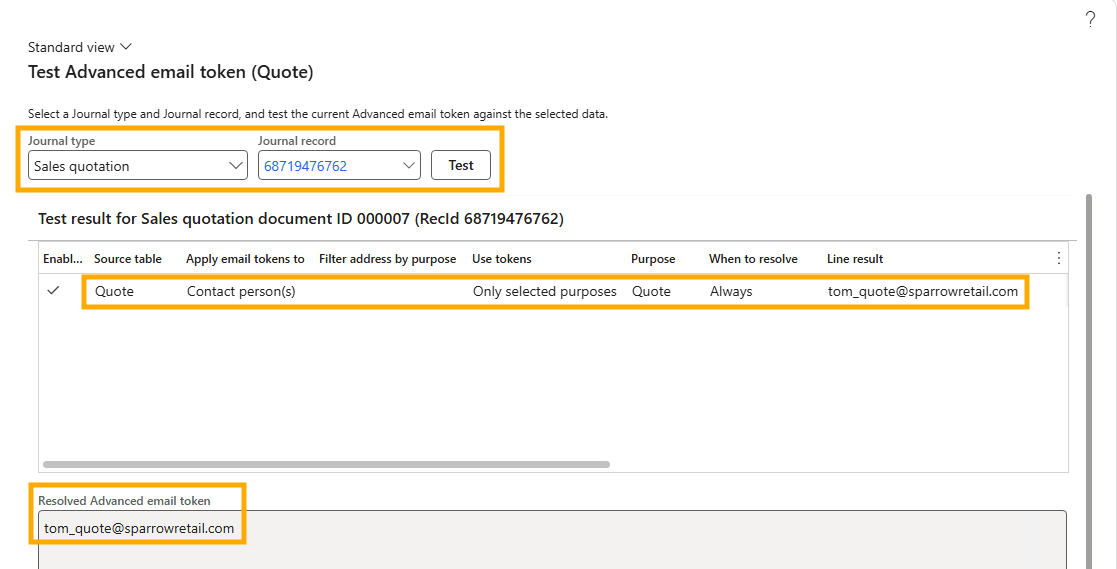
In the middle of the form, you can see the email addresses resolved by each token line in the Line result field. In this example, we have only one token line.
At the bottom of the form, the Resolved Advanced email token field shows the final value that will replace the token when it is used in the Docentric Email print destination.
If the test returns the expected email addresses, you're ready to use the token.
Common variations
The earlier example covers the most common scenario. Let's now look at two variations that solve slightly different business requirements.
Variation 1 – Send the Quotation to all Customer Contact persons
Sometimes you may want to send the Quotation to every Customer Contact person who has an email address with the Quote Purpose. To include all Contact persons, start from the Customer account instead.
Configure the token as shown below:
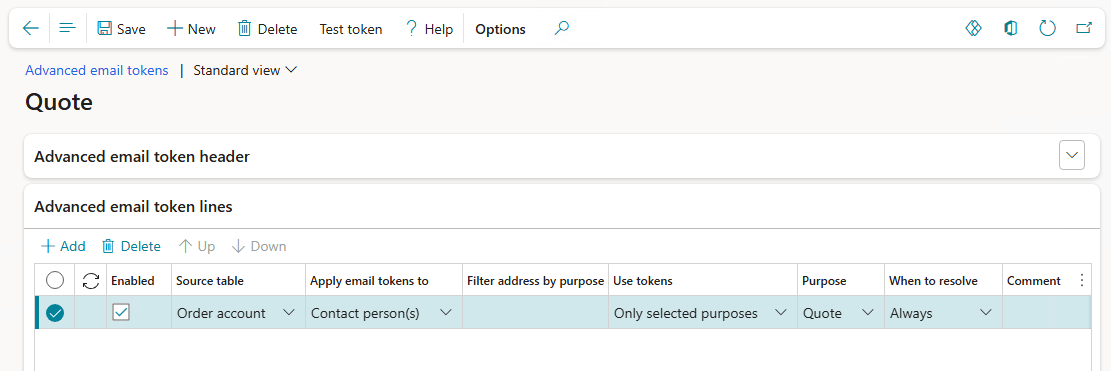
The key change is:
- Source table: Order account
Leave the remaining settings unchanged.
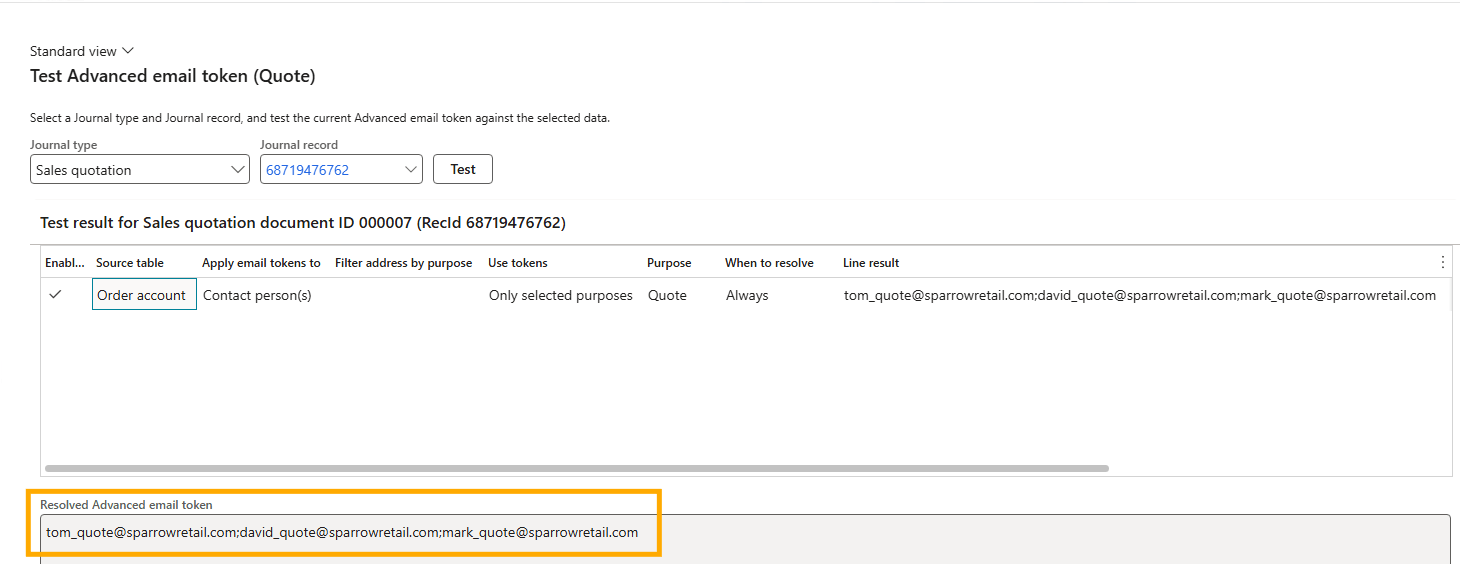
Unlike Quote, which resolves only the Contact person selected on the Sales quotation, Order account evaluates all Contact persons linked to the Customer and returns the email addresses with the Quote Purpose for all matching Contact persons:
Variation 2 – Use all email addresses as a fallback
The selected Contact person may not have an email address with the Quote Purpose, so it makes sense to configure a fallback.
Configure the token as shown below:
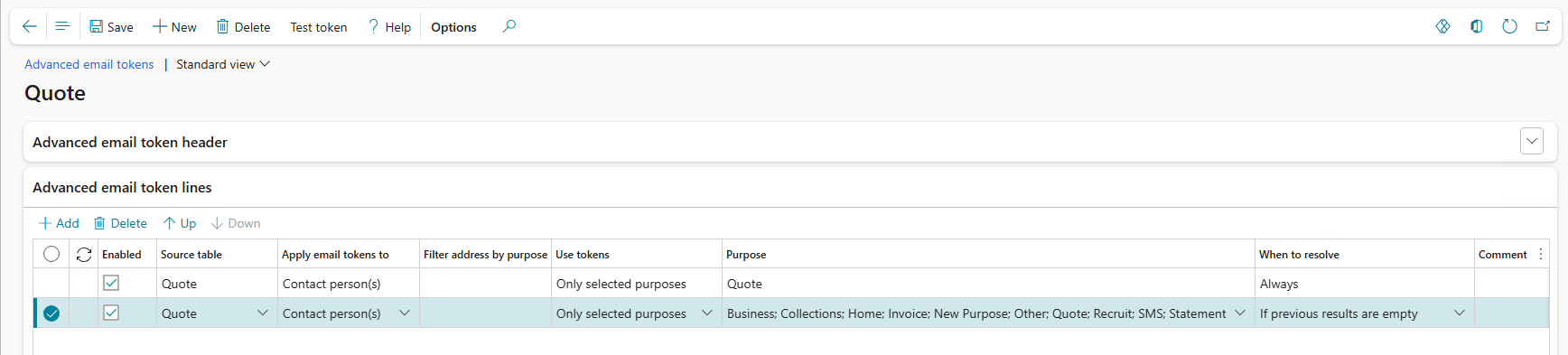
Use these settings:
First line
- Purpose: Quote
- When to resolve: Always
Second line
- Purpose: All purposes
- When to resolve: If previous results are empty
Token lines are evaluated in the order they’re listed, top to bottom.
The first line looks for an email address with the Quote Purpose. If no matching email address is found, the second line is evaluated and resolves all email addresses of the selected Contact person, regardless of Purpose.
This configuration pattern lets you define a preferred result first and a fallback only when the preferred result doesn't exist.
Test the configuration:
Use the token in the Email print destination
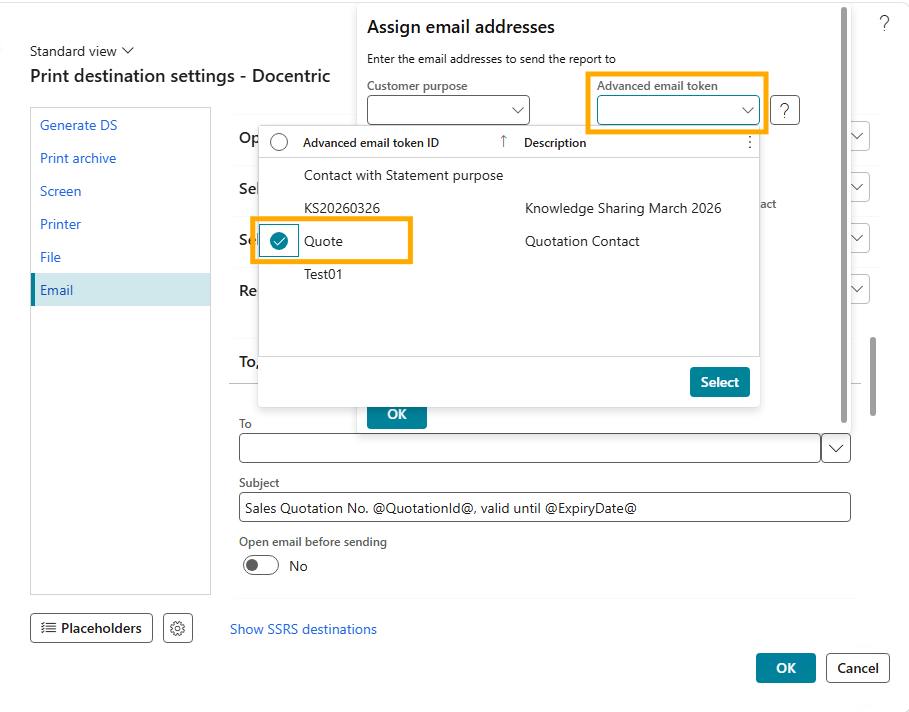
After you test the token, assign it to the To field in the Docentric Email print destination:
For more details, see the Use the token in Docentric Email print destination section of the first article in this series, Email Customer Account Statements to Contact Persons in D365FO.
Conclusion
With Advanced email tokens, you can email a Sales quotation to the Contact person selected on the Quotation and use only the email address with the required Purpose.
The same approach also works for other business scenarios. By changing the starting record, filtering by Purpose, or combining multiple configuration lines, you can build more advanced recipient selection rules without any customization.
Hi,
Thank you for the detailed information. Is this available in the 3.5.0.1(my current version) product version or I need to update my current version.
Thanks,
Hi D,
Thank you for your feedback and for reading the article!
Advanced email tokens are available starting with Docentric AX version 3.5.1, so you would need to upgrade from your current version 3.5.0.1 to use this feature.
For more information about Advanced email tokens and their configuration, I recommend checking our How-to Manual:
Advanced Email Tokens – Docentric AX
I hope this helps!