
 Tags: Attachments, D365FO, Extensible control, Free Edition, Games

Two hundred scanned documents are on their way to a purchase order. The counter climbs. You watch it climb.
That is the minute the Docentric Game Corner was built for.
A joystick in the drop zone
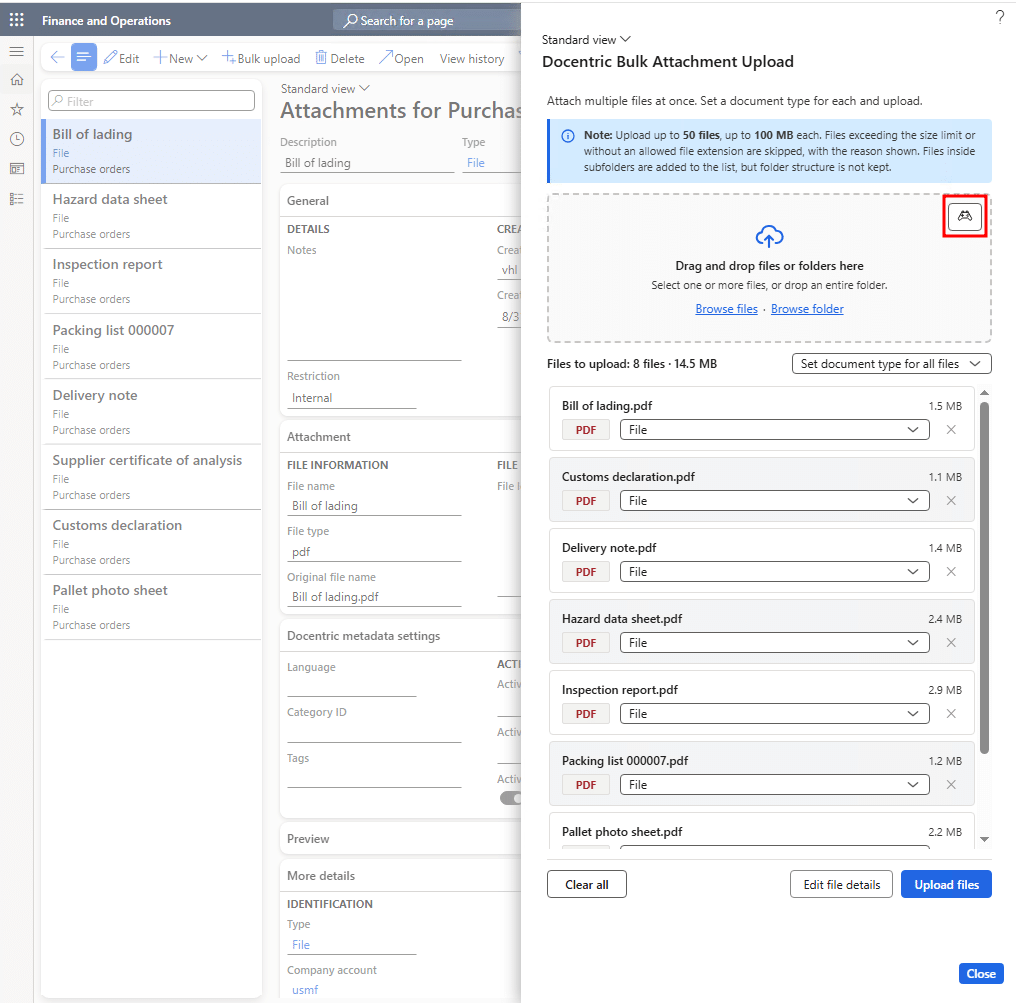
Open the Attachments page of any record in Dynamics 365 Finance and Operations (D365FO), click Bulk upload, and look at the top right corner of the drop zone in the Docentric Bulk upload attachments dialog. There you will find a small game controller button that lets you pick a mini-game and play it while your files upload.
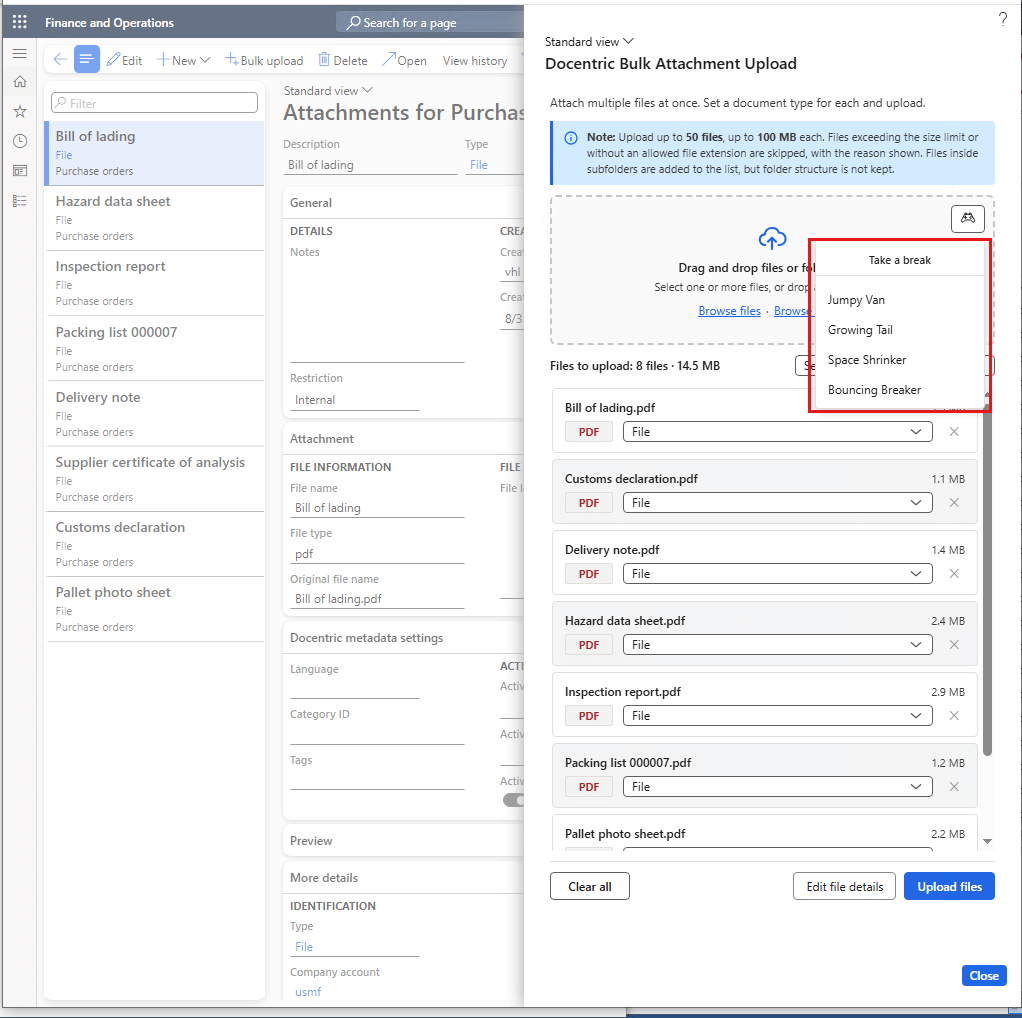
Click it and the Take a break menu opens.
Pick a game and it fills the screen over the dimmed dialog. Close it with the X or with Esc, and you are back in your file list exactly where you left it.
Four games, and the rules fit on one line
Small, familiar games from childhood.
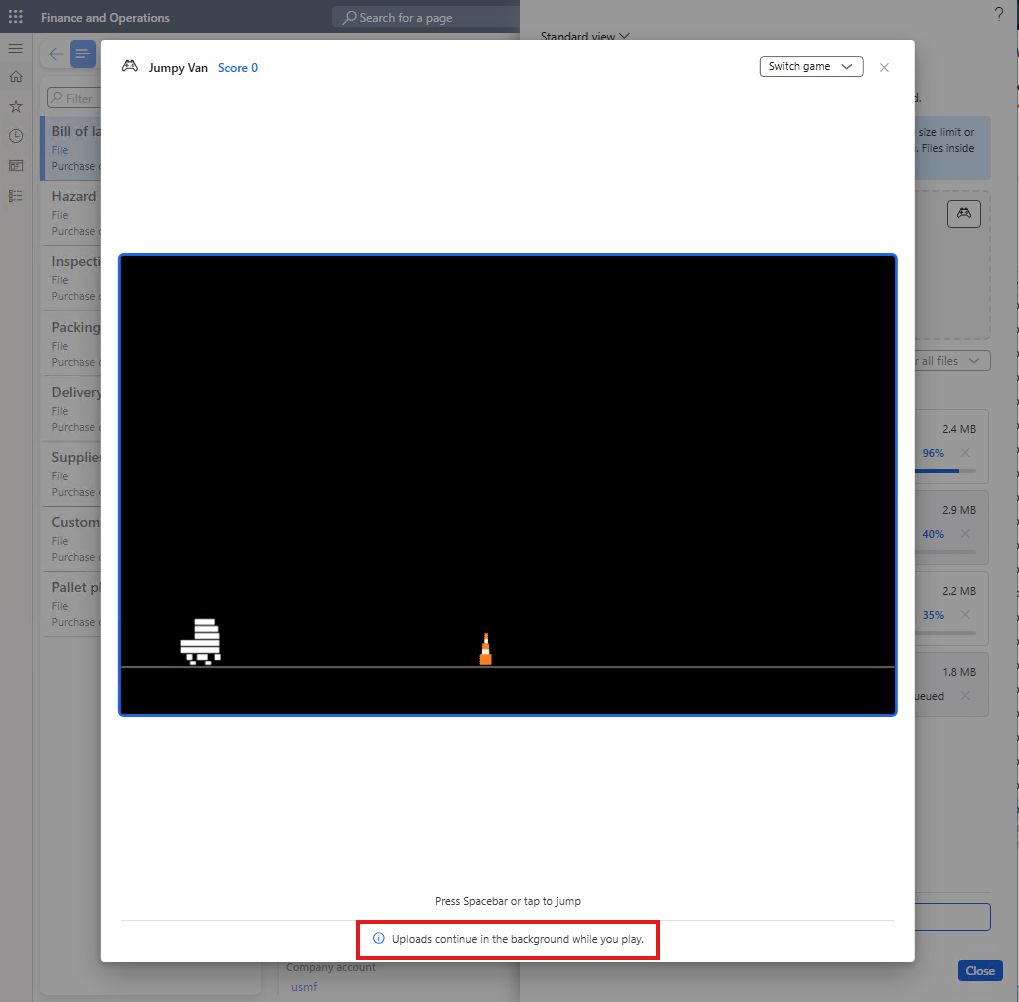
- Jumpy Van. A van runs, road cones come at it, you jump. One key does everything.
- Growing Tail. Steer a growing line into the food and not into yourself.
- Space Shrinker. Wall off the empty parts of the board while the balls bounce around, and do not get caught building.
- Bouncing Breaker. Bounce a ball off a paddle until the wall of bricks is gone.
Each game prints its controls under the board, so there is nothing to look up. Jumpy Van gets away with Press Spacebar or tap to jump. Space Shrinker takes a longer one.
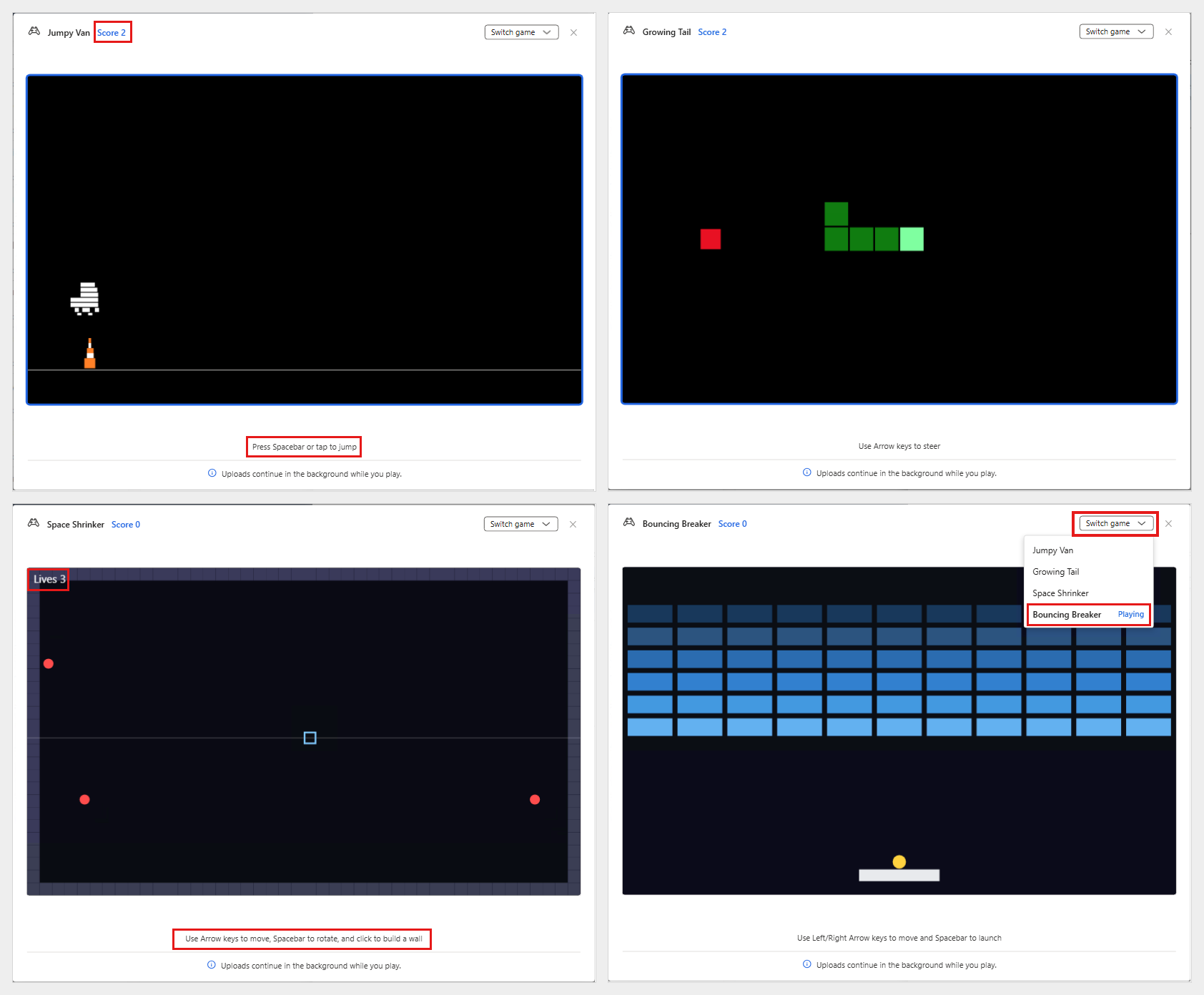
Your score sits in the header, next to the game name. Space Shrinker counts your Lives, and a lost round paints GAME OVER with a restart hint under it: a click here, a key in the other three games. The Switch game dropdown in the header lists all four and marks the one you are on as Playing.
The upload does not wait for you
The game panel answers that in its own footer:
Uploads continue in the background while you play.
The files keep going up while you dodge road cones, and when you close the game, the progress bar has moved on without you.
Games in an ERP?
A fair question, and it deserves a straight answer rather than a wink. It is a nod to Dynamics AX 2009, which hid a small game among the tutorial forms in the AOT.
The games run in your browser, on a canvas. They touch no data, write nothing to your database, and keep nothing between sessions: no scores, no saved games, no browser storage.
- They are on by default, and an administrator can switch them off for the whole environment with the DisableGameCorner setting in Docentric system settings. There is no notice and nothing to click. The setting covers the games in Docentric AX itself: the Docentric Bulk upload attachments dialog reads it and the button is gone for everyone. A form that hosts DocGameCornerControl on its own decides for itself, the way the example below does. If you want your own placement to follow the environment, read the setting in your form and leave the control out.
A control of its own
The Game Corner is also a control of its own, usable on other forms and not only in the upload dialog. It is DocGameCornerControl, an extensible control any form can host, with one design property, Initial game, which picks the game the corner loads when you click into it. Leave it unset and that is Jumpy Van.
Where the games appear is up to the host form. The example below shows one way to do it.
To show what that looks like, we packaged a small example model. It brings its own window, its own menu item, its own privilege and a menu extension. That extension puts Docentric game corner (POC) on the D365FO Settings (gear) menu, one click from any page. The window it opens is titled Docentric Game Corner. The (POC) suffix on the menu entry marks it as the example. The window opens idle, with a hint on the board and no game in its header. Clicking inside the board starts the game set as Initial game, and the same Switch game dropdown moves you between all four without leaving the window. The example sets Initial game to Bouncing Breaker, so that is the game its board starts with. In the Docentric Bulk upload attachments dialog nothing starts by itself: the game button opens the Take a break menu and you pick one. Click anywhere else on the form and the game stops, so the keyboard goes back to the form.
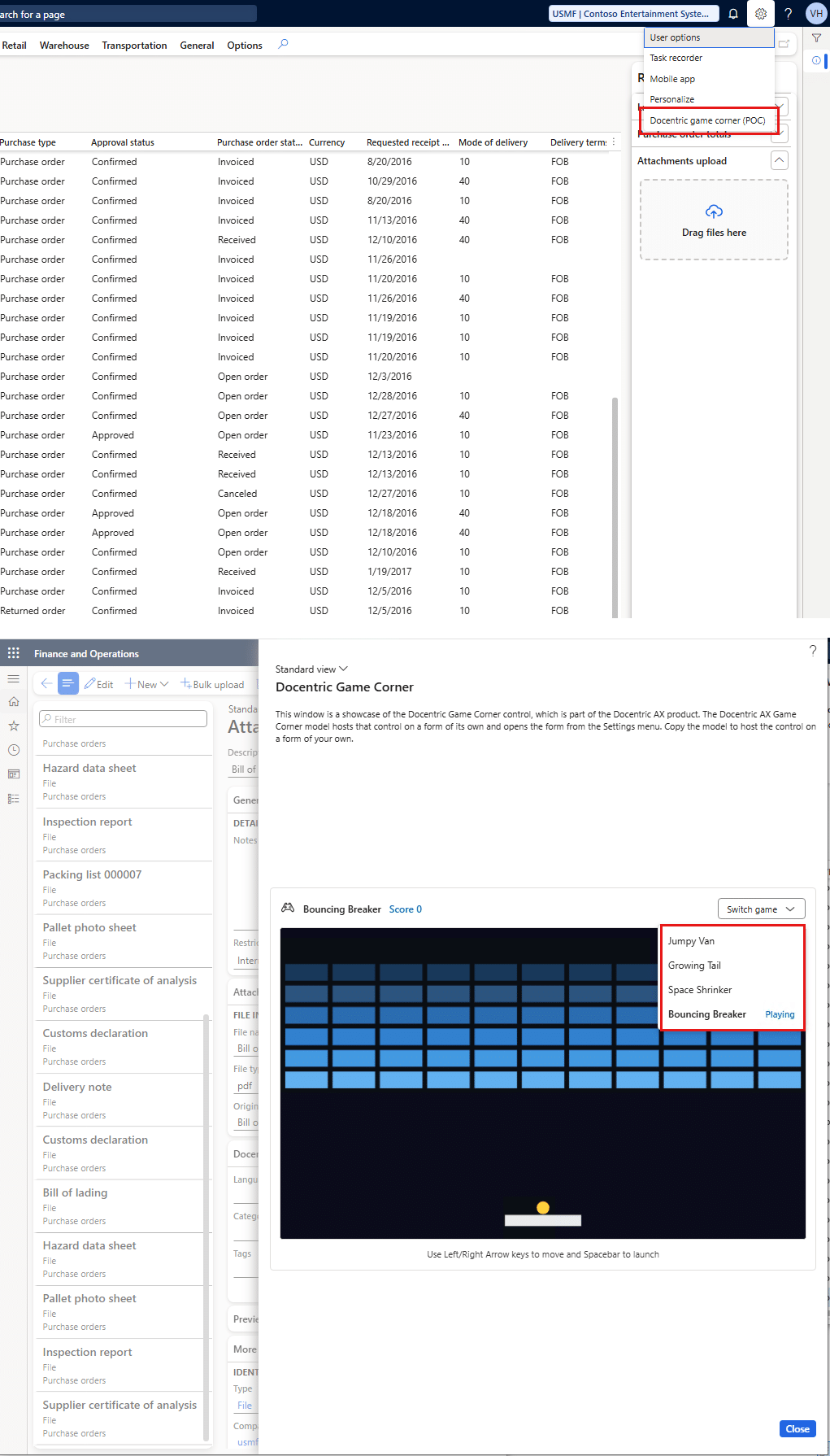
- In Docentric AX model: the game button and Take a break inside Docentric Bulk upload attachments, the DocGameCornerControl control and its four games, and the DisableGameCorner setting.
- In the GitHub example: the entry on the Settings menu, added by a menu extension, plus the example’s own window, its own menu item and its own privilege. The product ships no window of its own, so this one belongs to the example. The product does not put the games on a menu for you.
In a plain Docentric AX installation the Game Corner is reachable from Docentric Bulk upload attachments and nowhere else. Hosting it somewhere of your own is what the example is for.
Take the example from GitHub
Everything in the screenshot of the example window above is public:
github.com/Docentric/docentric-ax-d365fo-game-corner
Install Docentric AX Free Edition v3.6.0 or later first: the control itself comes from the product, the repository holds only the example. Then clone the repository, link the model into your development environment, build it, and open the Settings menu. The README walks you through the setup for OneBox and Unified Development Environment (UDE).
There is no custom logic in the example form. It holds a short introduction and the control, and one property picks the game it opens with. A menu item, a menu extension and a privilege put it on the Settings menu.
The Game Corner exists because one part of bulk upload could not be made faster. A long upload takes as long as it takes. So we made the waiting less dull and left administrators a way to switch it off.
👉 Open the Attachments page of any record, click Bulk upload, drop in a folder, and hit the joystick while it runs. Bulk upload is part of Docentric AX Free Edition, so you can try it now without having to buy anything.
👉 Want it on your own form? Clone the example from GitHub.
Tell us which game got you, and what your best run was.