
 Tags: Attachments, D365FO, Free Edition

Does this sound familiar? You should attach 12 different files to one Purchase order. You click New, pick a document type, browse for the first file and wait for the upload to finish. Then repeat this 11 more times, trying not to lose track of which files you’ve already uploaded 😅
That’s how you attach multiple documents in D365FO today: one by one, and with a lot of patience. Dull work, but you can’t skip it.
We thought it should be easier, so we built Docentric Bulk Attachment Upload and made it part of Docentric AX Free Edition. It allows you to drag all files in at once, or select a whole folder and upload everything in it. Here’s how it works.
A new button on the Attachments page
Open Attachments on any record, for example a Purchase order. Next to the standard New button there’s now a Bulk upload button.
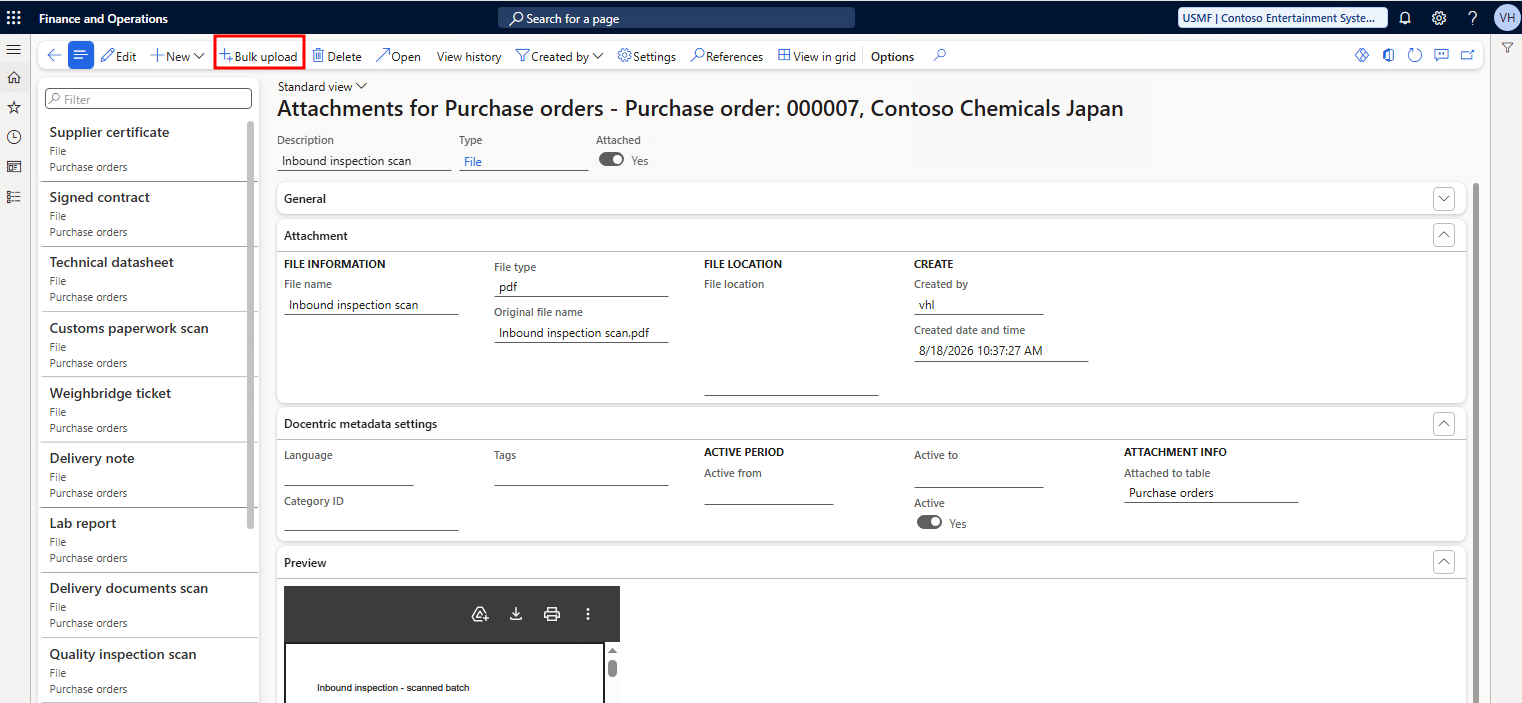
Its visibility and enabled/disabled behavior follow the behavior of the standard New button: whenever New is disabled or hidden, so is Bulk upload.
Add files and review them before upload
Click Bulk upload, and the Docentric Bulk Attachment Upload dialog opens with a drop zone that says Drag and drop files or folders here.
Drag your files onto it, or use Browse files to select multiple files in the standard file picker. You can also use Browse folder to add all files from the selected folder, including its subfolders. The folder structure isn’t kept: all files appear in one flat list.
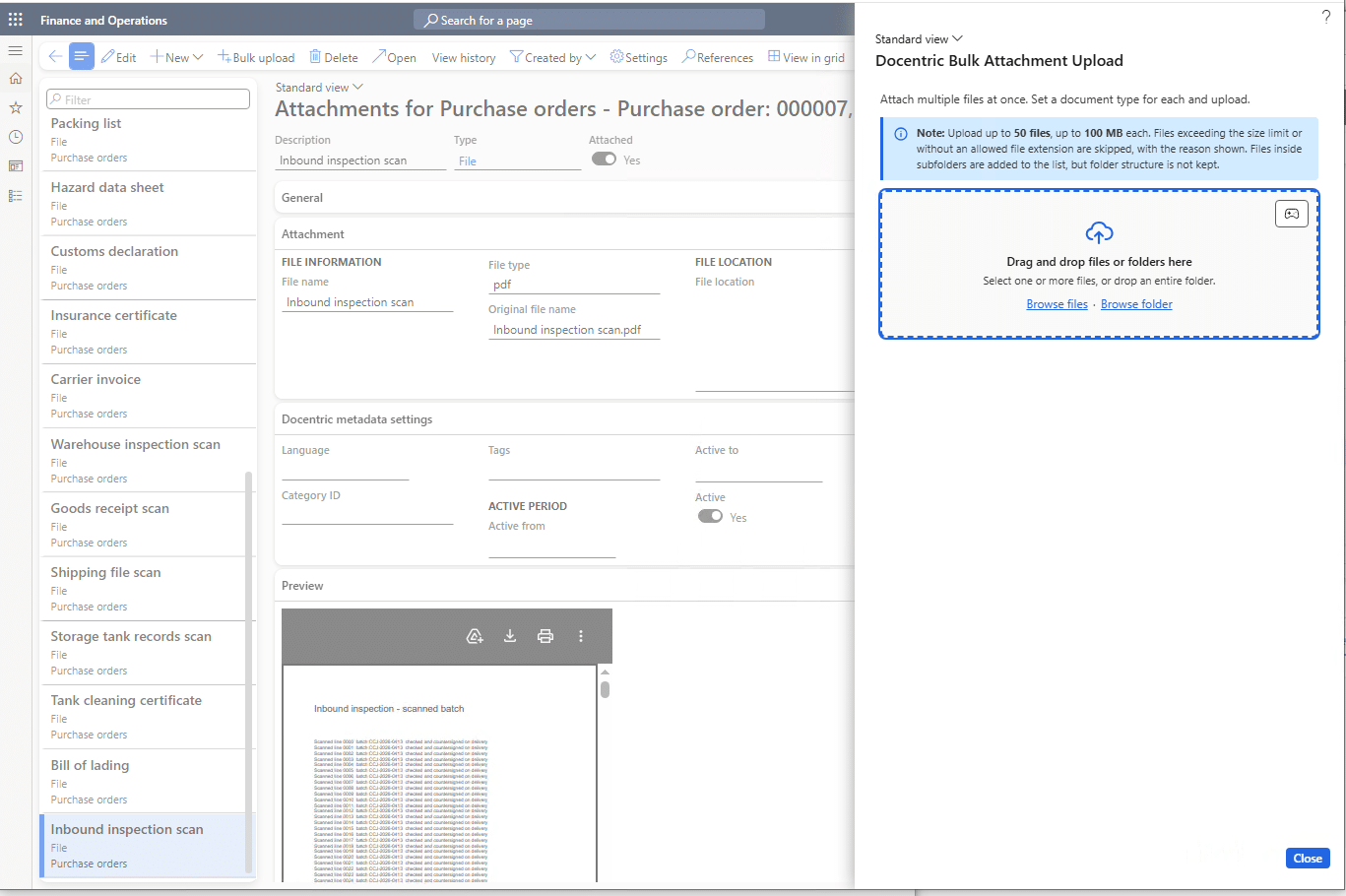
Nothing is uploaded to D365FO yet. The files stay in your browser until you click Upload files, so you can review everything and make changes first.
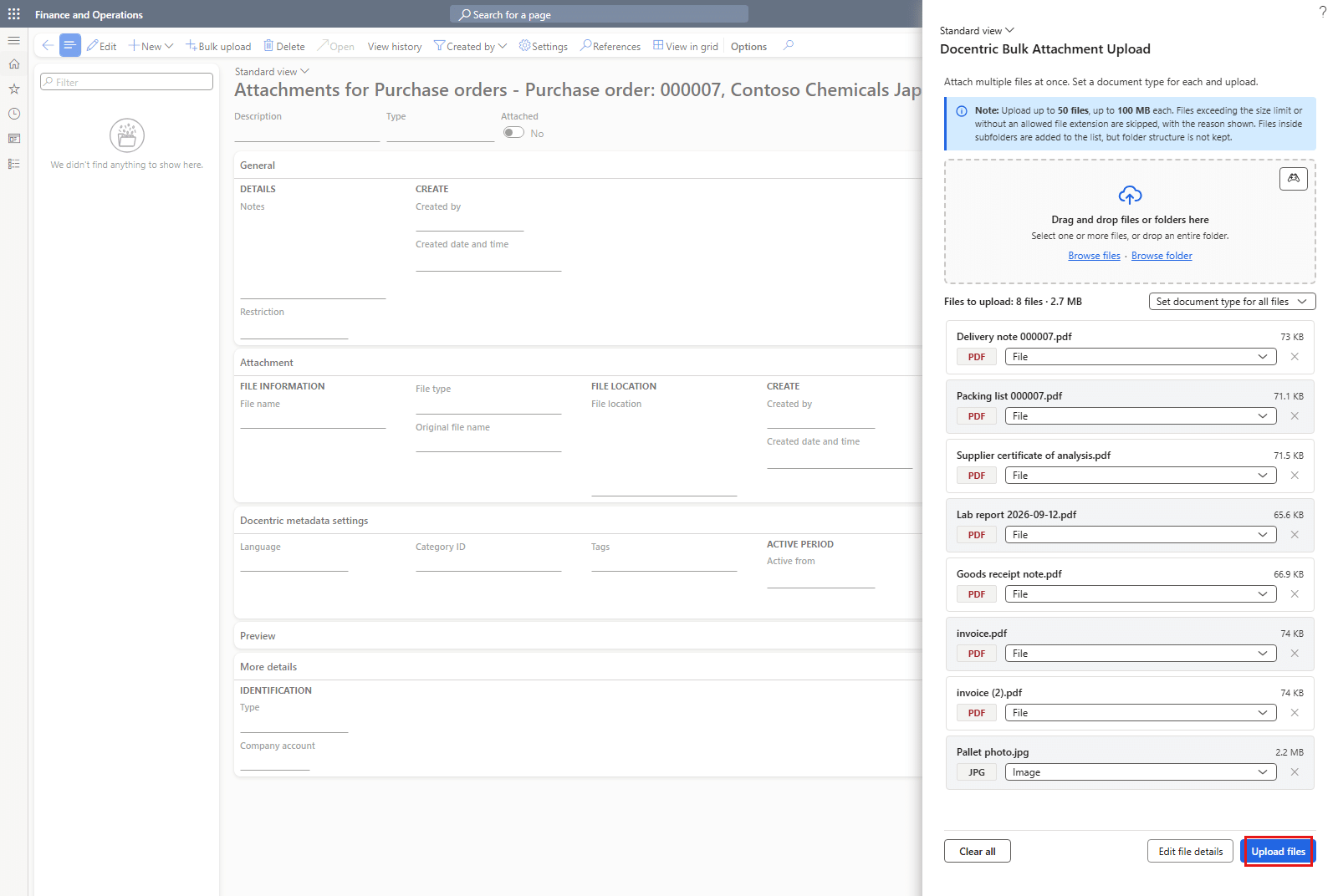
If you add 2 files with the same name, the second one is renamed for you. In the example above, that's invoice.pdf and invoice (2).pdf, the same numbering Windows Explorer uses. The duplicate name check only looks at the files in the list. If the record already has an attachment named invoice.pdf, a new invoice.pdf is uploaded with the same name (because standard D365FO allows it).
The document type is filled in automatically: images get the document type set in the Image field on the Document management parameters page and all other files get the type from the File field. Set document type for all files applies the selected type to the whole list, and you can still change the type of any single file in its row. Edit file details opens a new dialog where you can fine-tune the details of each file.
File limits and skipped files
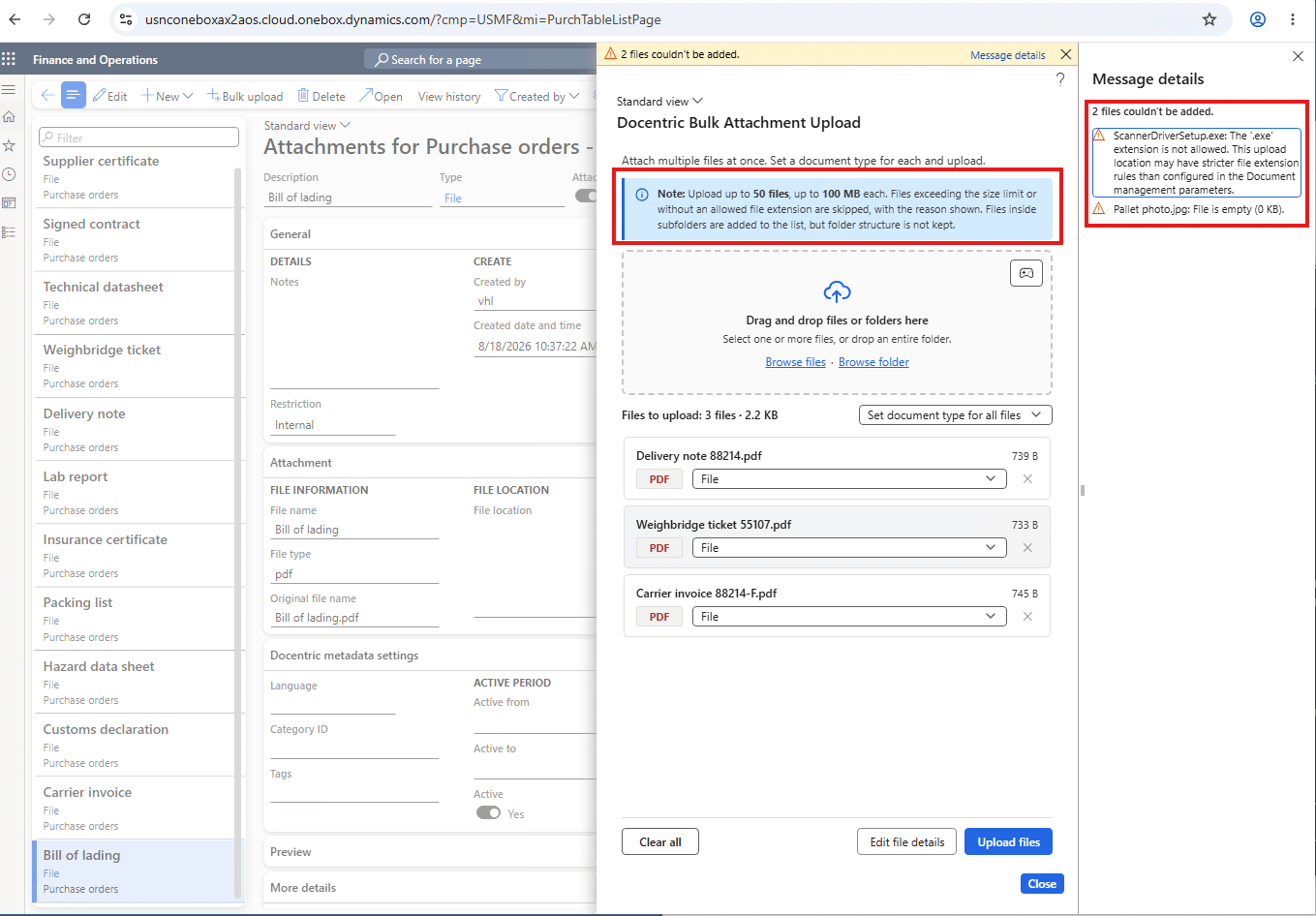
These files are attached the same way as manually attached files, so the allowed file extensions and the maximum file size apply as configured in Document management parameters. You can also add up to 50 files to the list by default. A file that breaks a limit is skipped with the reason shown, and the rest are added as usual.
Skipped files are reported in a separate message, so you always know which files were skipped and why. Message details lists the files behind the number.
Edit file details before upload
The Edit file details button opens a full-screen view of all files selected for upload.
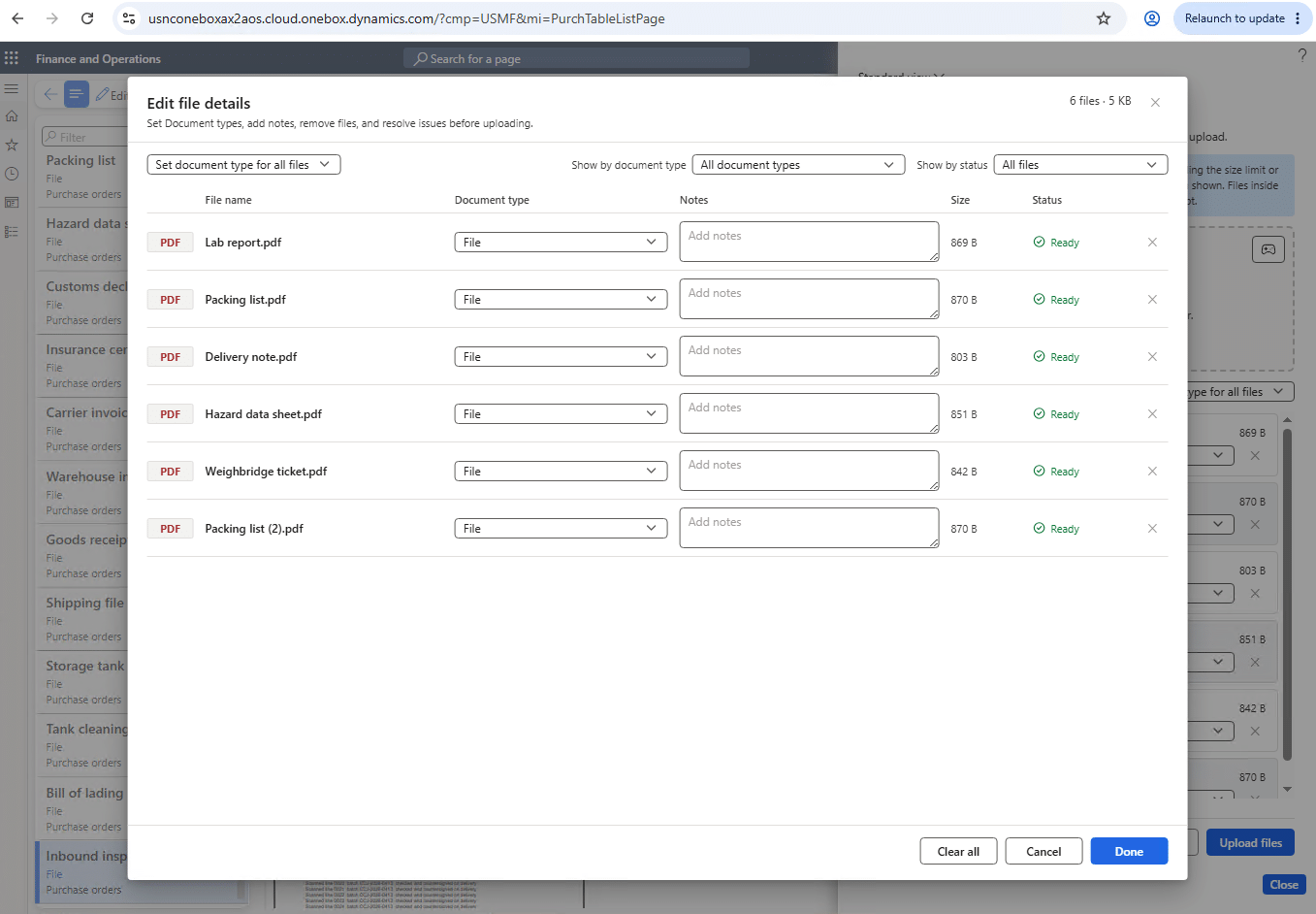
In this view you can:
- Add notes to each file. Notes can span multiple lines.
- Change the document type of one file or all of them.
- Remove files added by mistake.
- Filter the list with Show by document type and Show by status to find files quickly in a long list.
Each row shows the file’s status: Ready, or Missing type if no document type is set. A file with a missing type can’t be uploaded.
Clear all removes all files from the list. Done applies your changes and returns you to the previous dialog, while Cancel returns you without applying any changes, including Clear all.
Upload the files
Click Upload files to start the upload. Several files are uploaded at the same time, while the rest wait in the queue. Each row shows its own status. A line above the list shows the progress, for example 'Uploading files: 7 of 20 completed'. Large files are uploaded in smaller parts in the background.
If you change your mind halfway, click Stop upload. Files in progress or in the queue are stopped, and files already uploaded stay attached.
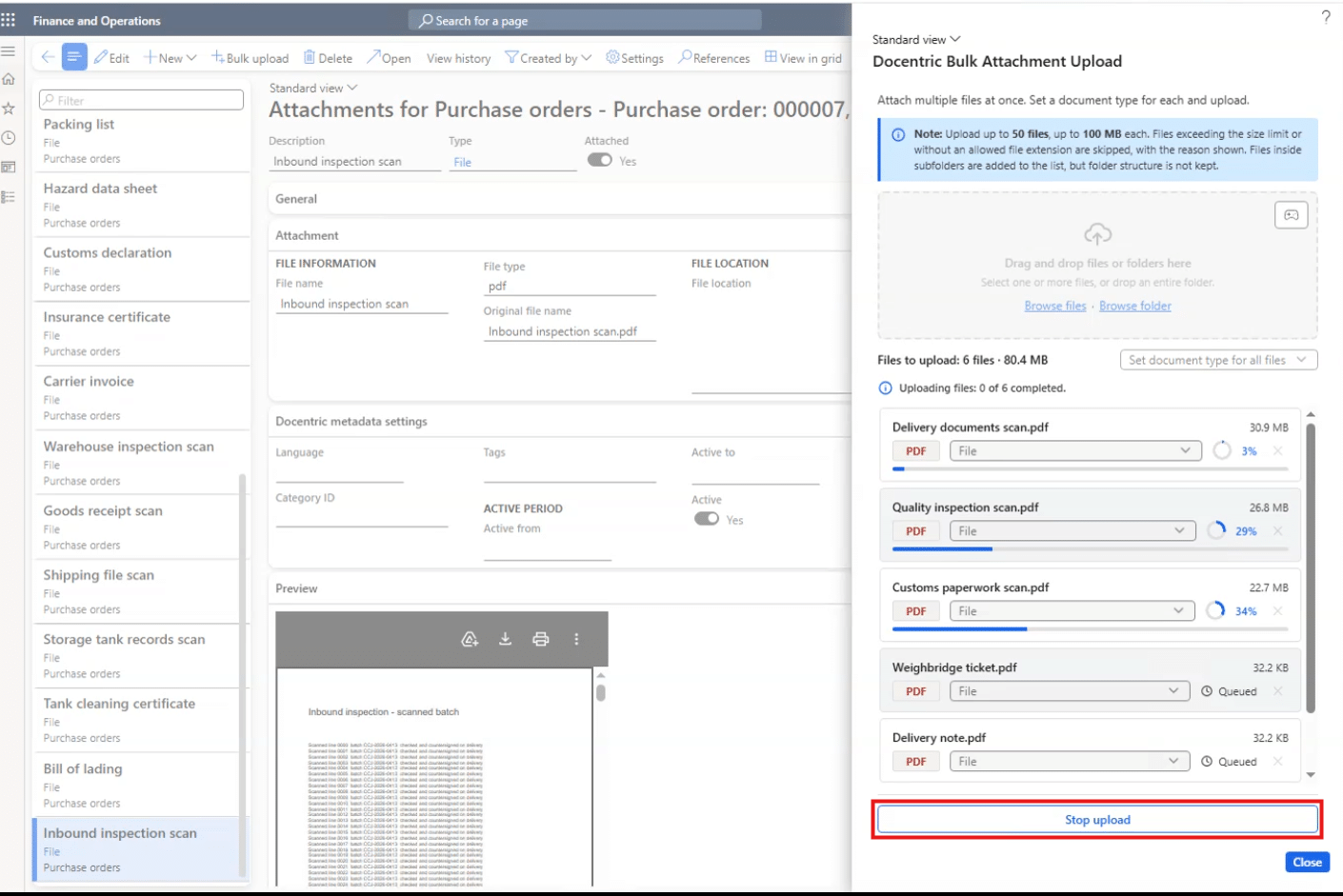
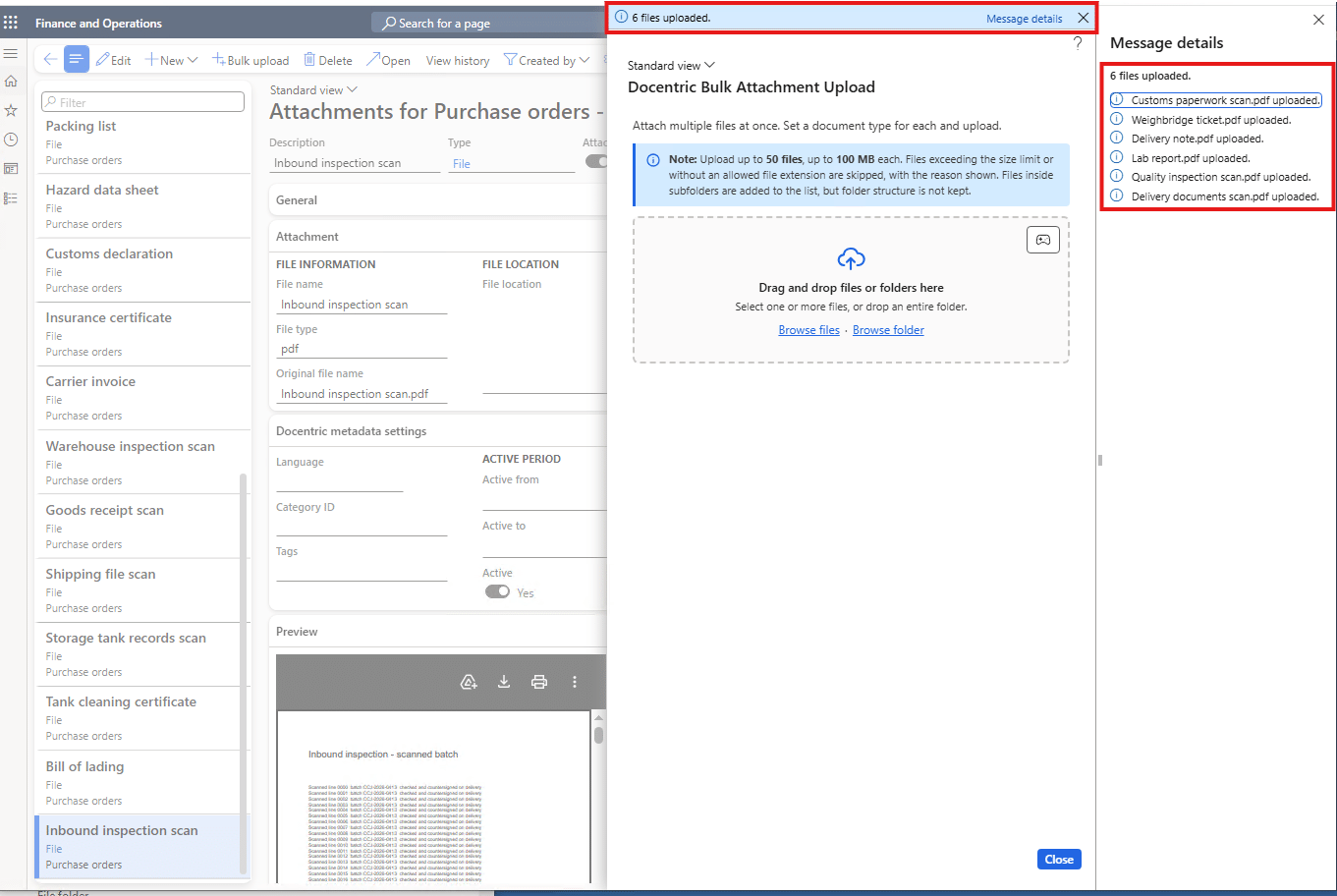
Uploaded files are automatically removed from the list. When the upload finishes, you get one Infolog summary, for example '18 files uploaded, 2 files failed to upload'. Message details lists the files behind each number.
If a file fails, for example because of a dropped connection, it stays in the list with the failure reason. Retry all uploads only the failed files again.
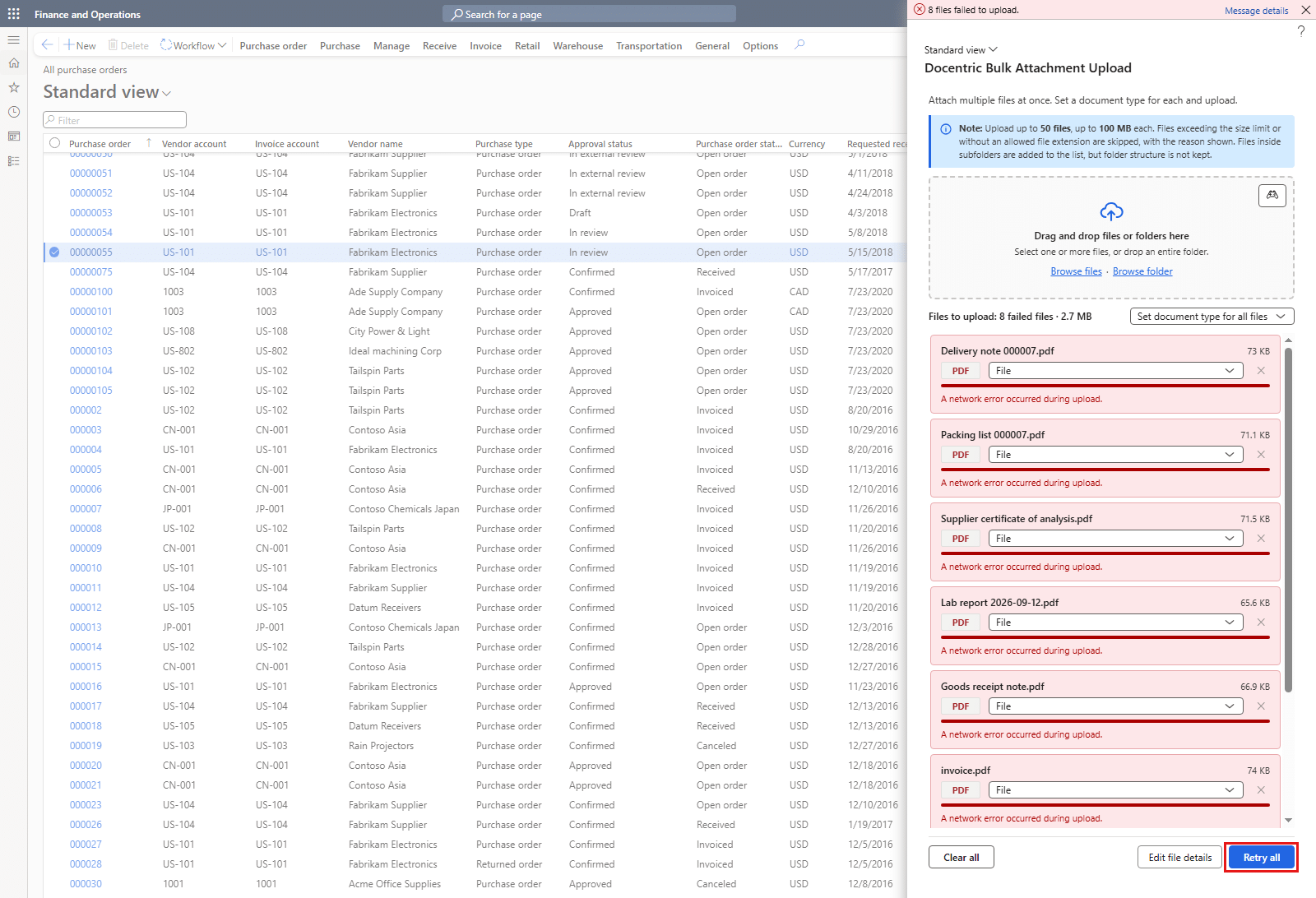
The dialog stays open the whole time. While the upload runs, the list is locked. As soon as it finishes, you can add the next files without closing the dialog.
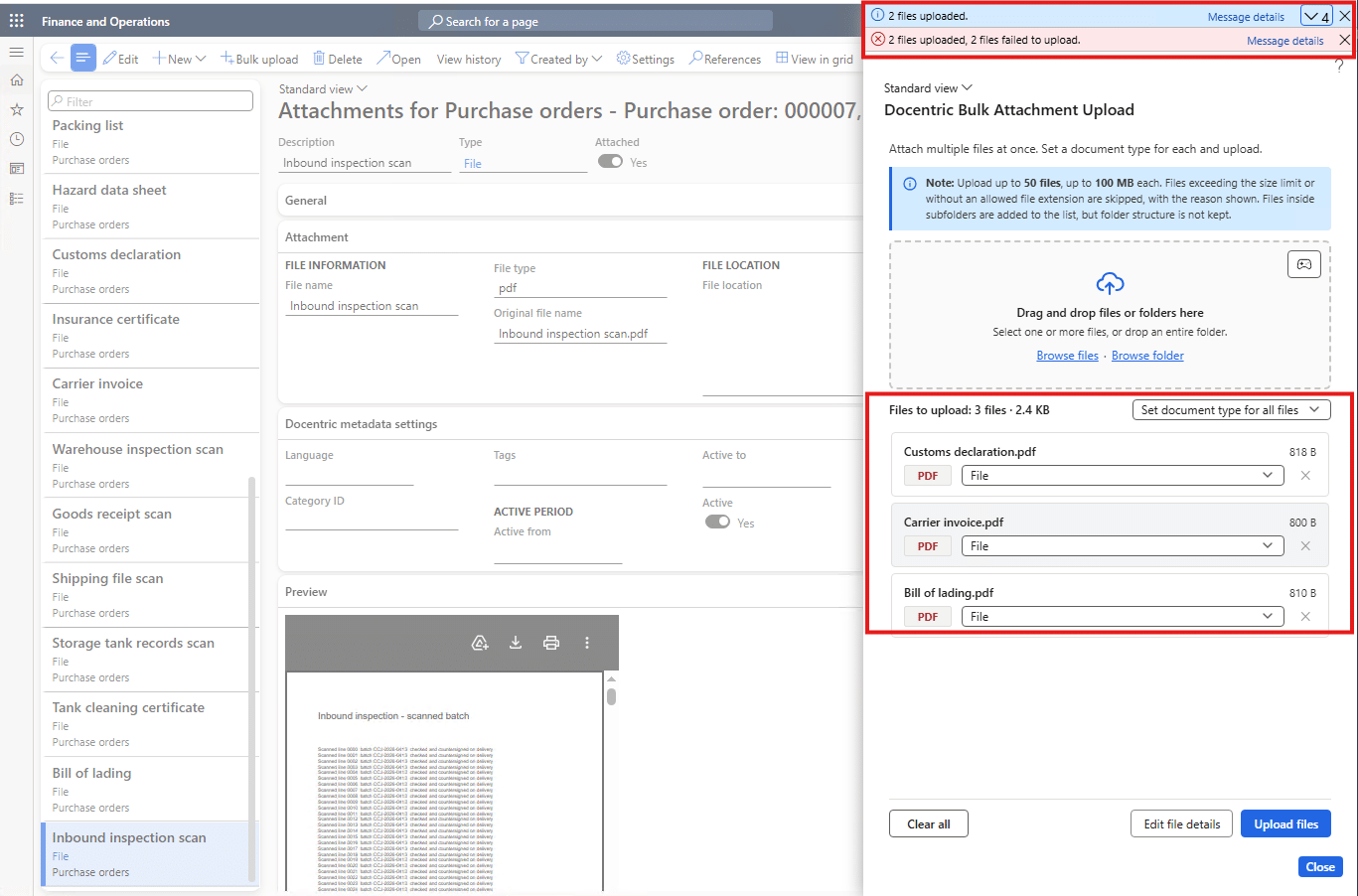
After the upload
Close the Docentric Bulk Attachment Upload dialog. Your files now appear in the Attachments list next to the files you added earlier, with their document types and notes.
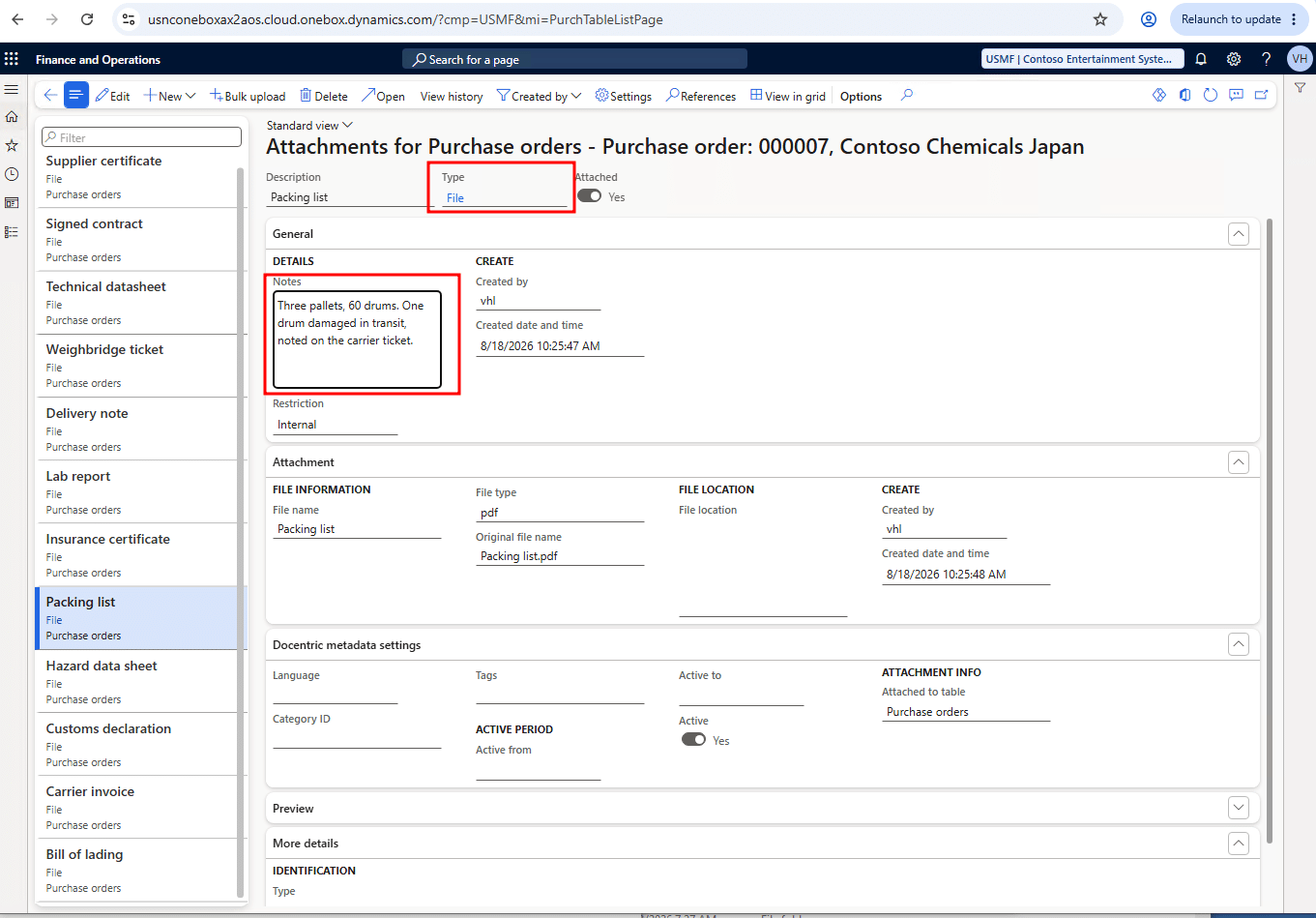
They’re standard D365FO attachments, the same as files you attach manually one at a time:
- Storage: Each file is saved to the storage location set on its document type (Azure storage, Database or SharePoint), the same as a manually attached file.
- Behavior: You can preview, open, download or delete them like any other attachment.
Take a break while the files upload
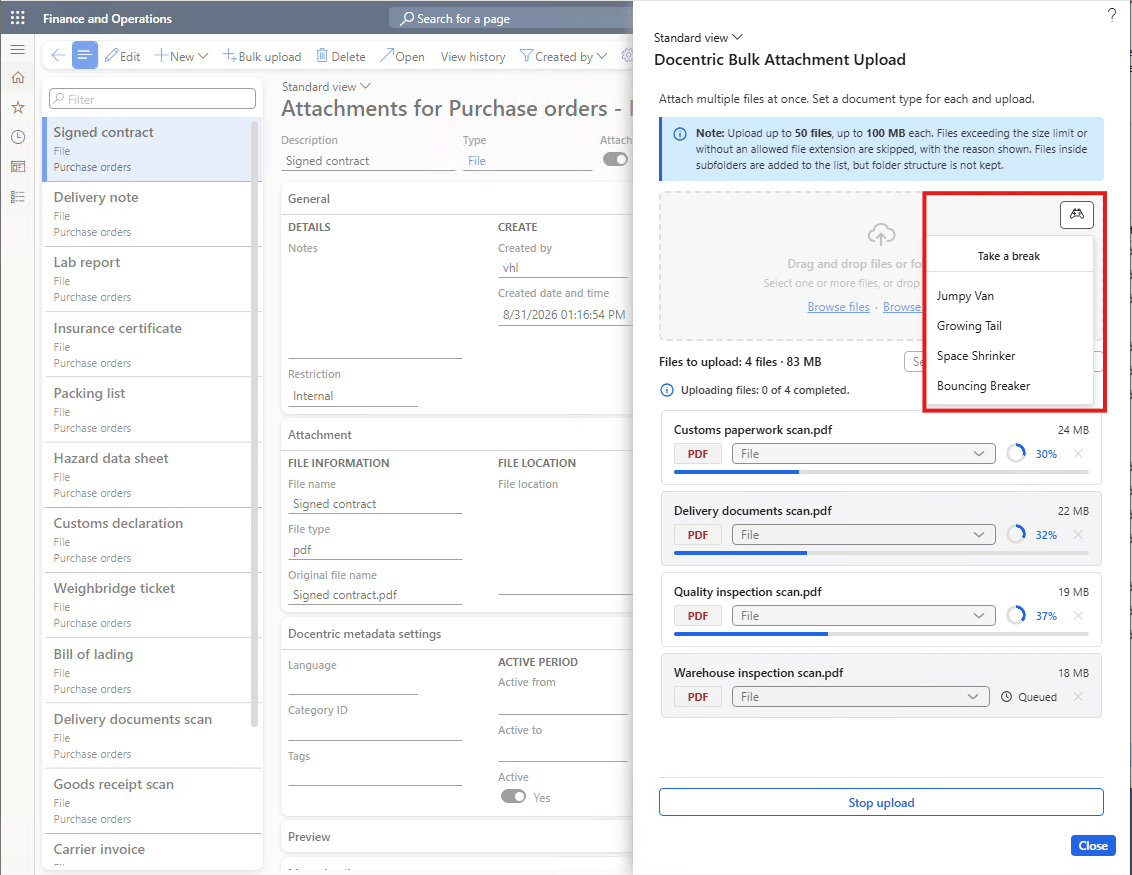
A joystick icon in the drop zone opens Take a break, with 4 small games you can play while the files upload. And if your admin finds out, they can turn the games off for the whole environment. So play responsibly 😉
Bulk upload on other pages
You can also use bulk upload outside the Attachments page. A developer can extend existing D365FO forms to host the Docentric Bulk Attachment Upload control on any page with a saved record to attach files to. We built 2 examples to show how this works.
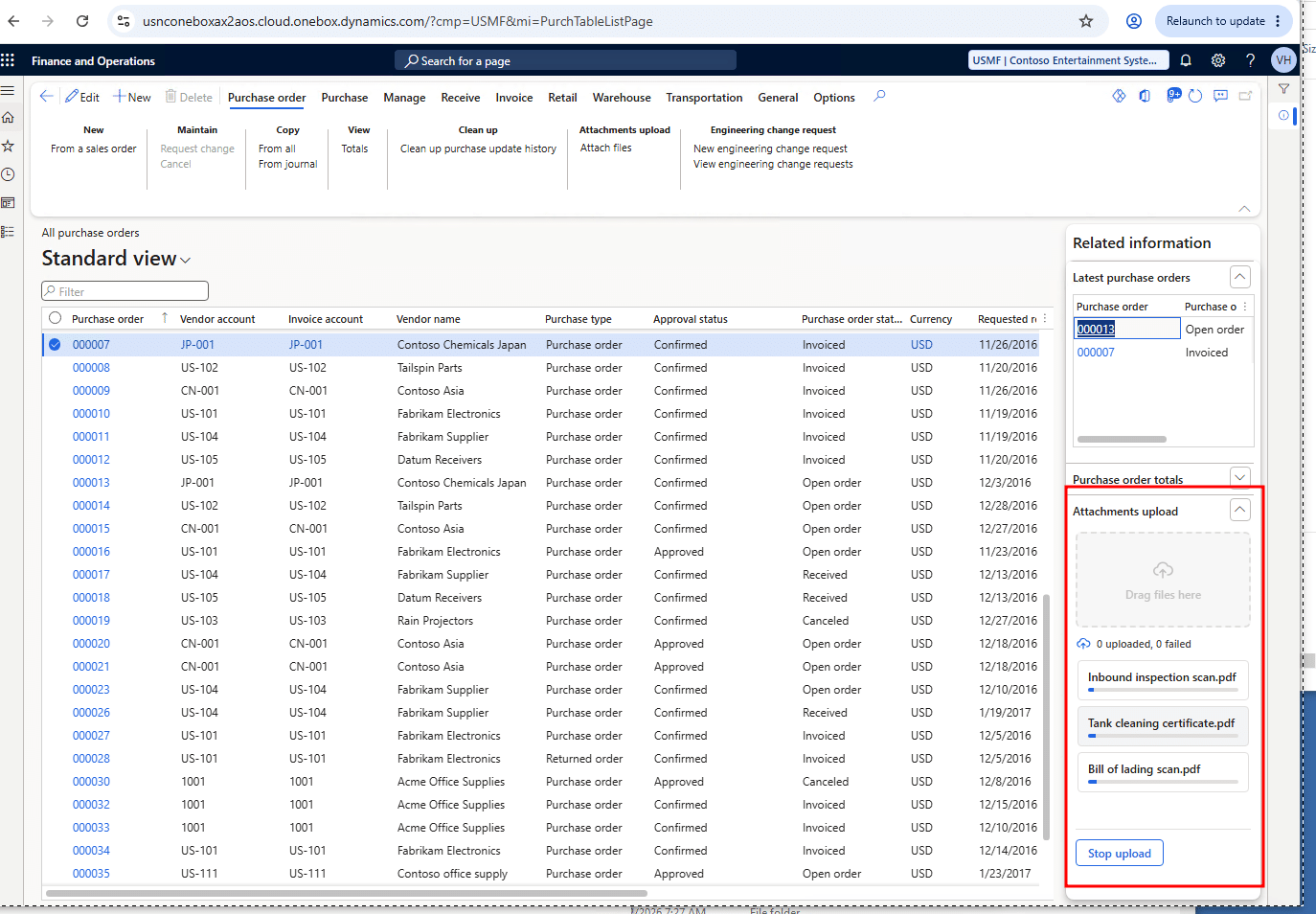
The control can be added in a Compact view, meant for FactBoxes. In this view, there’s no detail editing and no separate upload step: files are attached as soon as you drop them.
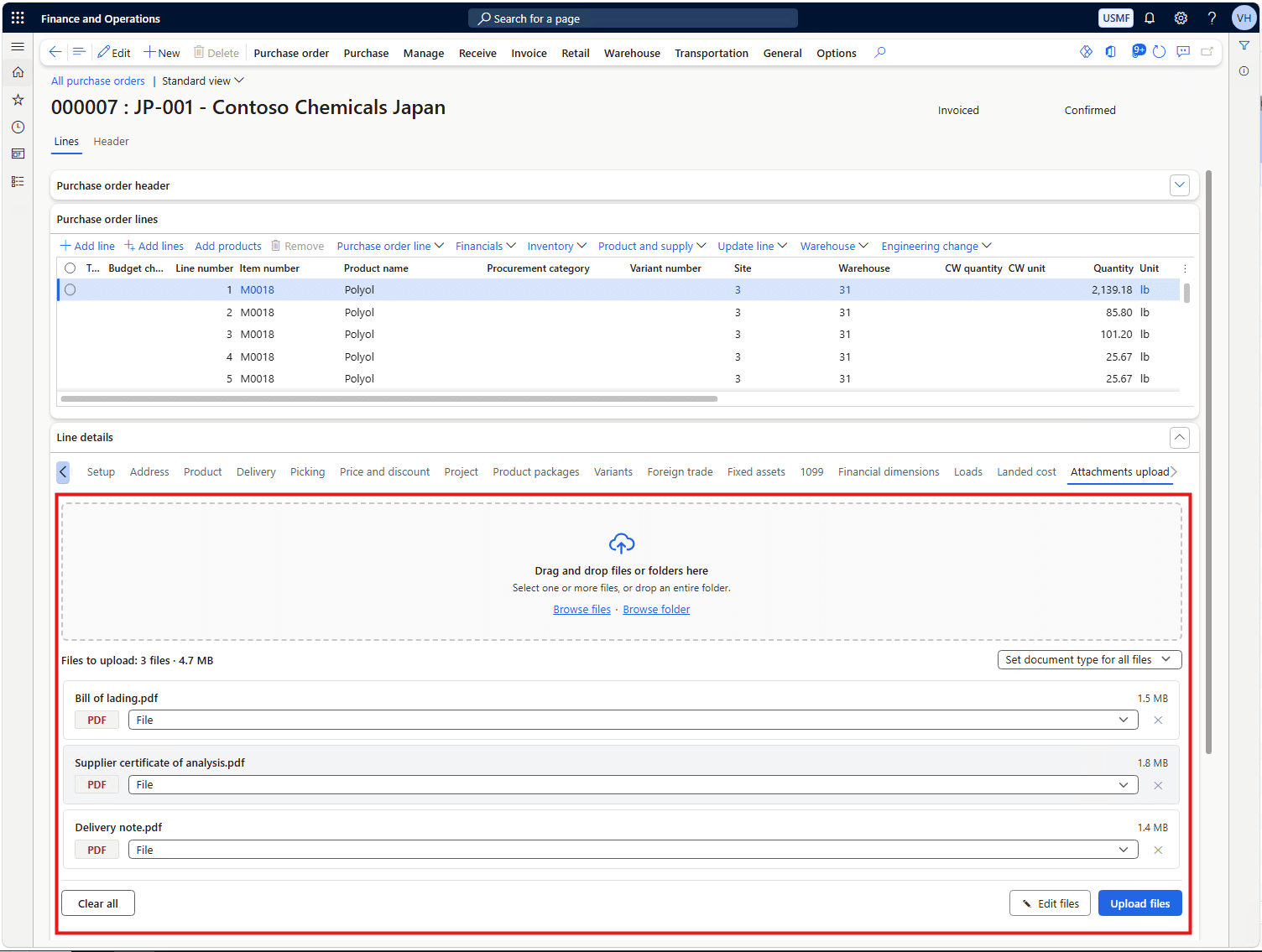
It can also be embedded directly on a page, for example on the Purchase order page. This gives you the full control with all its options, right where you work.
Other attachment improvements in Docentric AX
Docentric Improved Attachments already gives you a tabular view, instant previews, richer metadata that you can update in bulk, and bulk download and delete. Learn more about Improved Attachments >>
Try it on your own files
12 files on a Purchase order now take one drag and drop instead of 12 rounds of New, browse and wait.
Like the rest of Improved Attachments, Docentric Bulk Attachment Upload is part of Docentric AX Free Edition, available from v3.6.0.