
 Tags:

Someone asks for "drag and drop, many files at once" on a custom form. Before you can price it, you have to find out what it should do: accept whole folders or only files, which document types, what size limit, who may attach to a record that is locked, and what the user sees while the files go up.
You don't have to build that. Bulk upload in Docentric AX is an extensible Dynamics 365 Finance and Operations (D365FO) control that you can use on your own forms, not only on the Attachments page. You can open its dialog with one call, place it on your own tab or FactBox, or add your own server-side handler that processes each uploaded file after it is attached.
Every example below is in the public repository at github.com/Docentric/docentric-ax-attachments-bulk-upload-examples. The examples need Docentric AX Free Edition v3.6.0 or later, which contains the control itself.
Where to start
Pick the smallest option that solves your problem. To let users attach several files to a record, call DocBulkFileUploadHelper::openBulkUploadDialog; nothing else is required. To place the upload on your own form, embed the control and set two properties, Ref data source and Upload flow. To do more with each file than attach it, write a handler.
How the upload works
DocBulkFileUploadControl is an HTML/JavaScript extensible control. File content never goes through the control's X++ code. The server generates an attach token by using the standard DocumentManagement::createAttachToken method. Until the user starts the upload, the files stay on their own disk. The page holds the name, size and type of each file, never its content. The browser then sends each file straight from disk to /filemanagement, in 1 MB slices for anything over 5 MB. From there the file follows the same path as a standard D365FO attachment: it is stored in the configured document storage and recorded as DocuRef and DocuValue. Chunks go one after another, and by default three files upload at the same time.
The control adds no storage of its own, and the limits configured in Document management parameters still apply.
Open the ready-made dialog
If all you want is "let the user attach several files to this record", you don't need to touch the form designer. Call the helper.
The signature:
|
1 2 3 4 5 6 7 8 |
public static DocBulkFileUploadContextList openBulkUploadDialog( TableId _tableId, RefRecId _recId, DataAreaId _dataAreaId, Object _caller, boolean _canCreate = true, IDocBulkFileUploadHandler _handler = null, IDocBulkUploadAccessBehavior _accessBehavior = null) |
_tableId, _recId and _dataAreaId locate the owner record, and _caller is the calling form. _canCreate is the parameter worth pausing on: it tells the dialog whether New is enabled for this record right now, and it defaults to true. The dialog has no data source of its own, so it cannot read the state that enables New on your form; your form passes that state in. _handler and _accessBehavior take a per-file handler and an access behavior of your own. When you pass _accessBehavior, _canCreate is ignored. Do not pass DocBulkFileUploadDataSourceAccessBehavior to the dialog: the dialog has no data source, so it blocks every table without docuAllowEdit_W.
Filled in for a purchase order, the call reads:
|
1 2 3 4 5 6 |
DocBulkFileUploadHelper::openBulkUploadDialog( tableNum(PurchTable), // root table id of the owner record purchTable.RecId, purchTable.DataAreaId, // legal entity the record lives in formRun, // caller, passed to the dialog DocPurchOrderBulkUploadShowcase_DCBU::isPurchTableAttachEligible(purchTable)); // the showcase rule: can the order still be updated |
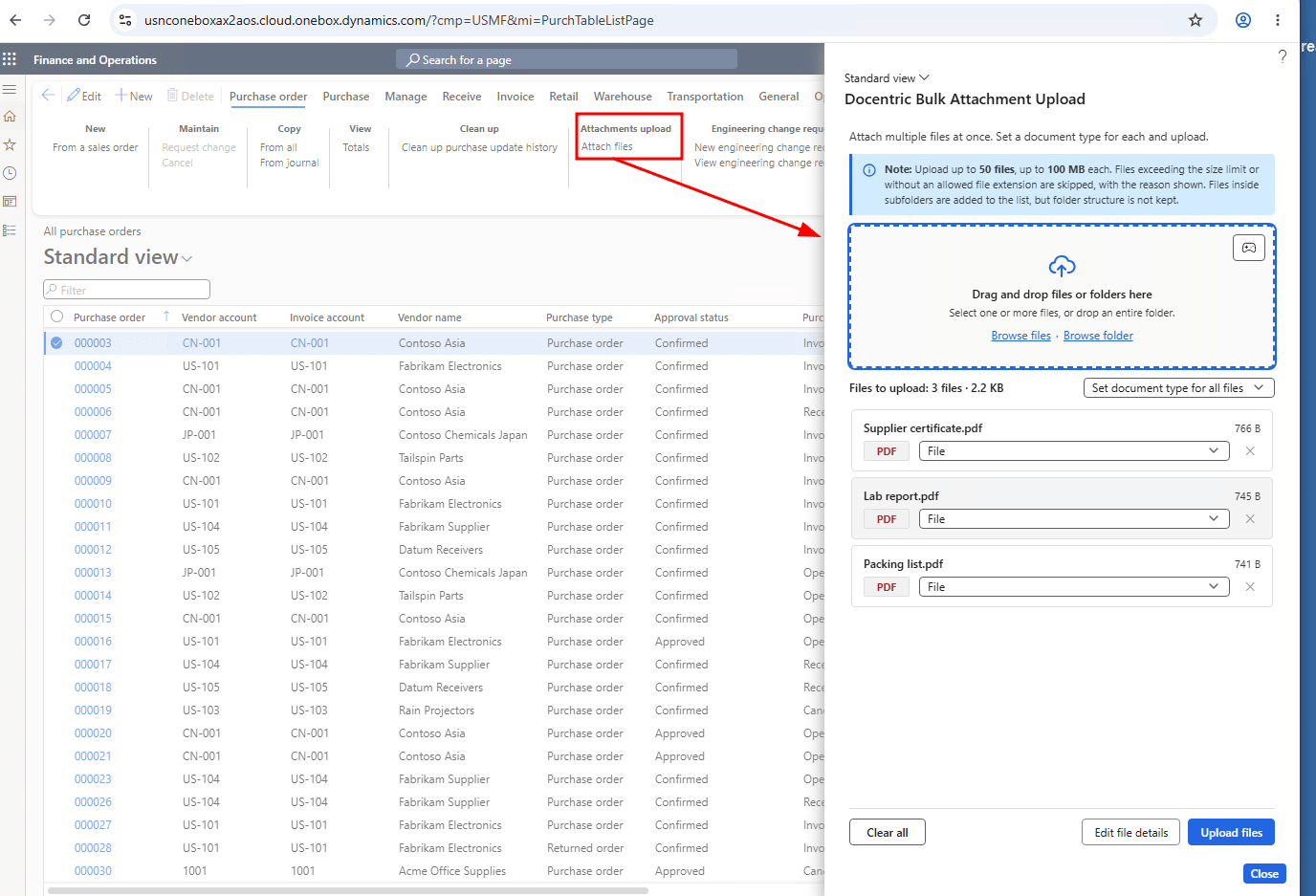
That opens the DocBulkFileUploadDialog form for your record and waits until the user closes it, so the line after the call is where you refresh your own view. If files are still uploading, the dialog asks before it closes. The Bulk upload button on the Attachments page calls the same helper.
The method returns a DocBulkFileUploadContextList. Its parmItems list holds one DocBulkFileUploadContext per file of each batch the user ran in the dialog, so a file sent again with Retry all appears once per attempt. Files rejected at drop are not in the list. Each entry carries the file name, the outcome in parmStatus (Attached, Skipped or Failed), the created DocuRef for an attached file and the parmReason for one that was not attached. countAttached, countSkipped and countFailed return the totals. Skipped means a subscriber vetoed the file or the record was locked while it uploaded. Failed means the upload or your handler failed. Use the list for any post-processing that needs exactly the files the user uploaded, for example to mark the new rows in your own grid.
Embed the control on a form
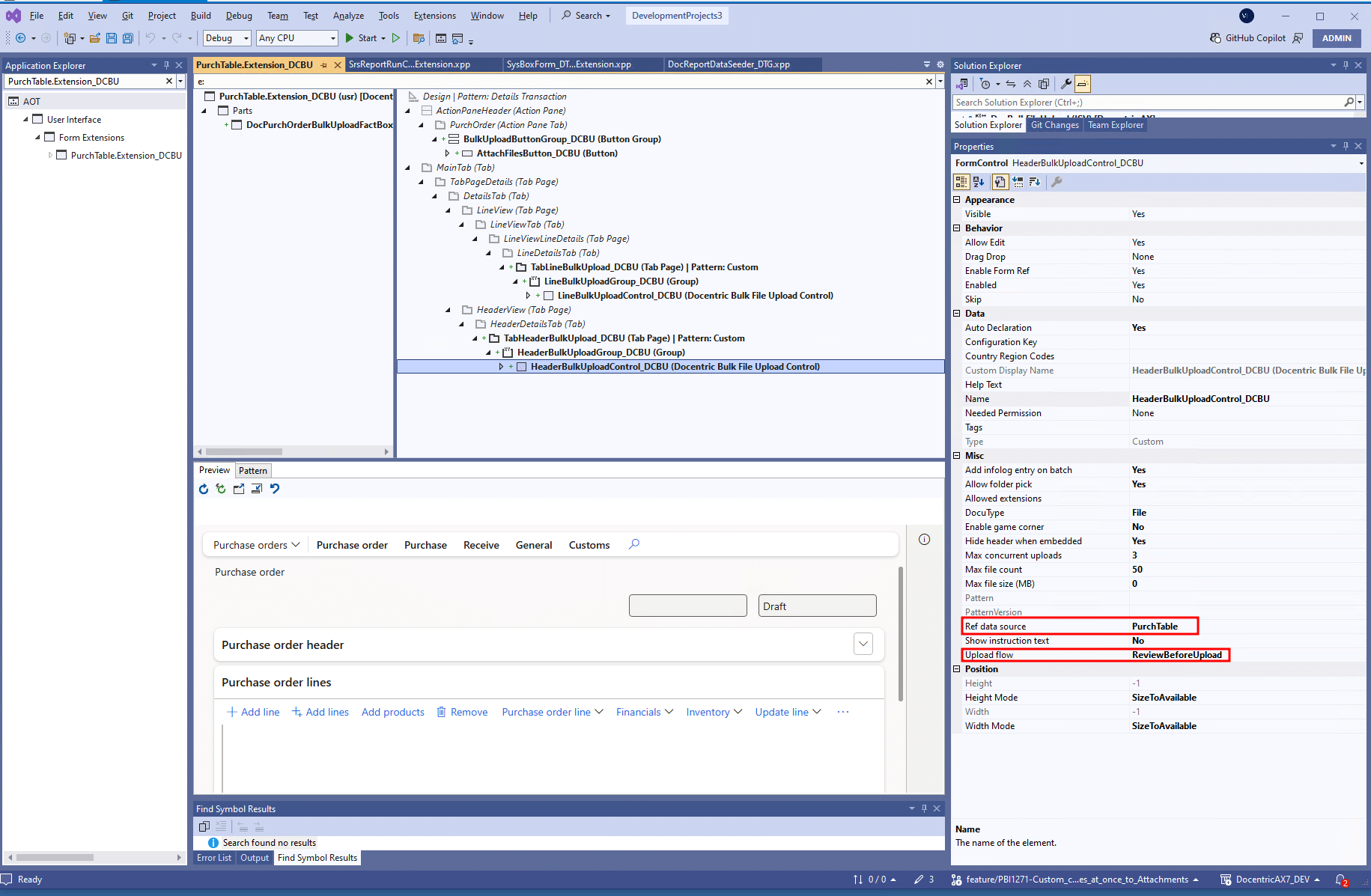
Add an Extensible control and pick Docentric Bulk File Upload Control from the list. It lives inside a Tab page or a Group, so give it one of those as a parent. Then set two properties and you have a working drop zone:
- Ref data source: the form data source whose current record owns the attachments. The control reads that cursor, so it follows the user as they move between records. Until the data source has a saved record, nothing can be attached.
- Upload flow: how the placement behaves. It takes one of two values, ReviewBeforeUpload or CompactUploadOnDrop, and the next two sections are those two values.
Review before upload
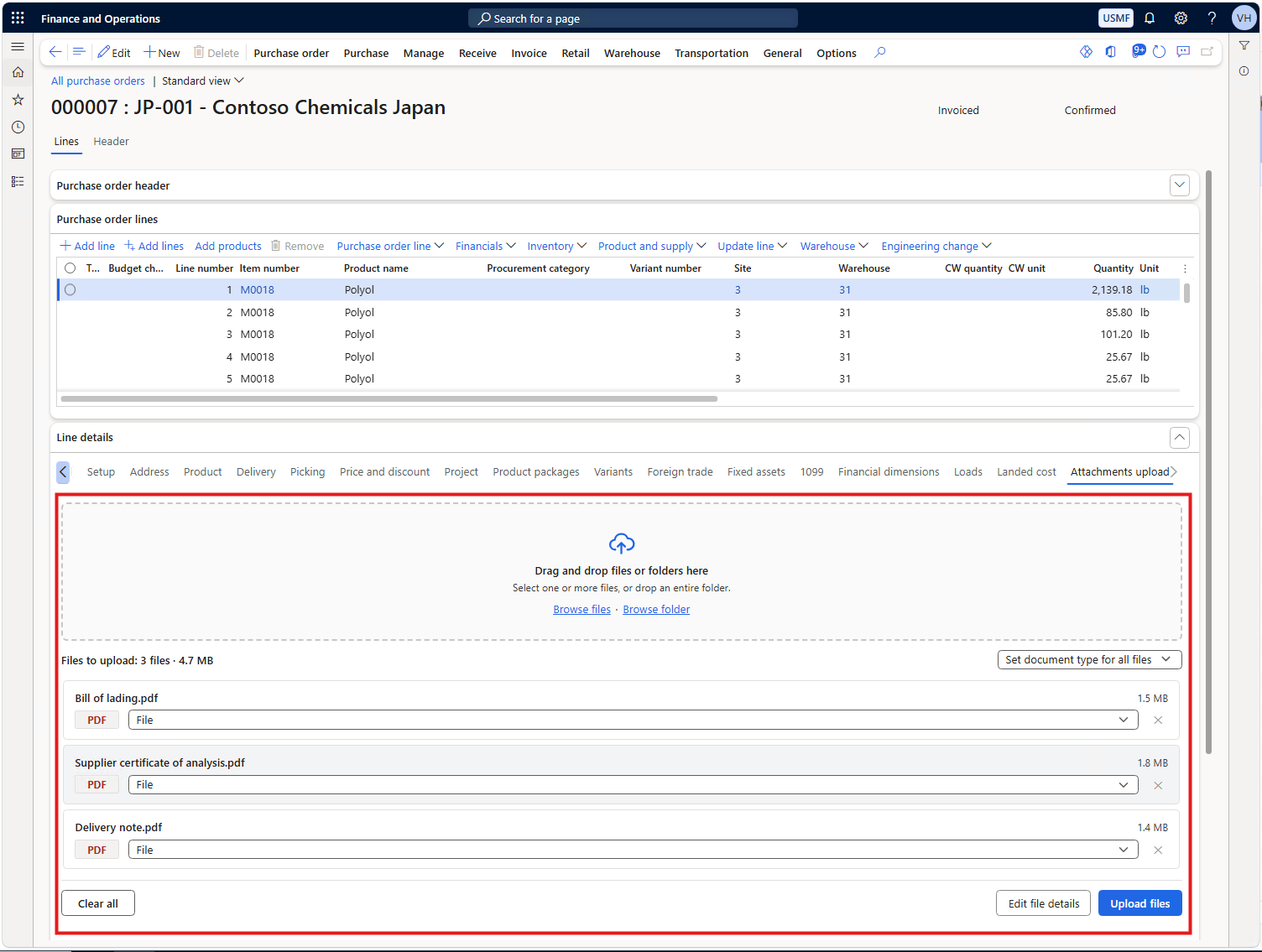
The user drops files, checks the list and sets document types. The files wait until the user clicks Upload files. Use it where you have room: a dedicated tab page or a full-width group.
Compact upload on drop
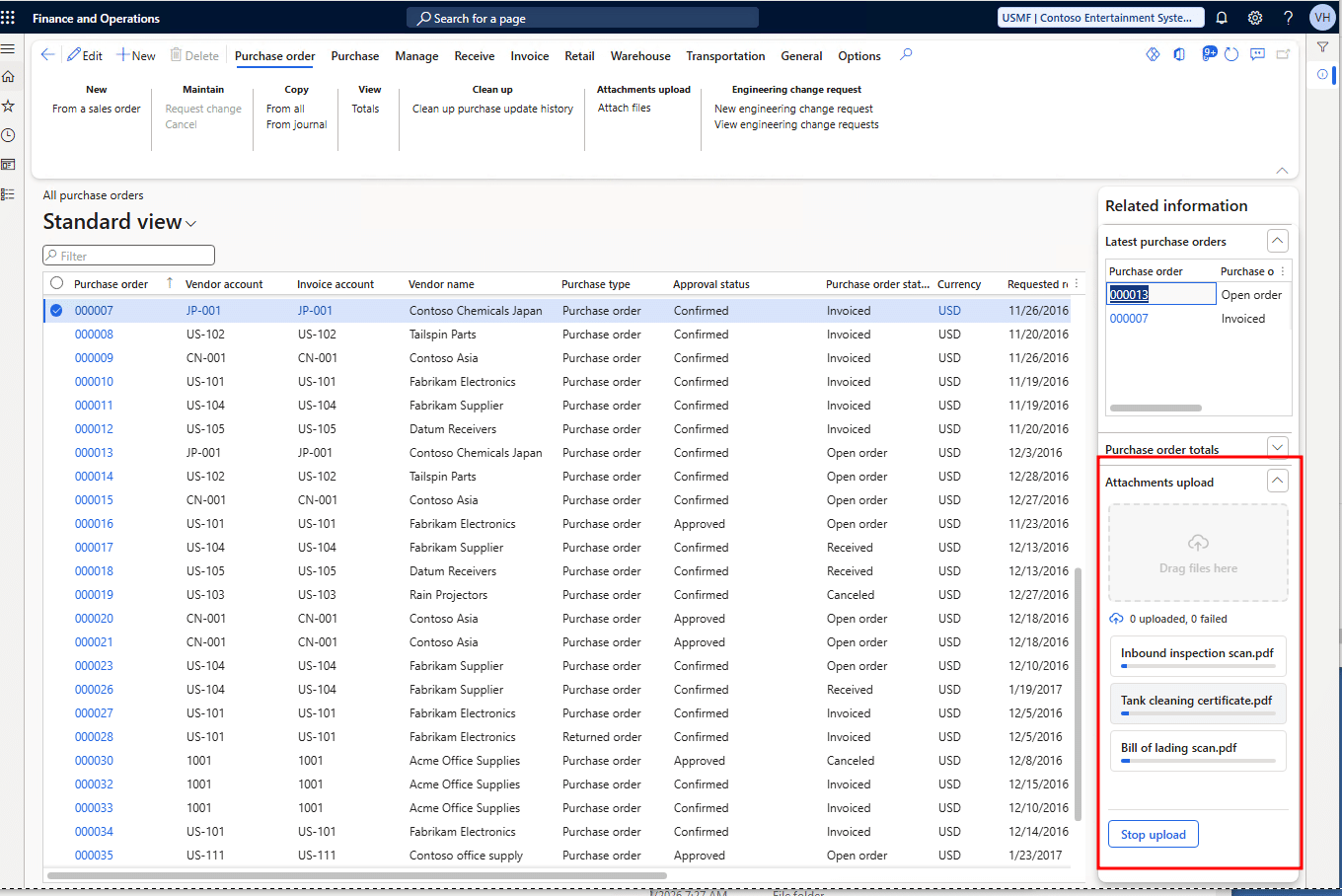
A small drop zone with no list and no buttons. Files start uploading as soon as they are dropped. An image takes the default image type from Document management parameters, any other file the default file type, and where that is empty the DocuType property of the placement. A file with no type is rejected at drop and reported in the Infolog. Use it in a FactBox or a narrow side pane.
The properties that matter
| Property name | Description |
|---|---|
| Ref data source | The data source that owns the attachments. Left empty, the first data source of the form is used. |
| DocuType | The document type a file gets when Document management parameters has no default type for it. Leave it empty and a file with no type is rejected at drop. |
| Upload flow | Chooses how the placement behaves: ReviewBeforeUpload stages files for review, CompactUploadOnDrop uploads them as they land. |
| Allowed extensions | Comma-separated list, for example .pdf,.docx,.jpg. It replaces the system list for this placement, so list only types that Document management parameters also allow. Leave it empty and the control applies the file types from Document management parameters. |
| Allow folder pick | Adds a Browse folder button. Dropping a folder on the drop zone works either way. |
| Max file size (MB) | 0 takes the limit from Document management parameters. Set both and the smaller one wins, so the client never accepts a file the server would refuse. |
| Max file count | The largest number of files in one batch. 0 applies the default of 50; a file over the limit is rejected when it is added. |
| Max concurrent uploads | How many files upload at the same time. 0 applies the default of 3; 1 uploads the files one after another. |
| Hide header when embedded | Leaves out the Upload files title of the compact flow when your tab or FactBox already has a caption. The review flow has no title. |
| Enable game corner | Offers the Take a break button that opens the mini-games while files upload. It starts at No, so a new placement has no games until you turn them on. The shipped Docentric Bulk upload attachments dialog sets it to Yes, and an administrator can switch the games off for the whole environment in Docentric system settings. |
The full property reference is in the repository README.
The attach check
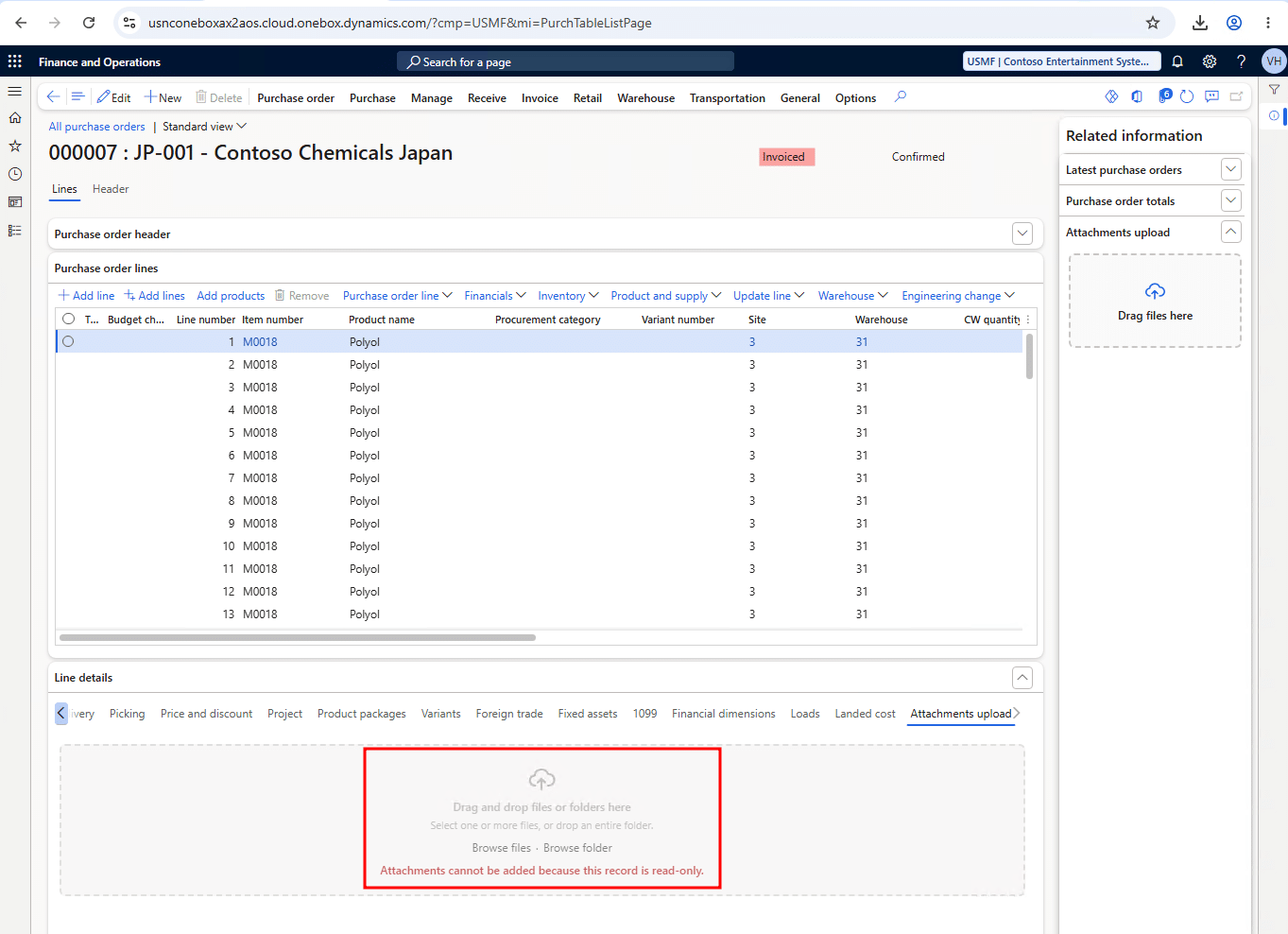
The control can enforce one rule that a file input you write yourself would not: it refuses an attachment on a record that is read-only. It does this only when the placement has an access behavior. Without one, it checks the user’s permission and nothing else. The attach check runs on the server and returns the reason, so a blocked drop zone can tell the user why. It has two steps, in this order:
- The permission check, in DocBulkFileUploadHelper::canAttach. The owner record must exist, and the user must have create access to the DocuRef table through their security roles, the same check the standard Attachments page makes. Without it no attach token is issued, so no attachment is created on the record. An access behavior cannot override this step.
- The record state check, decided by an access behavior you supply. The control does not guess whether a record is editable: it calls evaluateAccess on the IDocBulkUploadAccessBehavior you set through setAccessBehavior, and passes it the owner record and the owner data source it resolved itself. Set none and the control adds no reasoning of its own: an allowed record stays allowed. The shipped DocBulkFileUploadDataSourceAccessBehavior asks the same question the standard Attachments page starts with: an owner table that implements docuAllowEdit_W is asked through that hook, any other table through the data source’s runtime allowEdit(). The answer can match what the Attachments page decides, and it can turn out stricter: that page also treats every list page as editable, and subscribers to DocuView.OnAllowEditBasedOnActualForm can allow a table the hook refuses. Both steps run in X++, so the decision is not made in the browser.
Both checks run before the token is issued, so a greyed-out drop zone also blocks the upload on the server. When getUploadContext returns no attach token, no attachment is created on the record. The same check runs again when each file has arrived, so a record locked during a long upload gets no attachment.
Where you have to make a decision
Bind the control to your form’s own editable data source, hand it the shipped DocBulkFileUploadDataSourceAccessBehavior, and the placement follows the record: allowEdit() is true only when the record is editable, which mirrors what the Attachments page reads to enable New. There is one case where the data source is not consulted at all. If your owner table implements docuAllowEdit_W, that hook answers instead, whatever the data source says. A table whose hook allows attachments on a locked record allows them here too. Where the hook refuses, this behavior refuses, even though the Attachments page may still allow the file from a list page or through a subscriber.
For an owner table without that hook, a display-only data source is the problem case. A data source with AllowEdit set to No, as in a FactBox, returns false for every record, so it says nothing about the record’s state, and DocBulkFileUploadDataSourceAccessBehavior keeps the placement disabled. To enable it, supply your own access behavior. The simplest is DocBulkFileUploadFixedAccessBehavior, built from your own eligibility check and set in the data source’s active() method, so the answer follows the current record:
|
1 2 3 4 5 6 7 8 9 10 11 12 13 14 |
public int active() { int ret = super(); PurchTable purchTableRecord = this.cursor(); if (FactBoxBulkUploadControl_DCBU && purchTableRecord && purchTableRecord.RecId) { FactBoxBulkUploadControl_DCBU.setAccessBehavior( DocBulkFileUploadFixedAccessBehavior::construct( DocPurchOrderBulkUploadShowcase_DCBU::isPurchTableAttachEligible(purchTableRecord))); } return ret; } |
With fixed behavior, the decision that attachments are allowed for this owner moves from the platform to your code. When the rule needs more than yes or no, for example an invoiced order that must still accept documents, implement IDocBulkUploadAccessBehavior yourself. Its one method, evaluateAccess, receives the owner record and the owner data source and returns Allowed or the reason attaching is blocked. The permission check still runs first: an access behavior can allow attachments on a read-only record, but it cannot give the user create access to the DocuRef table.
The showcase uses both approaches on the purchase order. The two tab placements install DocBulkFileUploadDataSourceAccessBehavior and follow their own data source. PurchLine has no docuAllowEdit_W override, so nothing on the table blocks attaching to a line, but the line data source becomes read-only once the order is invoiced and the Safety level of invoiced orders setting locks it, and the line placement is disabled with it.
The FactBox uses DocBulkFileUploadFixedAccessBehavior. Its data source is display-only, so the data source behavior would block every order. Instead the FactBox uses checkUpdate, the order’s own business state. That can be stricter than the standard Attachments page, which treats every list page as editable, so an invoiced order can accept attachments from the purchase order list page. For your own owner table, decide which of the two answers you want before you pick a behavior.
Supplying the record state without inventing a rule
For the purchase order header, the showcase doesn't write its own attachment rule. It asks the platform whether the order can still be updated at all:
|
1 2 3 4 5 6 |
public static boolean isPurchTableAttachEligible(PurchTable _purchTable) { return _purchTable && _purchTable.RecId && _purchTable.checkUpdate(false, false, true); } |
checkUpdate combines three conditions: the change management approval state, the finalized state, and the Safety level of invoiced orders setting in Procurement and sourcing parameters. The three arguments keep the check silent: no Yes/No dialog, no Infolog warning, no intercompany warning, and a Warning safety level treated as Locked. Whether invoiced orders accept attachments is therefore decided by that parameter in your environment. The form data source could not be used instead, because on the list page it reads as editable even for invoiced orders.
Custom processing after the upload
Implement IDocBulkFileUploadHandler and pass the control an instance: through setUploadHandler on an embedded control, or through the _handler parameter of openBulkUploadDialog for the dialog. Because you construct the instance, it can carry any context your form has. The control calls processAttachment for each uploaded file, after the platform has created the attachment, and passes the file’s DocBulkFileUploadContext with the new DocuRef. Use it, for example, to import the file’s content. A handler cannot undo the attachment; to reject a file, veto it in notifyBeforePostProcess. If your handler throws, the file is reported as Failed and its attachment stays on the record.
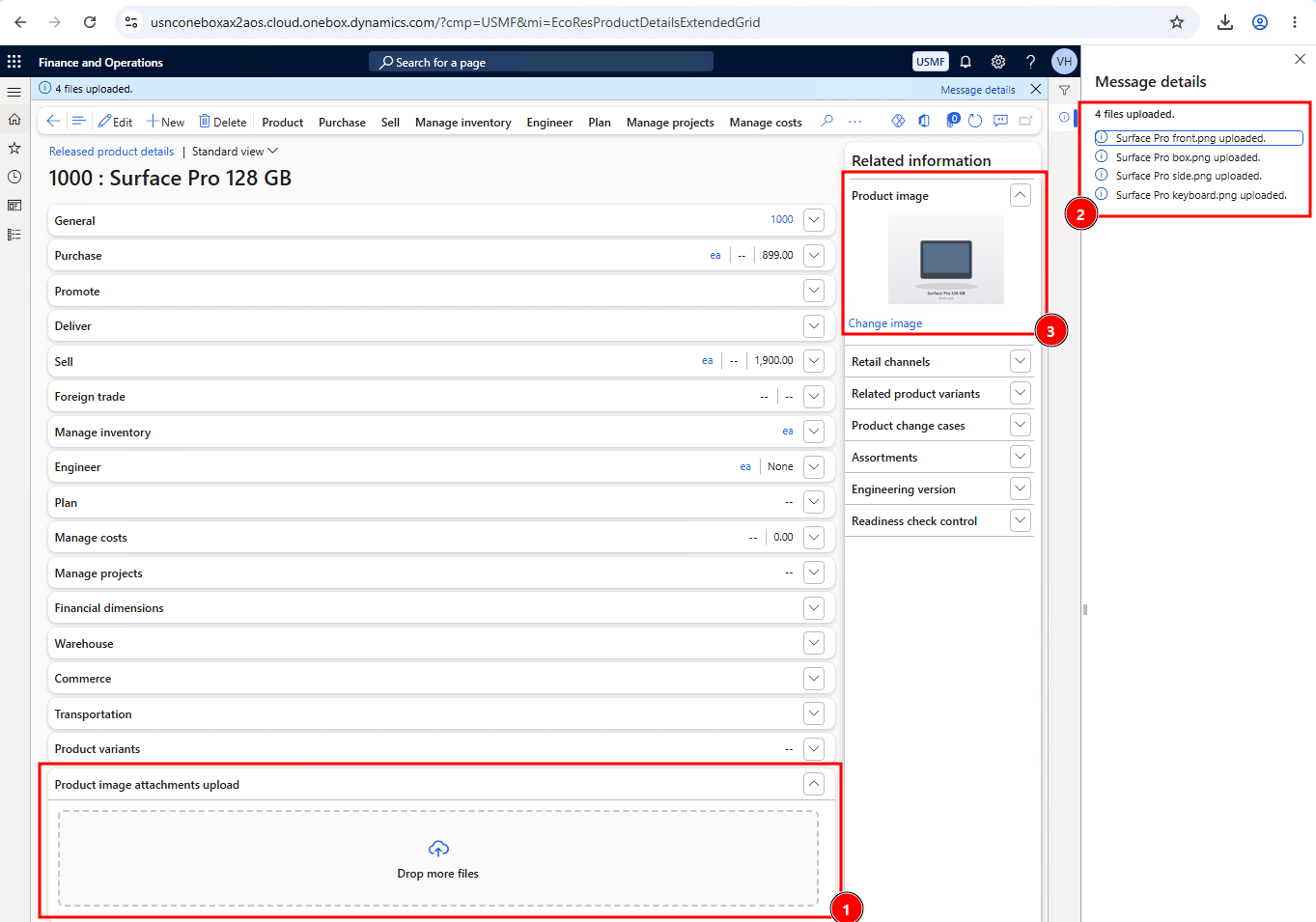
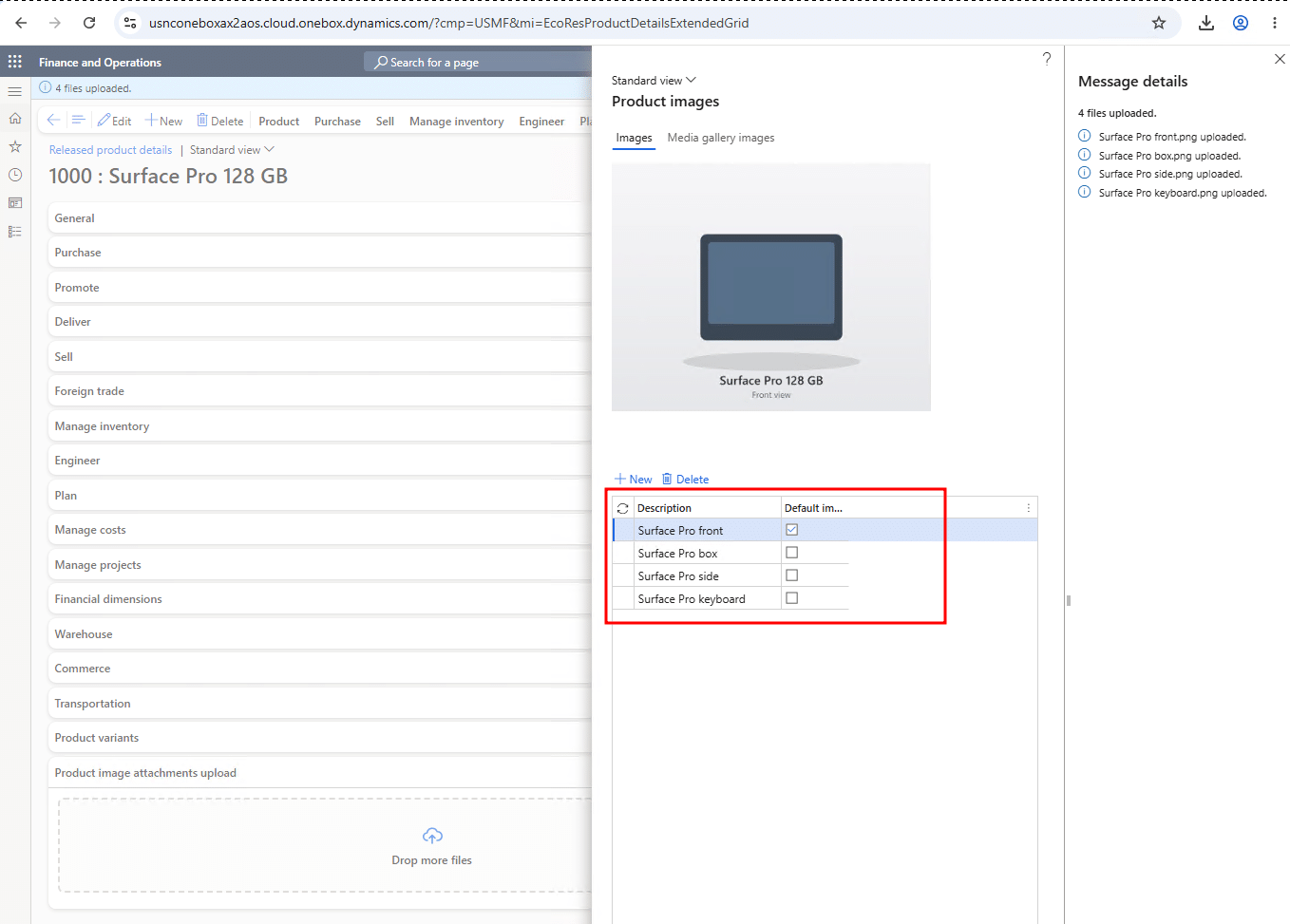
The showcase uses it for product images. In D365FO a product image is a hybrid: the file is an ordinary attachment, and what makes it a product image is a companion EcoResProductImage record keyed on the attachment. Bulk upload alone gives you the attachment and no companion, so the product card keeps its placeholder. The handler closes that gap:
|
1 2 3 4 5 6 7 8 9 10 11 12 13 14 15 16 |
public void processAttachment(DocBulkFileUploadContext _context) { DocuRef docuRef = _context.parmDocuRef(); if (!DocProductImageBulkUploadHandler_DCBU::isProductOwner(docuRef)) { return; } // ... skip files that already have a companion, and file types the // platform's image decoder cannot read EcoResProductImage::create(docuRef); DocProductImageBulkUploadHandler_DCBU::normalizeDefaultImage(docuRef); } |
The full class on GitHub shows what any handler must be: idempotent per attachment. When the browser loses the server’s response for a file, Retry all finds the attachment that was already stored and runs the handler for it then. The example also calls normalizeDefaultImage after creating the image: it keeps the earliest image of the product as the default through the standard EcoResProductImage::updateDefault.
Reacting from the host form: the delegates
Three delegates on the control instance, all raised on the server. For each file the server runs notifyBeforePostProcess, then your handler, then notifyAfterAttach. Each per-file delegate hands you the file’s context and a result you can act on:
- notifyBeforePostProcess(DocBulkFileUploadContext _context, DocBulkFileUploadEventResult _result) runs per file, after the attachment exists and before your handler. Call _result.cancelExecution(true) to veto: that file’s DocuRef and its stored file are deleted, the file is reported as Skipped, and the batch moves on. Call _result.abortBatch(true) to stop the run the way Stop upload does: files that have not started are not uploaded, and a large file stops at its next chunk.
- notifyAfterAttach(DocBulkFileUploadContext _context, DocBulkFileUploadEventResult _result) runs per file after your handler. Stamp custom fields on the new attachment, or veto the same way; a veto here deletes the attachment but not what your handler created.
- notifyAllComplete(DocBulkFileUploadContextList _contexts) runs when a batch finishes, including a batch started by Retry all, with one entry per file of that batch. Read countAttached(), countSkipped() and countFailed(), or walk the list, for example to refresh a grid.
Refresh whatever your form shows after an upload: for the dialog, on the line after openBulkUploadDialog returns; for an embedded control, in notifyAllComplete, as DocProductBulkUploadShowcase_DCBU does for the Product image FactBox.
You subscribe the way you would to any other control delegate. On your own form, subscribe after super in init() or run(). On a standard form you cannot edit, subscribe from a FormEventType::Initialized event handler, as DocProductBulkUploadShowcase_DCBU does for notifyAllComplete.
The showcase model
DocentricBulkUploadShowcase is a separate model that you install on its own. It adds example placements to two standard forms. It is published on GitHub and is not part of Docentric AX.
Purchase order header. An Attach files button that opens the ready-made dialog, plus an Attachments upload tab hosting the embedded control in the review flow.
Purchase order, Related information pane. A FactBox running the compact flow, bound to the order header through a display-only data source. This is the fixed access behavior pattern in one place: the FactBox supplies a behavior built from its own eligibility check.
Purchase order lines. An Attachments upload tab on the line details, running the review flow on PurchLine.
Released product details. A Product image attachments upload tab running the compact flow with DocProductImageBulkUploadHandler_DCBU behind it: each .jpg, .jpeg, .png, .gif or .bmp file dropped on the tab becomes a product image.
Get the code
Everything above is in one repository, docentric-ax-attachments-bulk-upload-examples on GitHub.
Install Docentric AX Free Edition v3.6.0 or later first. DocBulkFileUploadControl, DocBulkFileUploadHelper, DocBulkFileUploadDialog, the IDocBulkFileUploadHandler and IDocBulkUploadAccessBehavior interfaces and the two access behaviors are part of it; the repository holds only the examples built on them.
Then clone the repository, run the symbolic-link script to add the model to your development environment, build it, and open the Purchase order and Released product details forms. The README covers the setup for OneBox and Unified Development Environment (UDE), each example, the security setup and the complete property reference.
Clone the repository and open the purchase order example.
One thought on “Use the Docentric Bulk File Upload Control in Your Own D365FO Forms”