
 Tags: D365FO, Free Edition


D365FO (Dynamics 365 Finance and Operations) supports advanced and dynamic query criteria through Query range methods such as (DayRange(-30,0)).
These methods make saved queries reusable because their values are calculated when the query runs.
However, users must normally know:
- That a suitable method exists (e.g. methods in the SysQueryRangeUtil class file).
- The exact method name.
- The required parameters.
- Whether the method is suitable for the selected field type.
Users often need to search Microsoft documentation or inspect the available X++ methods before they can enter the correct value.
Microsoft documentation : Advanced filtering and query syntax - Finance & Operations | Dynamics 365 | Microsoft Learn
Query Range Methods in Docentric Query Browser
A Query range methods button sits in the Query form toolbar when using the Docentric Query Browser.
It opens a lookup that makes use of the currently selected Criteria row to adjust the filter of methods available.
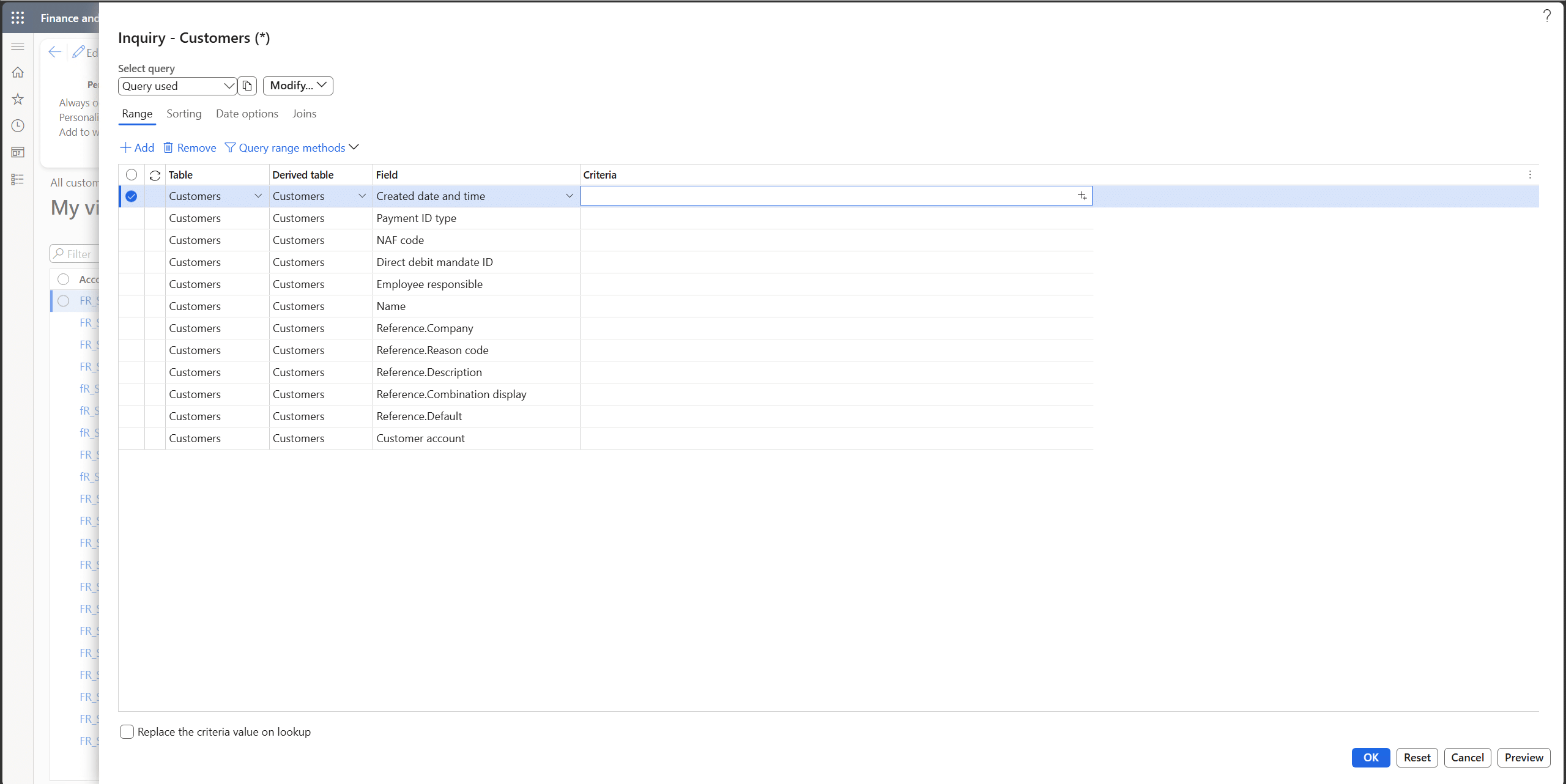
Example: filtering records from the previous 30 days
You want a filter that gives you the customers created during the previous 30 days.
Well, you can go for the Created date and time field and enter the criteria yourself with the date.. and it would do the trick.
But it will not be true tomorrow, and the day after it, and so on, so you’d like a filter that gets refreshed every time you open the screen.
That is where Query range methods come in handy.
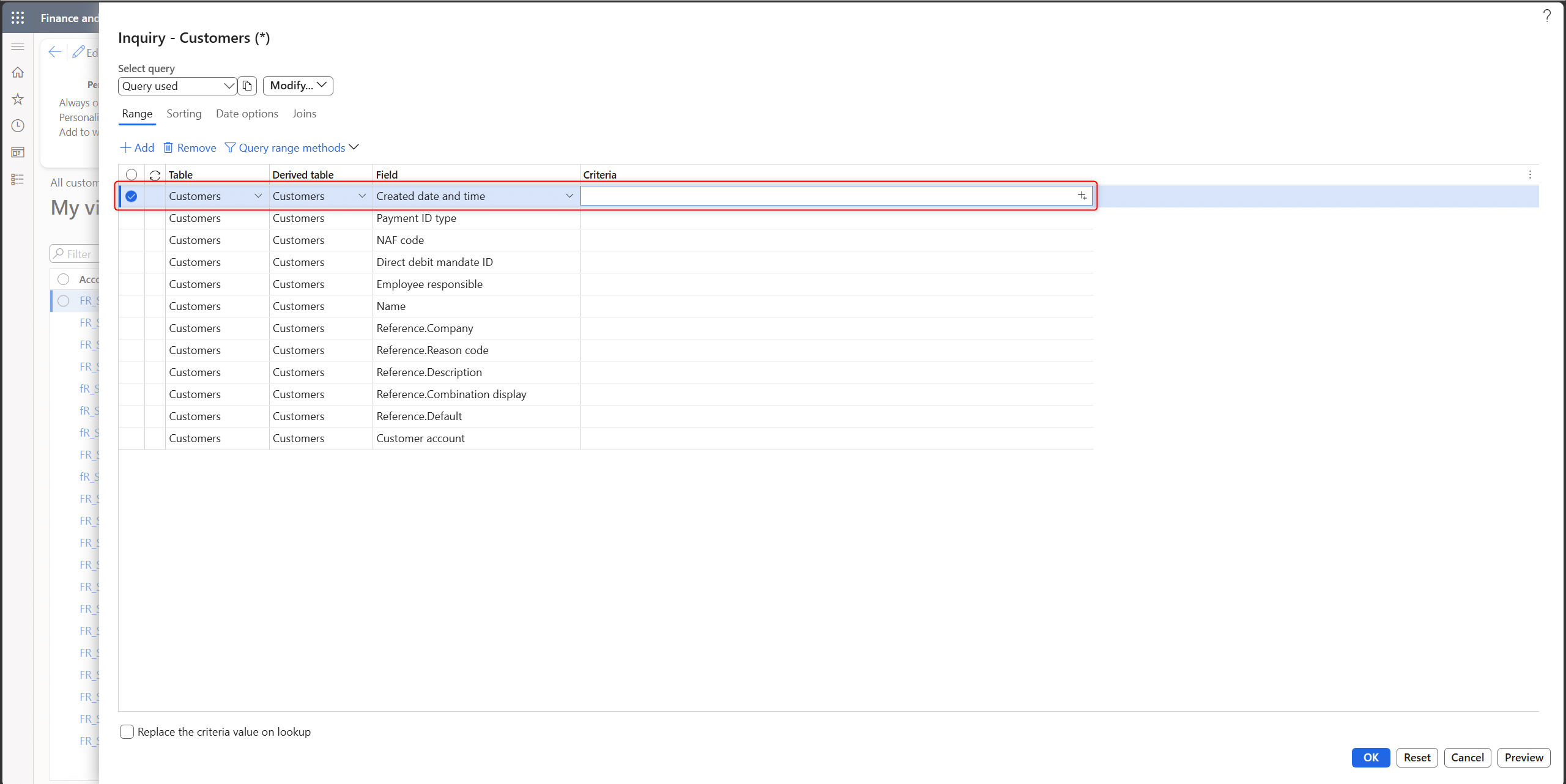
First, you choose to add and select the Created date and time to the Query form.
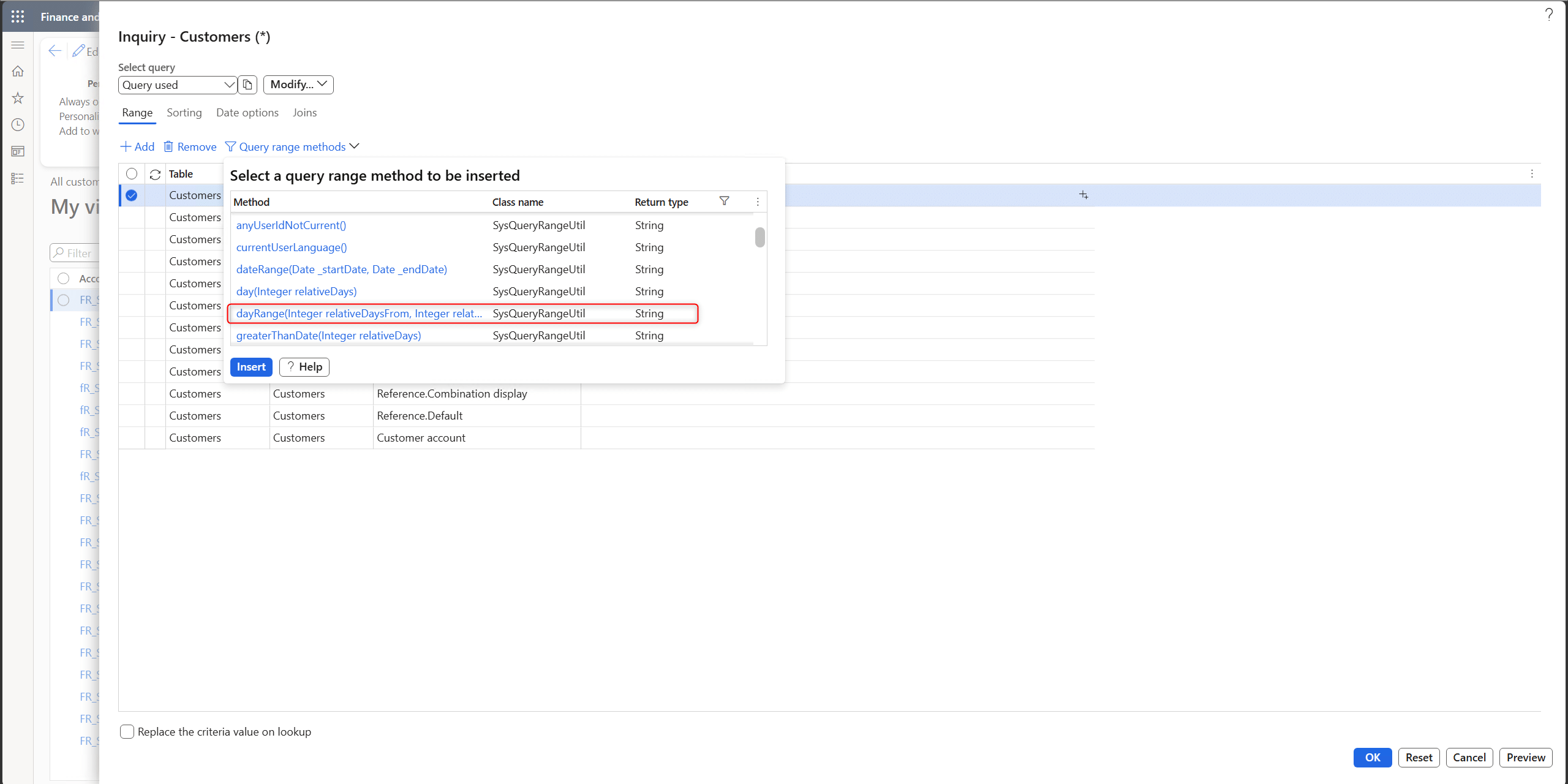
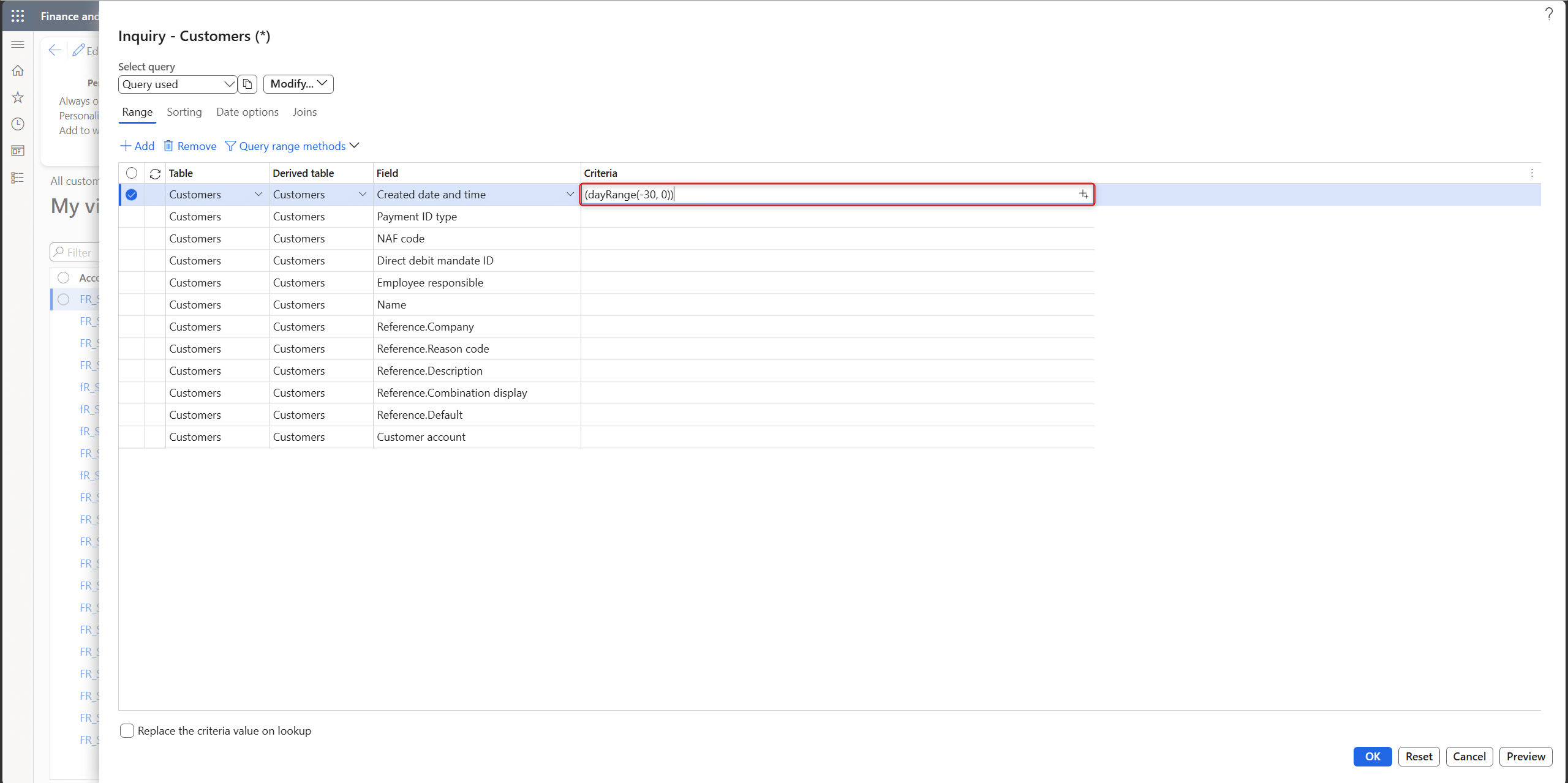
Then you open the lookup and select a method that will dynamically create a date range (DayRange for instance).
Once selected, you click on Insert and it fills in the criteria with default parameters, being the number of days before now as the start date and the number of days after now for the end date.
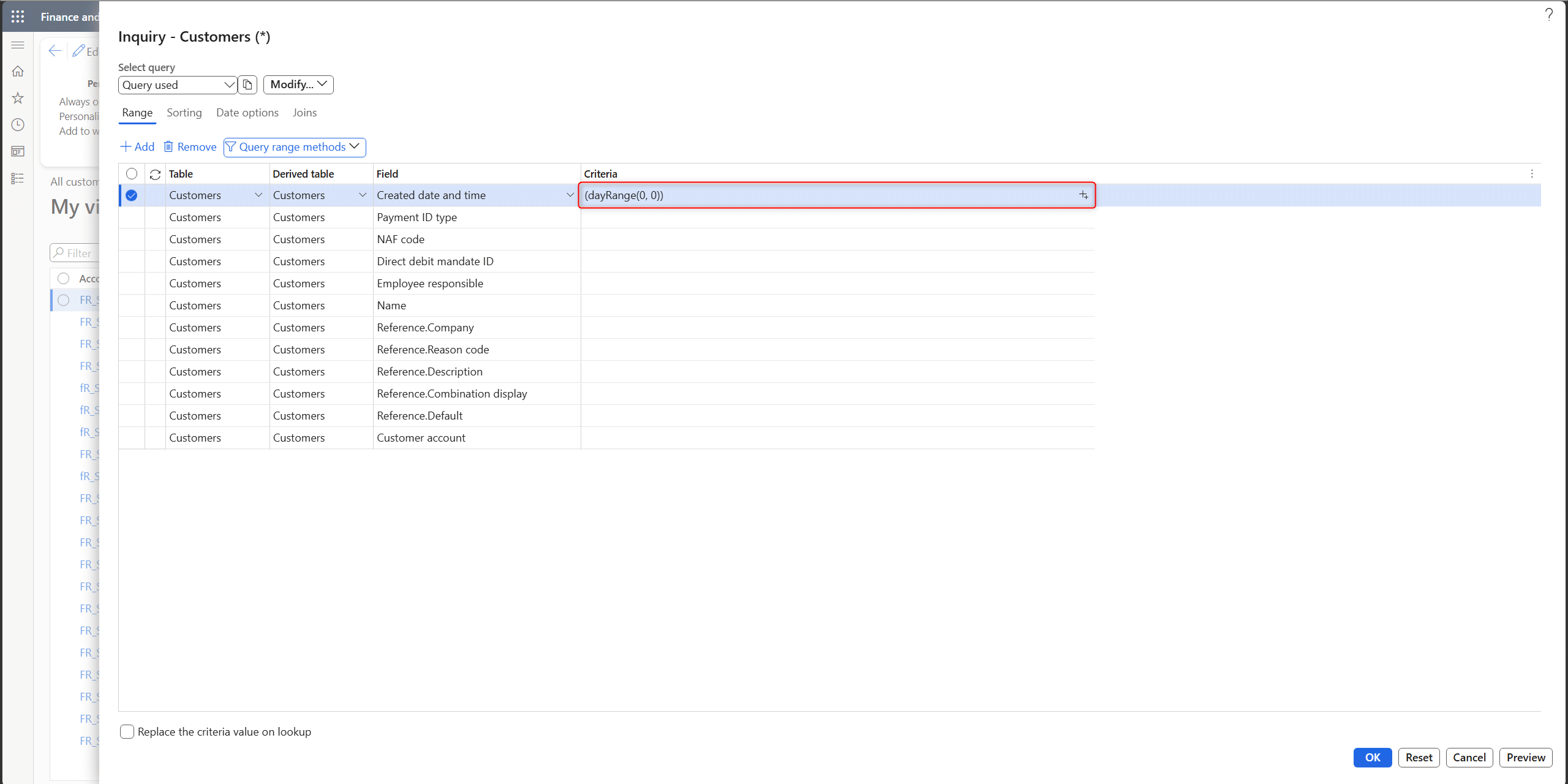
You now simply need to set the parameters at your convenience, in this case (-30, 0) to get the past 30 days.
Filtering methods by field type
The Query range methods shown in the lookup are filtered depending on the field type of the selected Criteria row.
The lookup includes:
- Methods whose return type matches the selected field type.
- All Query range methods returning String or RString.
This keeps the lookup relevant and reduces the risk of selecting an incompatible method.
Changing the selected Criteria row or field type can therefore change the methods displayed in the lookup.
Special handling for String and RString
You might wonder why String or RString are shown for all field types.
These methods can return complete query range expressions and can therefore be applicable to date, date-time, numeric, enum, and other field types.
Take the currentSessionDateTime() and getCurrentSessionDateTime() methods, both returning the current session date time.
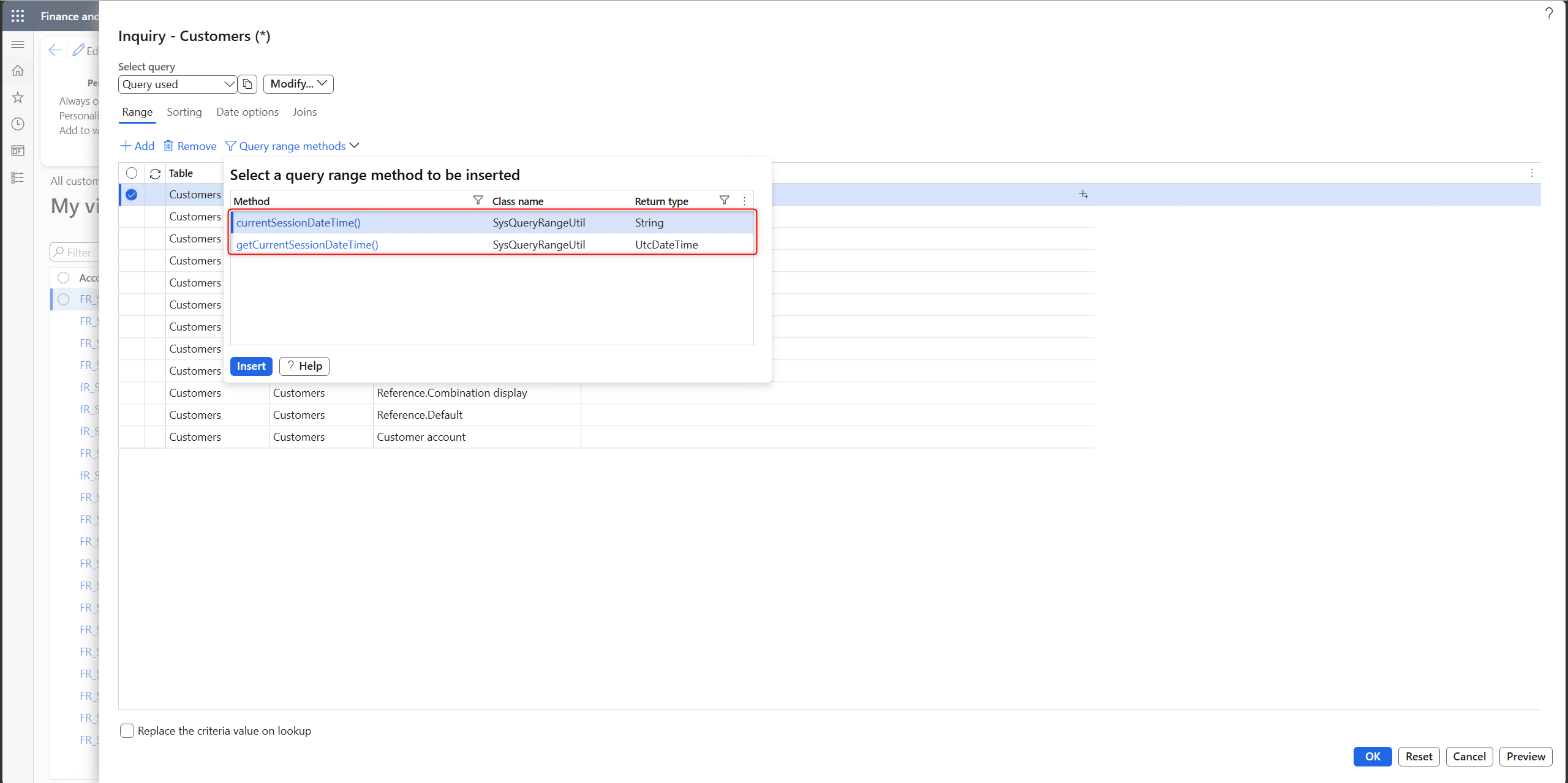
The getCurrentSessionDateTime() method returns it as a direct date and time and currentSessionDateTime() returns it as the string representation of the date and time, different type, same purpose.
Another example, you might want to filter a date field with a date range, but what is a date range if not a string with two dates separated with two dots (DateFrom..DateTo).
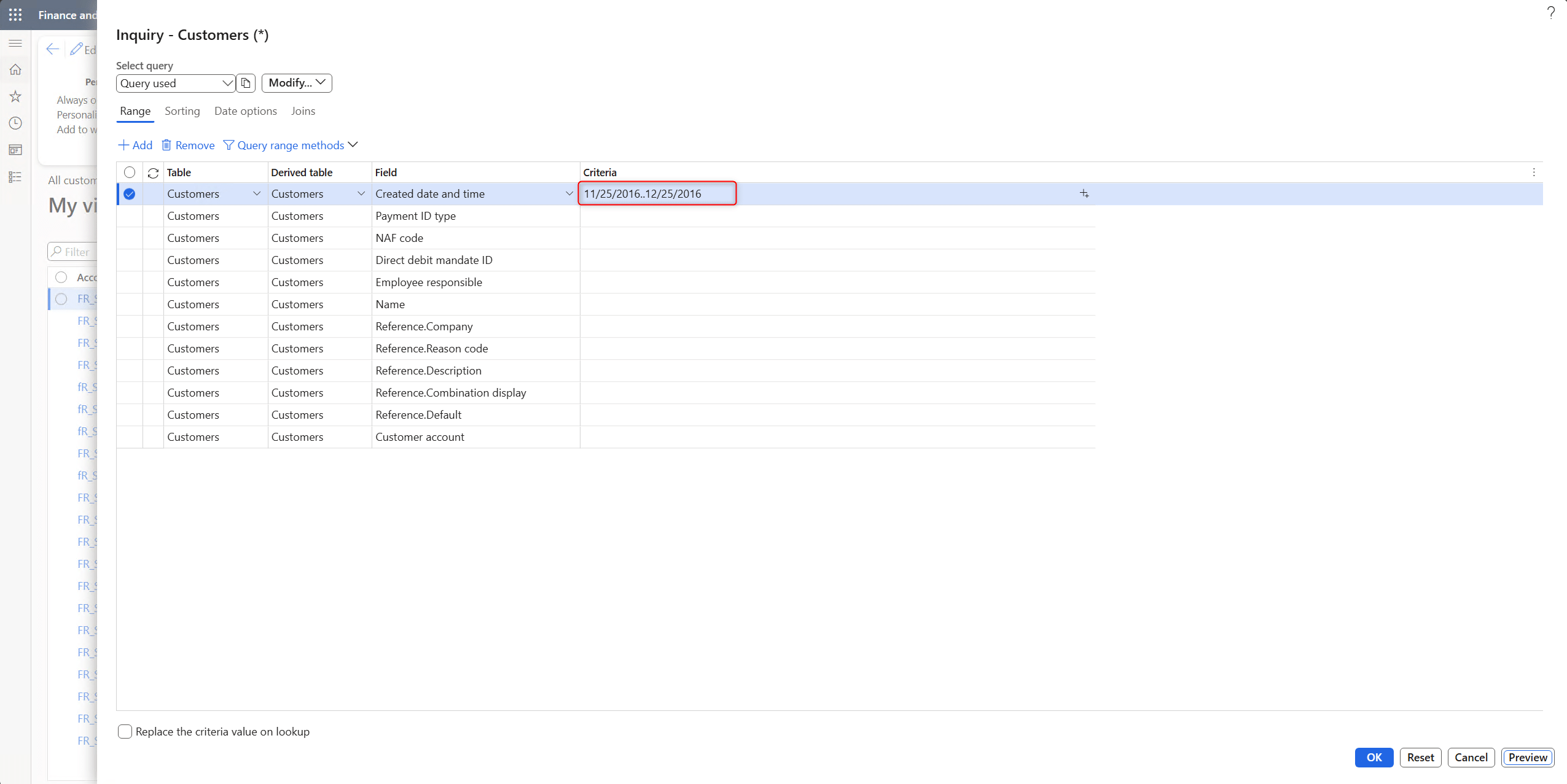
Following this example and the Microsoft documentation, this filter will apply and give you records between or equal to your two given dates.
But the filter would remain static, so you could instead make use of the DayRange method for instance.
Supported method sources
The Docentric Query Browser includes Query range methods from:
- SysQueryRangeUtil
- SysQueryRangeUtil_Extension
- DocQueryRangeUtil
- Customer-added query range utility classes
The solution implemented is extensible so that any customers and partners can add their own utility classes and expose additional Query range methods that will be listed in the same lookup.
Availability and security
The Query range methods button follows the same visibility behavior as other Docentric Query Browser enhancements on the Query form, such as Copy SQL to clipboard.
When the Docentric Query Browser extension is enabled on a Query form that the user can already access, no additional security role or privilege is required specifically for this button.
Implementation details
The Docentric Query Browser discovers the available methods dynamically and uses their return types to determine whether they are compatible with the selected Criteria field.
If you want to take it further, a technical article was also written describing the following:
- The QueryRangeFunction attribute.
- Reflection-based method discovery.
- Return-type filtering.
- Customer extensions.
- Result caching.
You can find it here: How to Discover and Use SysQueryRangeUtil Methods in D365FO
Conclusion
Query range methods make D365FO (Dynamics 365 Finance and Operations) queries dynamic and reusable. The new lookup in Docentric Query Browser removes the need to memorize method names, helps users find methods compatible with the selected field, and inserts the selected expression directly into the Criteria field.
Spending less time maintaining and being more confident over the data shown once filtered are good reasons to give it a try and make use of it.