
 Tags: Attachments, D365FO, Emailing, Free Edition, Full Edition

Sending a report is often only part of the document delivery process. For example, a Sales invoice may need to be delivered together with Terms and Conditions, warranty information, certificates, specifications, or other supporting documents.
With Docentric, these additional documents can be included as report attachments. Starting with Docentric AX version 3.5.1, you can also create a ZIP file containing the generated report and its report attachments and optionally protect it with a password.
In this article, we use a Sales Invoice with two report attachments: Terms and Conditions and Product Warranty. We create a single ZIP file containing the invoice and both documents and protect it with a customer-specific password.
Business Scenario
In this example, we use Sales Invoice CIV-000030 from the Contoso demo database, issued to customer DE-001 (Contoso Europe). The customer’s VAT number is 998765.
We also prepared two PDF documents in D365FO:
- Terms and Conditions.pdf, attached to the legal entity.
- Product Warranty.pdf, attached to the Sales Order from which invoice CIV-000030 was generated.
The Terms and Conditions document applies to invoices issued by the legal entity, while Product Warranty is related to the Sales Order from which this invoice was generated.
Our goal is to send one password-protected ZIP file containing the generated Sales Invoice and both report attachments.
How to Include Report Attachments
To include additional documents when the Sales Invoice is delivered, configure Attachment loading rules. One rule loads Terms and Conditions from the legal entity, and another loads the Product Warranty from the Sales Order.

When the report is processed, both rules are applied and the documents are added as report attachments.
For more information about configuring these rules, see Attachment Loading Rules.
What Happens Without ZIP Packaging
At this point, the configuration already works. If we email invoice CIV-000030 without ZIP packaging enabled, the customer receives an email with three separate attachments:
- the generated Sales Invoice,
- Terms and Conditions,
- Product Warranty.
This might be exactly what you need in many scenarios. The article Email an invoice with additional attachments from D365FO describes this use case in more detail.
In our scenario, however, we want to deliver all three documents in one password-protected ZIP file. This is where ZIP settings come in.
How to Configure ZIP Settings
Open the Email print destination settings for the Sales Invoice. Go to Options > More... > ZIP SETTINGS to configure the ZIP options.
The ZIP mode determines which documents are included in the ZIP file:
- None - don't create a ZIP file.
- Zip report - zip only the generated report.
- Zip attachments - zip only the report attachments.
- Zip report and attachments - zip the generated report together with its report attachments.
For this example, select Zip report and attachments as the ZIP mode.
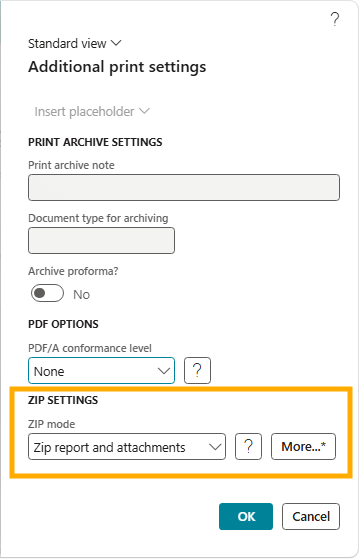
With this option, the generated Sales Invoice, Terms and Conditions, and Product Warranty are included in the same ZIP file.
How to Use a Meaningful ZIP Filename
In the ZIP SETTINGS section, select More... to open additional ZIP settings. Here, you can configure the ZIP filename, folder structure, and password. You can use placeholders in the ZIP filename. Instead of a generic name such as SalesInvoice.zip, include information that identifies the current document, for example the invoice ID:
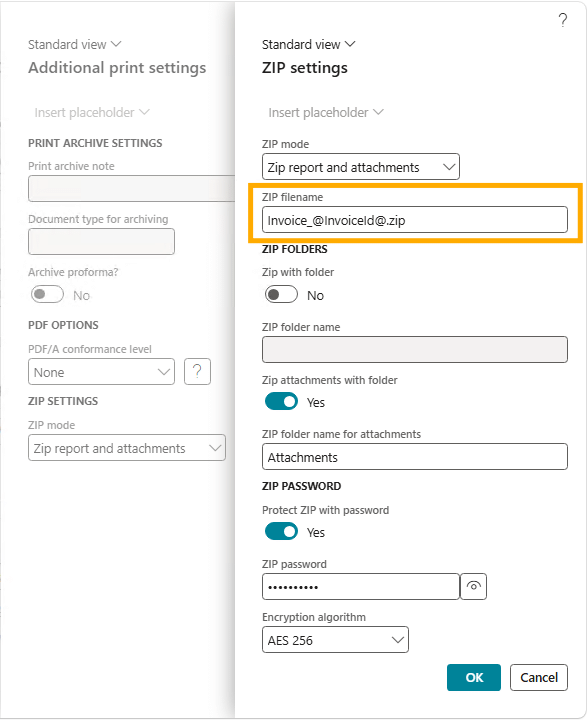
A meaningful filename makes the ZIP file easier to recognize both in the outgoing email and after the recipient saves it.
How to Organize Files Inside the ZIP
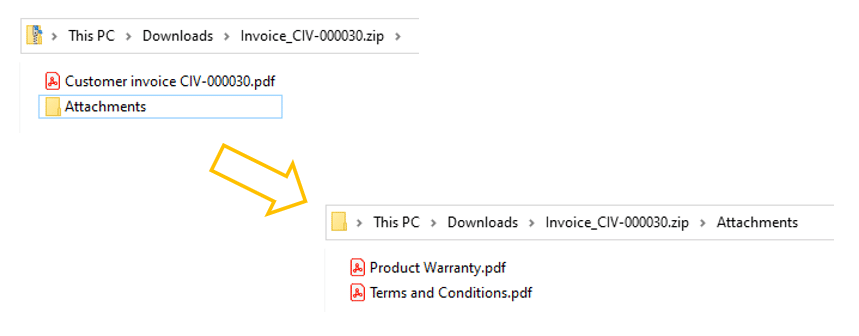
ZIP settings also let you control how the files are organized inside the ZIP file. For example, you can keep the generated report in the root of the ZIP and place the report attachments in a separate folder.
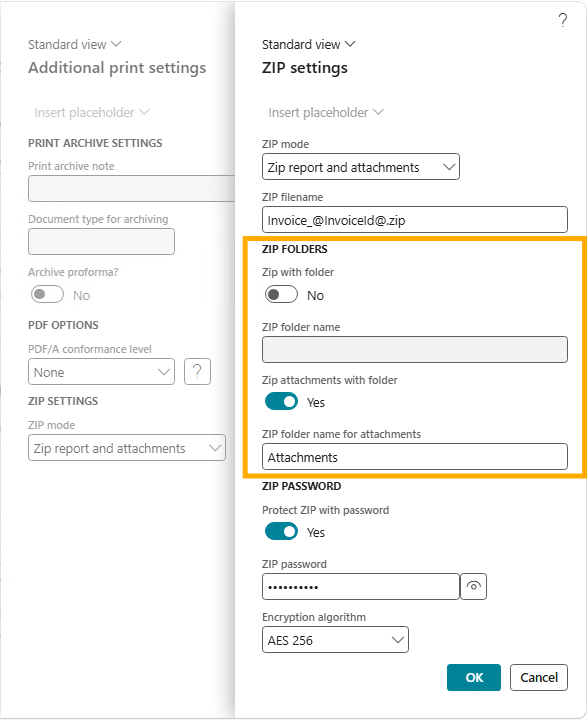
This structure keeps the generated report easy to identify while grouping the related report attachments together.
How to Protect a ZIP File with a Customer-Specific Password
To protect the ZIP file with a customer-specific password, enable Protect ZIP with password and enter the applicable Docentric placeholder in the ZIP password field.
In this example, we use @CustVAT@, which resolves to the customer's VAT number. This follows the same approach demonstrated in Email invoices secured with passwords in D365FO.
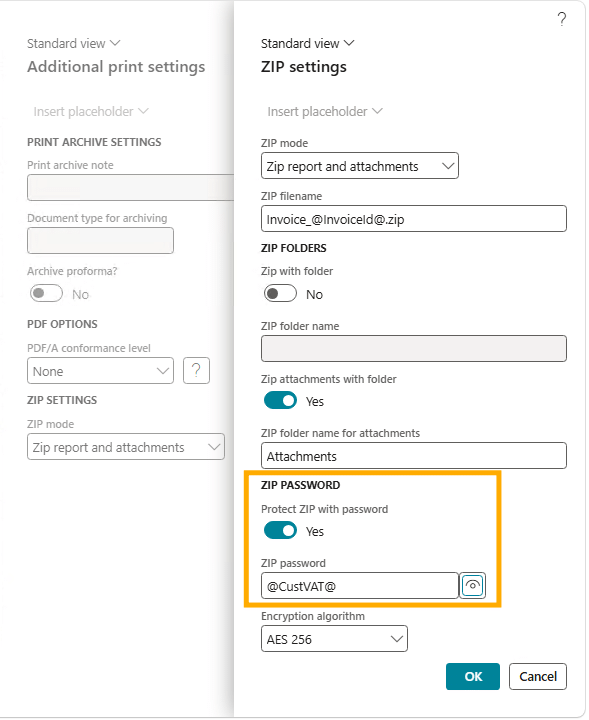
When the report is processed, Docentric resolves the placeholder for the current customer. For DE-001, the resulting password is 998765. For this example, we keep the default AES 256 encryption algorithm.
Note: AES-encrypted ZIP files may require a compatible archive utility. In this example, we use WinRAR to open the generated ZIP file.
How to Test the Setup
To test the setup, open Invoice journal, select invoice CIV-000030, and print it using the configured Email destination (for example through Document > View > Use print management or Docentric > Print in bulk and batch).
When the report is processed:
- Terms and Conditions and Product Warranty are loaded as report attachments.
- The Sales Invoice and both report attachments are combined into one ZIP file.
- The ZIP file is protected with the configured password and attached to the outgoing email.
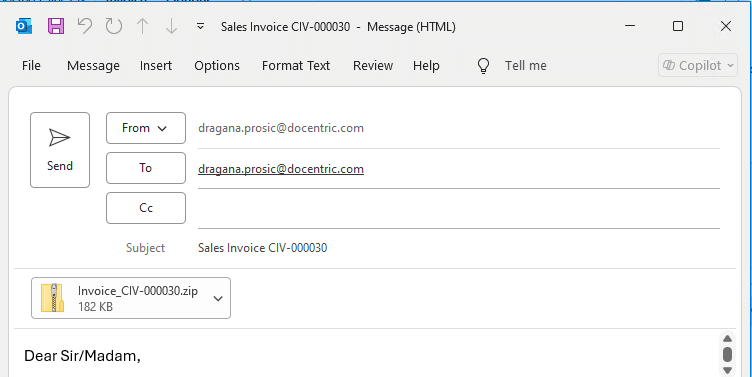
Instead of receiving three separate email attachments, the customer receives one ZIP file.
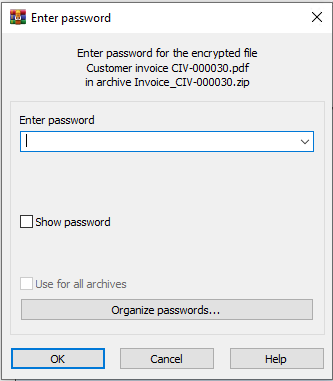
Open the ZIP file in WinRAR. WinRAR prompts for the ZIP password. For customer DE-001, enter 998765.
After entering the correct password, the recipient can access the Sales Invoice and both report attachments from the ZIP file.
Summary
With Docentric ZIP settings, you can create a single password-protected ZIP file containing a generated report and its attachments. You can also use placeholders to dynamically customize the ZIP filename, folder names, and password.
Although the example demonstrates emailing a Sales Invoice, zipping is also supported by the File print destination and can be used to deliver reports and their attachments to integration targets such as Azure Blob Storage, SharePoint, and SFTP.