
 Tags: D365FO, e-Invoice, Electronic reporting, Full Edition, ZUGFeRD
Standard D365FO does not provide out-of-the-box support for the ZUGFeRD format. Starting with Docentric AX v3.5.1, you can generate ZUGFeRD-compliant invoices by using Report attachments functionality and ZUGFeRD ER configurations.
In this article, you'll learn how to configure and generate a ZUGFeRD-compliant Invoice in D365FO using Docentric.
Content:
- Required report output format
- Supported report templates
- Embedded XML invoice
- ZUGFeRD ER configurations
- Supported D365FO invoices
- XMP metadata
- Supported distribution channels
- Step-by-step ZUGFeRD configuration
- Generating and testing ZUGFeRD invoice
- Wrapping it up
- See also
Required report output format
To comply with the ZUGFeRD or Factur-X standards, your invoice must be generated as a PDF/A-3 document. Unlike standard PDF files, PDF/A-3 acts as a "container" that allows other files (like the required XML invoice data) to be embedded directly within it while ensuring long-term archiving stability. Think of PDF/A-3 as a secure envelope: the PDF is what people see, and the XML comes inside for machines to process it automatically.
Docentric makes it easy to meet this requirement by letting you to select the correct conformance level directly within the print destination settings.
Preferred PDF/A conformance levels
- PDF/A-3b (Basic): Ensures that the visual appearance of the document is preserved.
- PDF/A-3u (Unicode): Similar to 3b, but requires all text to be mapped to Unicode, ensuring that the document text can be searched and extracted reliably.
There are other allowed conformance levels (e.g. PDF/A-3a) but you should avoid using them. They add unnecessary complexity for ZUGFeRD. Questions? Learn more about PDF/A conformance levels >>
How to configure
Configuring the correct compliance level is handled entirely within the Docentric Print Destination settings. How? Just follow these instructions:
- Open the Docentric print destination: Go to Print management settings for your report (e.g. Customer invoice) and open the Docentric File or Email print destination settings form.
- Ensure PDF output: In the Print destination settings, verify that the Output file format is set to PDF.
- Enable PDF/A Conformance: Using the More button on Print destination settings open the Additional print settings form.
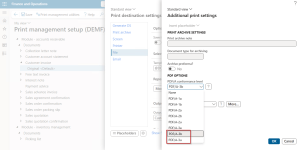
- Select PDF conformance level: Choose either PDF/A-3b (standard) or PDF/A-3u (if Unicode is required by your customer).
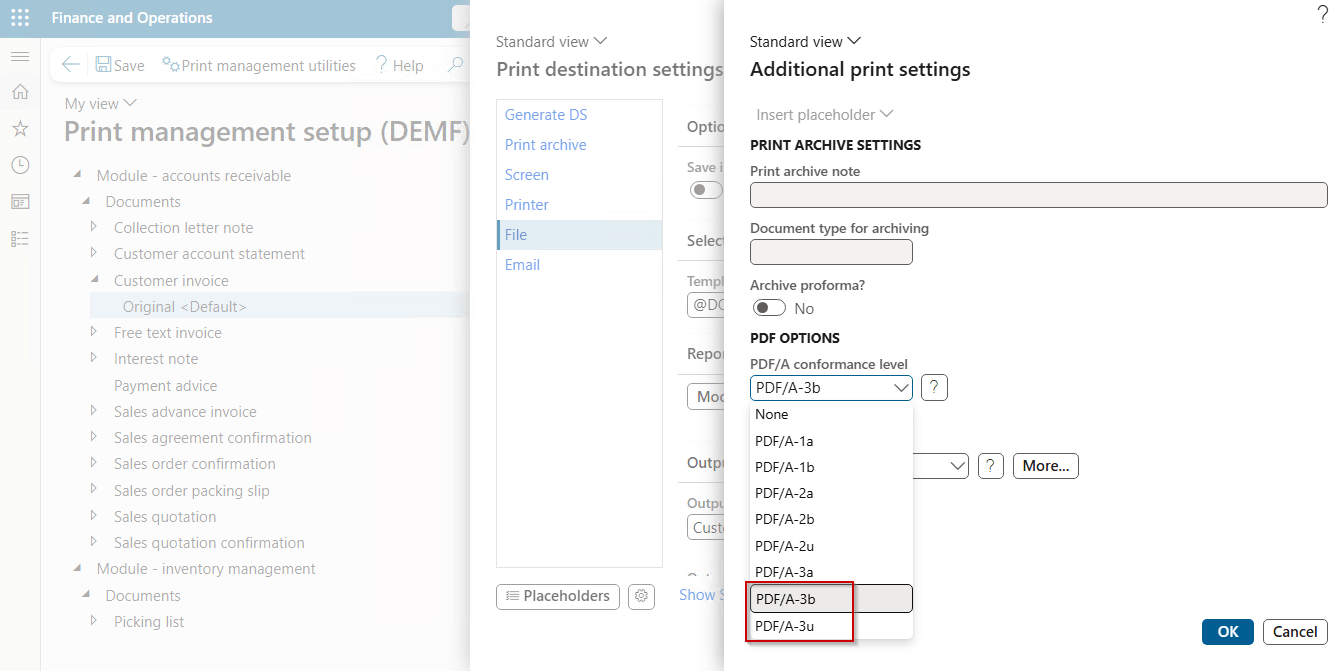
Note: Based on this setting, Docentric will modify the PDF header of the generated file so that it’s identified as a PDF/A-3 document. This prepares it for the XML embedding.
Supported report templates
Docentric acts as a "wrapper" that takes your chosen report template, combines it with the report data source to generate the output PDF document, converts it to the required PDF/A-3 format, and embeds the necessary XML data into it.
The following report templates are supported:
- Docentric Word templates
- Coming soon: Docentric Excel templates
- SSRS report design
- Coming soon: ER-CBD Excel and Word templates
How to configure
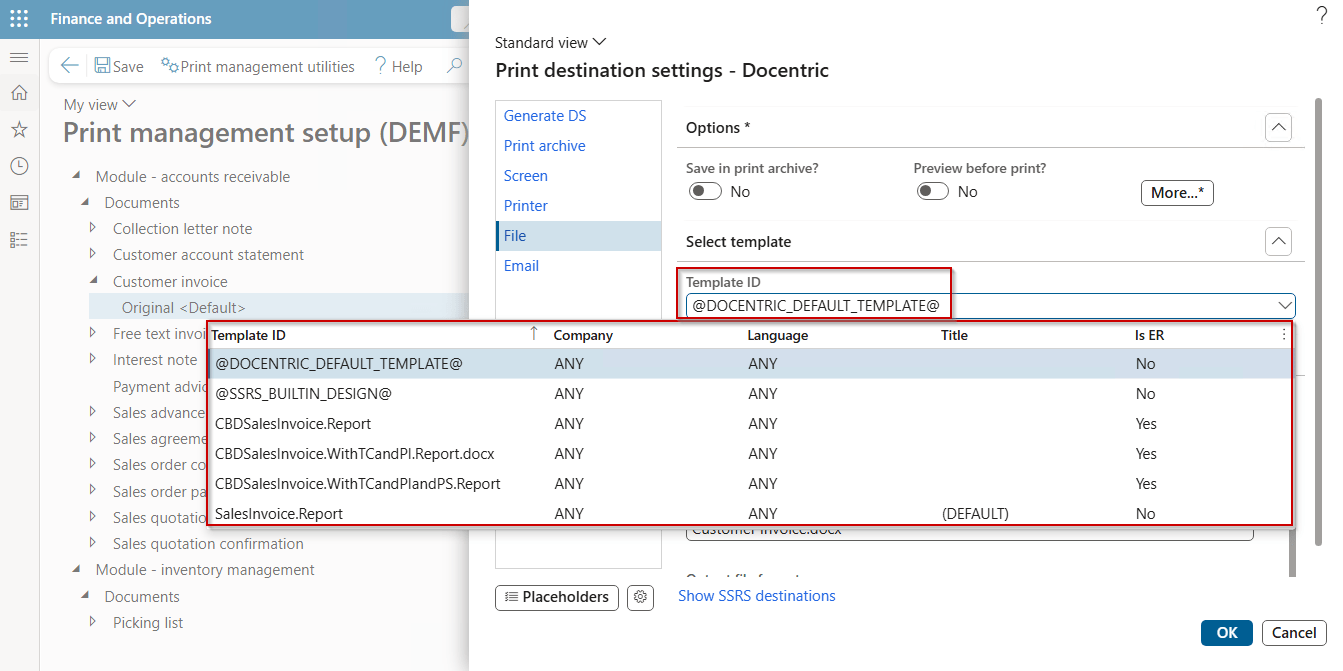
You can select your desired template directly from the Print destination settings, exactly in the same way as for any other report:
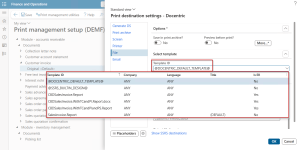
- Open Print Destination Settings: Use the Docentric Print destination settings for Customer invoice (e.g., via Print Management).
- Select Template ID: Use the Template ID dropdown to choose your preferred design.
Embedded XML invoice
After configuring the PDF output format and PDF/A conformance level, the next step is to configure embedding the machine-readable XML invoice (in CII format for ZUGFeRD) as a PDF attachment within the generated PDF.
Docentric provides two methods to handle this, depending on whether you already have the XML or need to generate it on the fly.
How to configure
You manage the embedding process through Rules for Loaded or Generated Attachments while configuring report attachments. Will you guess where? As usual – in Docentric Print destination settings.
- Access Print destination settings: Open the Docentric print destination settings for Customer invoice.
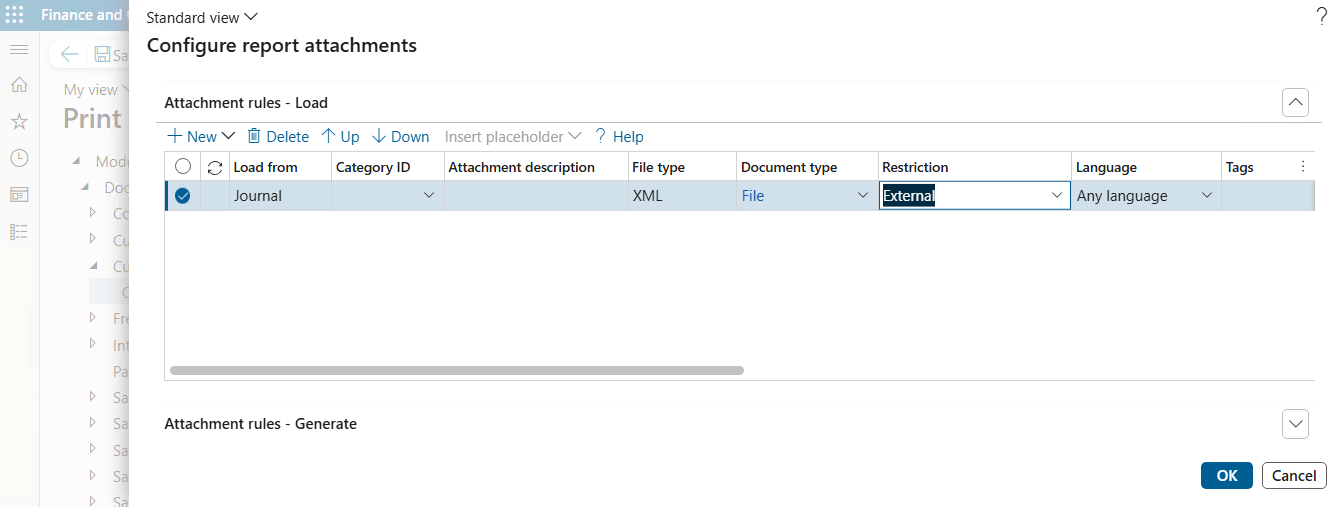
- Define Rules: Select Modify in the Report attachment fast tab to configure report attachments.
Option A: Embedding an Existing XML (Attachment Loading Rules)
You need to have a valid XML invoice file already generated by using an ER format configuration, a custom X++ process or a third-party system. With assumption that it is stored in D365FO as a Customer invoice journal attachment, you use the below or similar Attachment loading rule. Make sure that the rule criteria clearly points to your XML file, and the loaded attachment will be “printed” as PDF attachment, or in other words: embedded into the PDF as attachment.
Need more details? See a detailed article on Creating Project eInvoice with embedded and merged PDF Attachments
Option B: Generating XML on the Fly
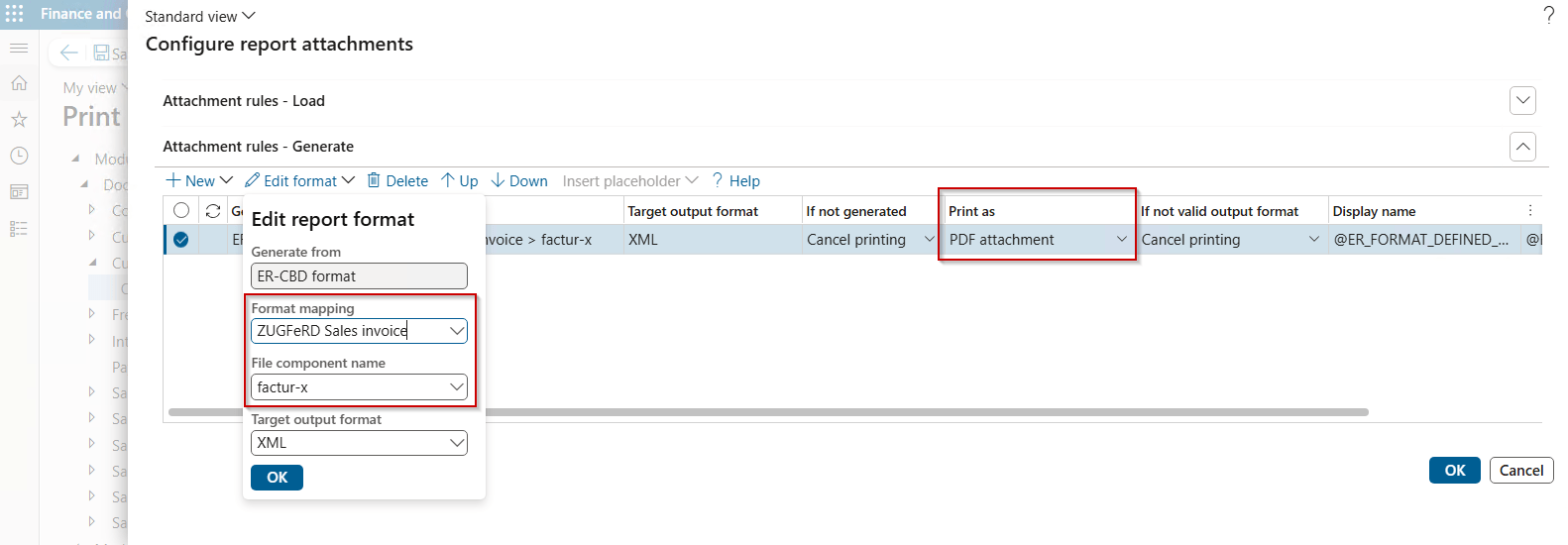
This is the simplest and most integrated method. You create an Attachment generating rule to use the ER format configuration designed for ZUGFeRD XML. This will invoke the Electronic Reporting (ER) framework to generate the XML in parallel with generating the PDF. The format must produce CII compliant e-Invoice and you just need to “print” it as PDF attachment.
Not sure which option to use? If your XML is already generated elsewhere, go with Option A. For one-step ZUGFeRD invoice generation, let Docentric invoke ER to automatically create the XML and embed it into the generated PDF as PDF attachment. See the detailed guide on loading and generating attachments.
ZUGFeRD ER Configurations
Docentric AX uses Electronic Reporting (ER) configurations to generate the machine-readable XML required for ZUGFeRD. You may use your own ER electronic invoice formats, configurations released by Microsoft or available from any other providers.
Where to Retrieve ZUGFeRD ER Configurations
ZUGFeRD and Factur-X standards are updated frequently to comply with changing tax laws. Therefore, it is recommended to use professionally maintained configurations. To support ZUGFeRD requirements, Docentric partners with ER-Consult, which has developed its own proprietary ER configurations for ZUGFeRD.
To obtain the latest ZUGFeRD ER configurations, please contact ER-Consult directly. Got stuck? Email us at support@docentric.com. We will be more than happy to help!
Supported D365FO invoices
Docentric supports the following document types to generate ZUGFeRD and Factur-X compliant PDF output:
- Customer invoice (SalesOrderInvoice)
- Free text invoice (SalesFreeTextInvoice)
- Project invoices:
- ProjectInvoice
- SIProjInvoice
- SIProjInvoiceWithBR
XMP metadata
XMP (Extensible Metadata Platform) metadata is embedded within a PDF document to describe its content, authorship, and technical characteristics, and to support compliance with PDF standards. In ZUGFeRD invoices, XMP is used to provide information about the embedded XML invoice, such as its file name, version, type and compliance level.
How to configure
During the generation and embedding process, Docentric assesses the generated document for ZUGFeRD compliance. The following is checked:
- Supported invoice type: the report is a Sales Invoice, Free Text Invoice, or Project Invoice (see supported document types).
- PDF format: the report is a PDF with at least the PDF/A-3a conformance level set.
- Valid attachments: An XML attachment (the invoice data) is generated or loaded. Note: Additional PDF attachments are allowed.
- Standard compliance: The structure of the embedded XML file must comply with the ZUGFeRD standard.
If these conditions are satisfied, Docentric considers the document to be ZUGFeRD-compliant invoice. As a result, the XMP metadata is automatically generated and ZUGFeRD document properties are added to the file during the XML embedding process.
If you need to modify existing criteria, add new criteria for XMP generation, or customize the auto-generated XMP metadata, code-based customization is required.
Supported distribution channels
Starting with Docentric AX v3.5.1, you can distribute generated invoices using the following Docentric print destinations:
- Email: to send generated invoices directly to customers.
- File: to route a file to Azure Blob Storage, SharePoint, or SFTP location among others, e.g. for archiving, triggering a workflow or enabling integration scenarios.
Step-by-step ZUGFeRD configuration
To generate a ZUGFeRD invoice, Docentric acts as the "glue" between your standard D365FO report and the Electronic Reporting (ER) framework.
1. Import ER configurations
Standard D365FO doesn't support ZUGFeRD out of the box. You need to import specific ER configurations (from Microsoft repository or ER-Consult) that know how to transform your invoice data into the required XML format.
- Install the Base: Load the Invoice Model and Mapping.
- Install the Format: Load the specific ZUGFeRD Sales invoice and Free text invoice formats.
- Set Defaults: Ensure the ZUGFeRD mapping is set as the Default for model mapping in the ER workspace.
2. Prepare the Legal entity
Accurate legal entity data is essential for compliance.
- Language: Set your legal entity (e.g., DEMF) and your Customer to German (de) so dates and decimals are formatted correctly.
- Tax Codes: Update your Sales Tax codes so the Print field is set to "Print code" value and the percentage is entered without spaces (e.g., 19%).
3. Configure the Docentric print destination (Email or File)
Now, tell Docentric how to package and distribute the invoice. You do this entirely within the Docentric Print Destination settings for the selected document, e.g. Customer Invoice.
- Print management setting (recommended): Open Print management setting for Customer Invoice and open Print destination setting.
- Email print destination: Select Docentric Email as your print destination to send the generated invoice directly to your customer. Configure its fields like To, Subject, Body as needed.
- Format: Set the Output file format to PDF and the conformance level to PDF/A-3b. This creates a "secure envelope" that can hold attachments.
- Attachment rule: In the Report Attachments fast tab, add a Generate rule to create the XML on the fly.
- ER format: In the Format mapping field, select the ZUGFeRD ER Format you imported earlier and set its Print as option to PDF attachment. This ensures the machine-readable XML is embedded directly into your PDF.
Generating and testing ZUGFeRD invoice
Now that everything is explained, you're ready to generate and verify your first ZUGFeRD compliant invoice. Follow this quick and high-level walkthrough for a smooth first run.
1. Quick preparation check
- Make sure that you followed the above step-by-step configuration instructions.
2. Create, post and print invoice
- Create a simple sales order, confirm it, pick and pack it, all using standard D365FO flows.
- In the invoice post & print dialog select printing through Print management, to apply your previously configured Docentric print destination.
- Click OK to print.
Behind the scenes, Docentric performs the following steps:
- Renders the visual invoice representation (from your Word or SSRS template) as PDF/A-3.
- Invokes the ER engine to generate the machine-readable CII XML.
- Embeds that XML as attachment and auto-adds required XMP metadata.
3. Verify the result
- Locate the output PDF (e.g., in email attachment or file destination).
- Open it in Adobe Acrobat Reader, and:
- Check File > Properties for PDF/A conformance.
- View Attachments pane (paperclip icon) - look for factur-x.xml (or similar). Right-click to save and view it.
- Validate by uploading to Docentric e-Invoice Validator (or official FeRD/FNFE tool).
Wrapping it up
By combining Docentric’s report attachments functionality with ER configurations, you can transform D365FO invoice reports into ZUGFeRD-compliant documents. The solution can handle automatically all the technical requirements such as PDF/A-3 formatting, XML embedding, and XMP metadata generation.
Configure it today to benefit from:
- Plug-and-play compliance: Generate ZUGFeRD/ Factur-X compliant invoices without extra coding or modifying standard D365FO core logic.
- Design freedom: Apply ZUGFeRD requirements and add XML to your report based on Docentric Word template or SSRS.
- Guaranteed data consistency: ER configurations using the same data as reports ensure the data in your visual PDF matches the data in the embedded machine-readable XML.
- Automation-ready output: Distribute invoices via Email to your customers or use File destinations to enable automated archiving and integration with external EDI providers or customer portals.