
 Tags: D365FO, X++
Typing values over and over? Easy to make mistakes. That’s why lookups make life easier in Dynamics 365 Finance & Operations (D365FO). Instead of typing values manually, users can simply pick from a dropdown, which saves time and prevents mistakes.
Out of the box, you already get plenty of standard lookups. But what if you need one that doesn’t exist? Or do you find yourself writing the same lookup logic in multiple places? That’s where an EDT-based custom lookup comes in.
By attaching a lookup form to an Extended Data Type (EDT), you get a reusable lookup that works consistently across forms and controls. In this article, we’ll walk through how to build one step by step.
Lookups in D365FO
Lookups are dropdown controls that provide users with a list of valid values. D365FO supports several ways to define lookups:
- Base EDT relation lookups automatically generated when an EDT has a relation to a table specified. It shows the fields from the AutoLookup group from the table.
- Form lookups: created by overriding the lookup() or lookupReference() methods in a form control.
- Custom lookup forms: fully customized forms that can be attached to EDTs or controls.
In this article, we’ll focus on the custom lookup form tied to an EDT.
Create an EDT lookup
When we have the need to use the same lookup in different controls, and in different forms, it’s a much more efficient solution to create an EDT lookup instead of overwriting lookup methods in each form and control.
To get this working, we need:
- A lookup form: this form contains a grid with the fields we want to display in the lookup.
- An EDT: we will link the lookup form to this EDT, so when we use the EDT, it will automatically show the lookup form.
To demonstrate how to do this, we’ll use existing objects in Docentric AX. First, the DocAzureStorageAccountIdSelect EDT.
This EDT has a reference to the DocAzureStorageAccount table, and that would be enough to have a lookup. So, why create an additional form?
Sometimes we want to add additional filters to the query to display records from all companies or some companies only. In this case we can’t use the standard relation and the AutoLookup group functionality.
Lookup form
First, we need a form. This form will be the one displayed when you click the down arrow in the control.
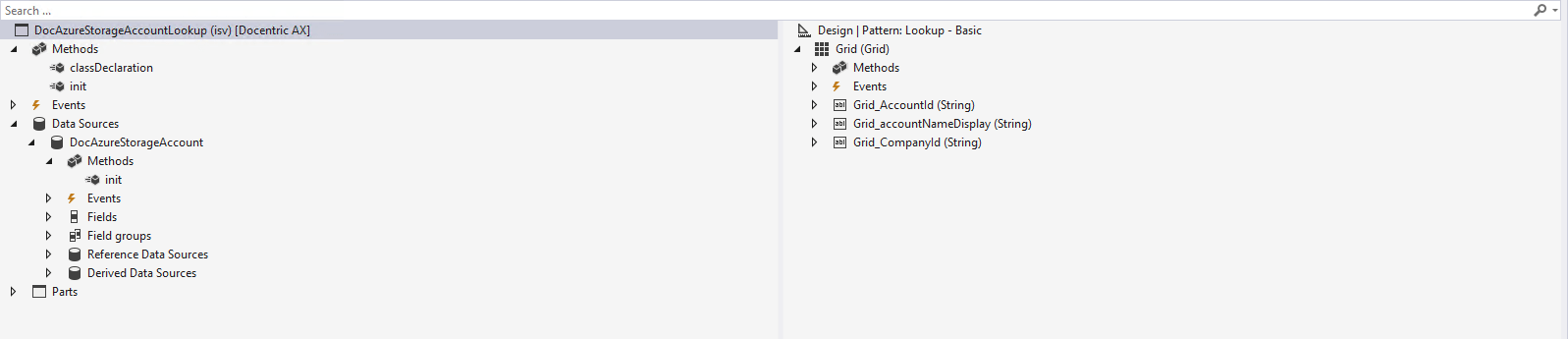
You can see its form pattern is Lookup – Basic, and it only has a grid with the fields we want to display in the lookup.
We’ve also overridden the form init method:
|
1 2 3 4 5 6 7 |
public void init() { super(); // Set the form control that contains the ID value that must be returned to the calling form this.selectMode(Grid_AccountId); } |
Here we’re only changing which field is returned in the form.
And in the form's datasource we’ve also overridden the init() method:
|
1 2 3 4 5 6 7 8 9 |
public void init() { super(); // Show only Azure storage accounts for DAT and current company QueryBuildRange qbrCompanyId = this.queryBuildDataSource().addRange(fieldNum(DocAzureStorageAccount, CompanyId)); qbrCompanyId.value(queryRangeConcat(queryValue('DAT'), queryValue(curExt()))); qbrCompanyId.status(RangeStatus::Hidden); } |
As we mentioned earlier, sometimes we need extra filtering on the query, and that’s why we don’t use the default lookup that comes from the AutoLookup field group in the related table.
In this case we’re modifying the query to include the current company records, but also the ones in the DAT company.
Extended Data Type
Once we’ve got the lookup form ready, let’s go back to the DocAzureStorageAccountIdSelect EDT and see some details:
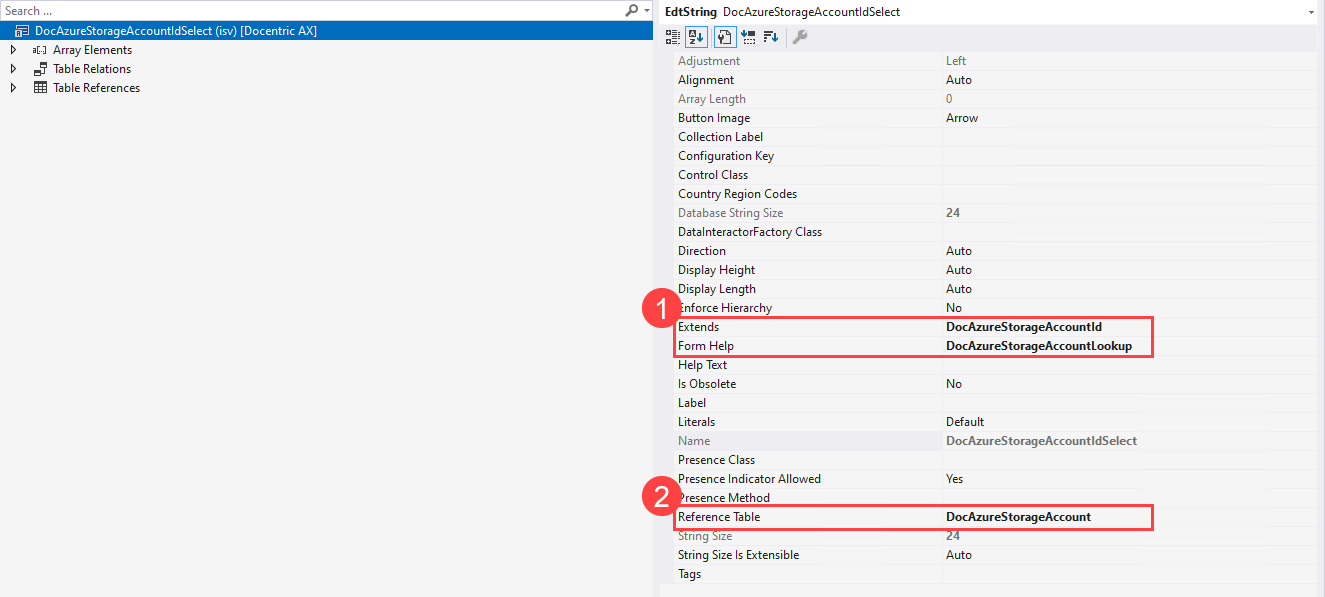
In the image you can notice two important parts:
- It extends the DocAzureStorageAccountId EDT, and the Form Help property is set to the DocAzureStorageAccountLookup form.
- The Reference Table property points to the DocAzureStorageAccount table.
The EDT we’re extending from also has a Reference Table, and it will show a lookup if you use that EDT in a field. By extending it and using the Form Help property, we’ll have a different lookup for this EDT.
And this is all you need to do on the EDT side.
Testing the lookup
Time to test! Go to Print management, and in the Docentric File print destination, scroll down to Save to Azure Blob storage and enable it.
When opening the Azure storage account lookup, we will see our form.
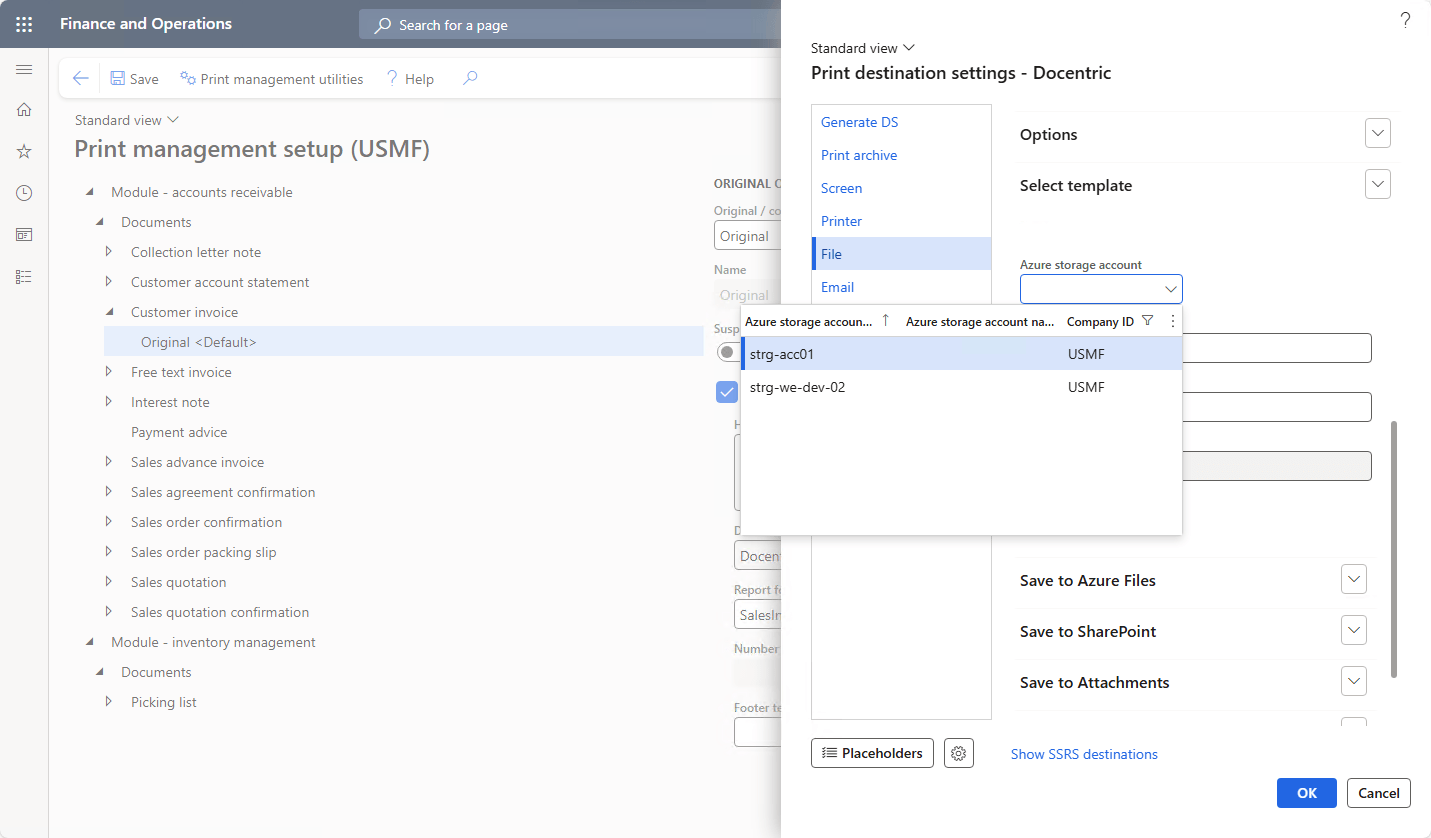
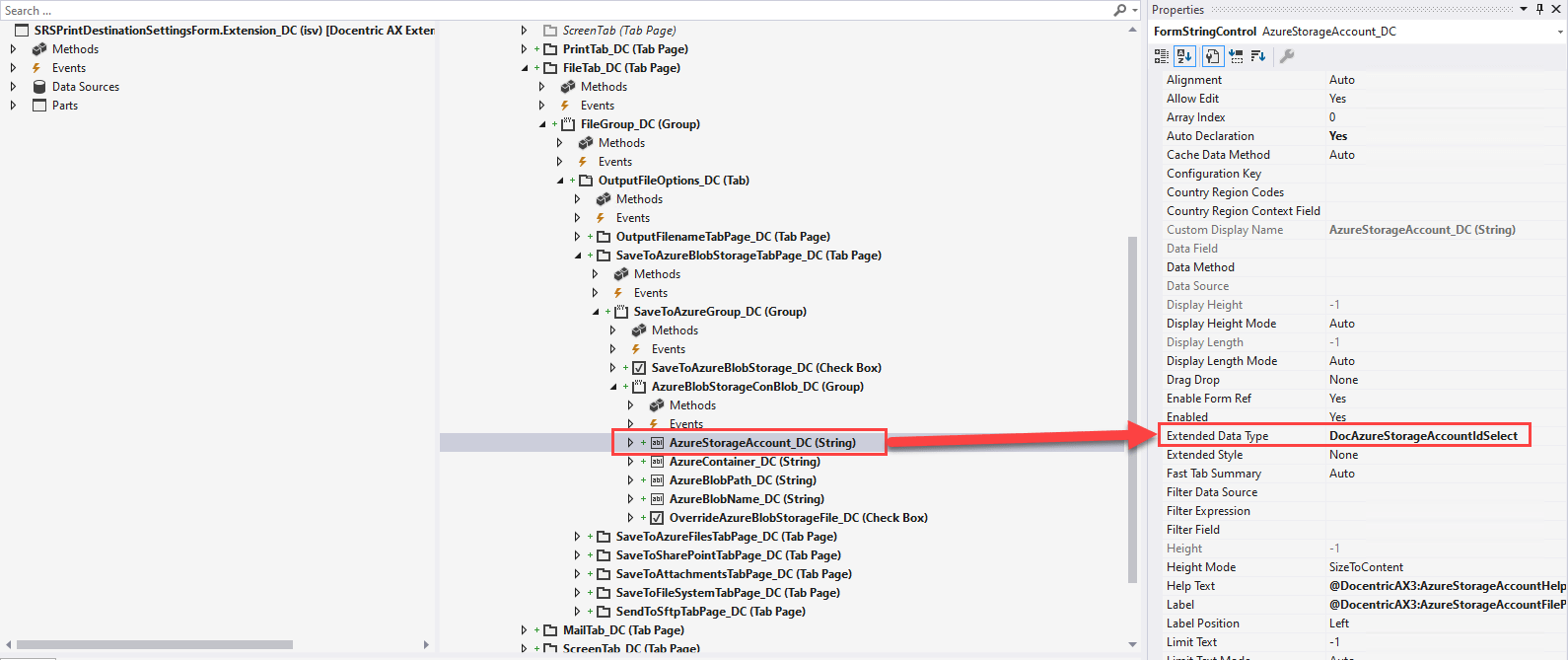
And if we check the form where this is used, we can see that the control is using the EDT DocAzureStorageAccountIdSelect:
Conclusion
EDT-based custom lookups give you three big wins:
- Consistency: the same lookup works everywhere you use the EDT.
- Flexibility: add filters and logic that standard lookups can’t handle.
- Maintainability: keep the logic in one place, no more duplicated methods.
If you’re tired of repeating lookup code, try creating your own EDT lookup. In this article, we demonstrated how we implemented it for the Azure storage account selection in the Docentric File print destination.