
 Tags: D365FO, e-Invoice, Full Edition
If you just want to validate e-invoices and don’t want to install or configure anything locally, Docker is the fastest way to get started.
In the previous article, Docentric e-Invoice Validator, you saw what the validator is and how it’s used.
This article focuses on the next step: how to get it running using Docker.
What is Docker?
The Docentric e-Invoice Validator is published as a Docker image. It bundles everything you need in a single container, so you can start validating e-invoices in minutes.
Docker is an open-source platform that lets you build, ship, and run applications in containers.
Containers are standardized, executable units that combine application code with all required libraries and dependencies, so the application runs the same way in every environment.
Instead of installing runtimes, libraries, and tools on your machine, you run one container that already includes everything inside a Docker image.
For the Docentric e-Invoice Validator, this means:
- No local setup of .NET or Java
- No dependency conflicts
- No environment-specific surprises
You run one command, and the validator is ready.
What’s in the Docker image
The Docker image packages the complete validator stack:
- Minimal API with ASP.NET Core
- Web-based UI for manual validation
- Mustang Project validation engine (Java-based)
- .NET and OpenJDK runtime
There are no external dependencies to install. No Java setup. No build steps. Just pull the image and run it.
The container exposes:
- A web UI for interactive validation.
- A REST API for automation and CI scenarios.
Prerequisites
Before you start, make sure you have:
- Docker installed and running (Docker Desktop, Docker Engine, or any compatible setup).
- Windows Subsystem for Linux (WSL) enabled.
You can find the Docker image and the source code here:
- Docker Hub: https://hub.docker.com/r/docentric/e-invoice-validator
- GitHub repository: https://github.com/Docentric/docentric-e-invoice-validator
Run the Docker image
Run in the command line
Open a Windows Terminal or command prompt and run the following commands.
Pull the latest image from Docker Hub:
|
1 |
docker pull docentric/e-invoice-validator:latest |
Run the container:
|
1 |
docker run -p 18889:8080 docentric/e-invoice-validator:latest |
At this point, you’re ready to validate invoices.
Run in Docker Desktop
Open Docker Desktop and in the search bar enter docentric:

You will see the e-Invoice Validator image in the results. Click the Pull button.
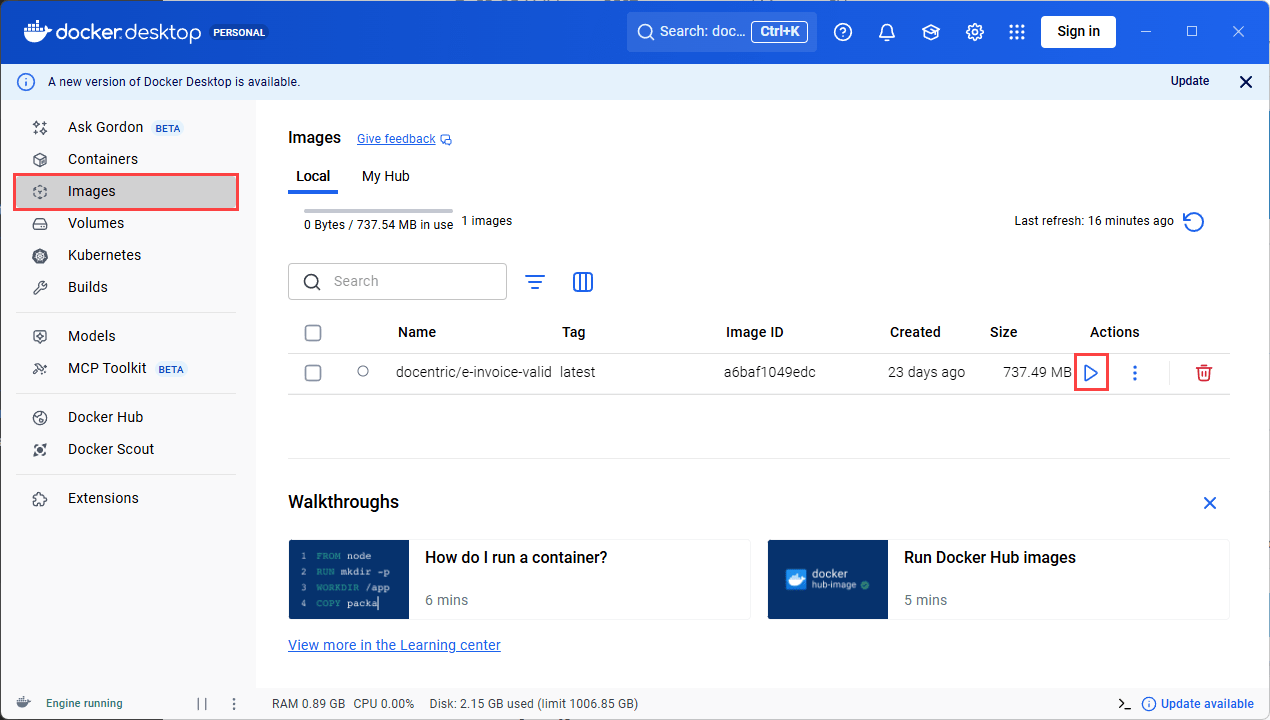
When it’s finished, go to the Images tab and you will see the docentric/e-invoice-validator image. Click the play button:
Open the Optional settings pane, and enter 18889 in the Ports section. On this port the website will be available:
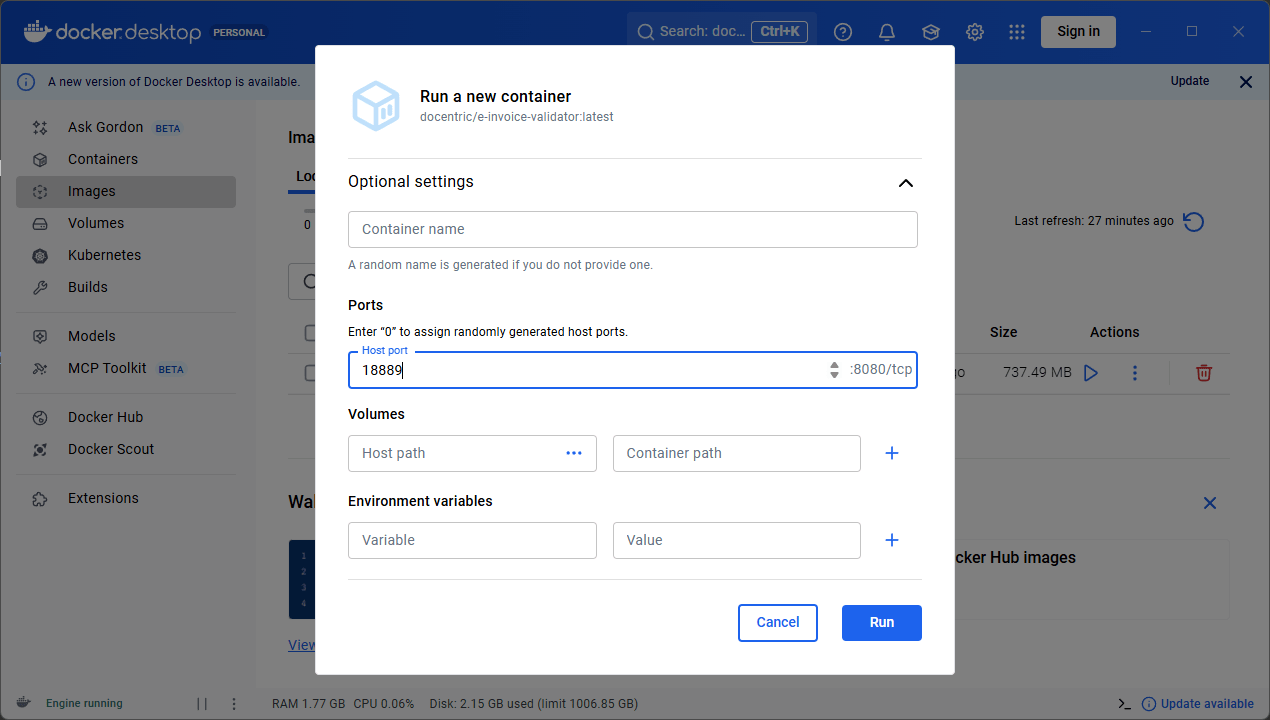
Finally, click the Run button.
A note about using the latest tag
In the examples above, we used:
|
1 |
docker pull docentric/e-invoice-validator:latest |
The latest tag does not automatically update running containers. It simply points to the most recent image version published with that tag.
This means:
- If you already pulled latest once, Docker will not automatically refresh it. You must explicitly pull again to check for updates.
- Running containers will continue using the image version they were created from, even if a newer latest is available.
To get a newer version, you must explicitly pull the image again:
|
1 |
docker pull docentric/e-invoice-validator:latest |
Then stop and recreate your containers to use the updated image.
If you want fully predictable behavior, especially in production or CI environments, it’s recommended to use a specific version tag instead of latest, for example:
|
1 |
docker pull docentric/e-invoice-validator:2026.1.0 |
Using version tags ensures that your environment runs exactly the image version you expect.
Test using the web UI
Once the container is running, open your browser and go to http://localhost:18889.
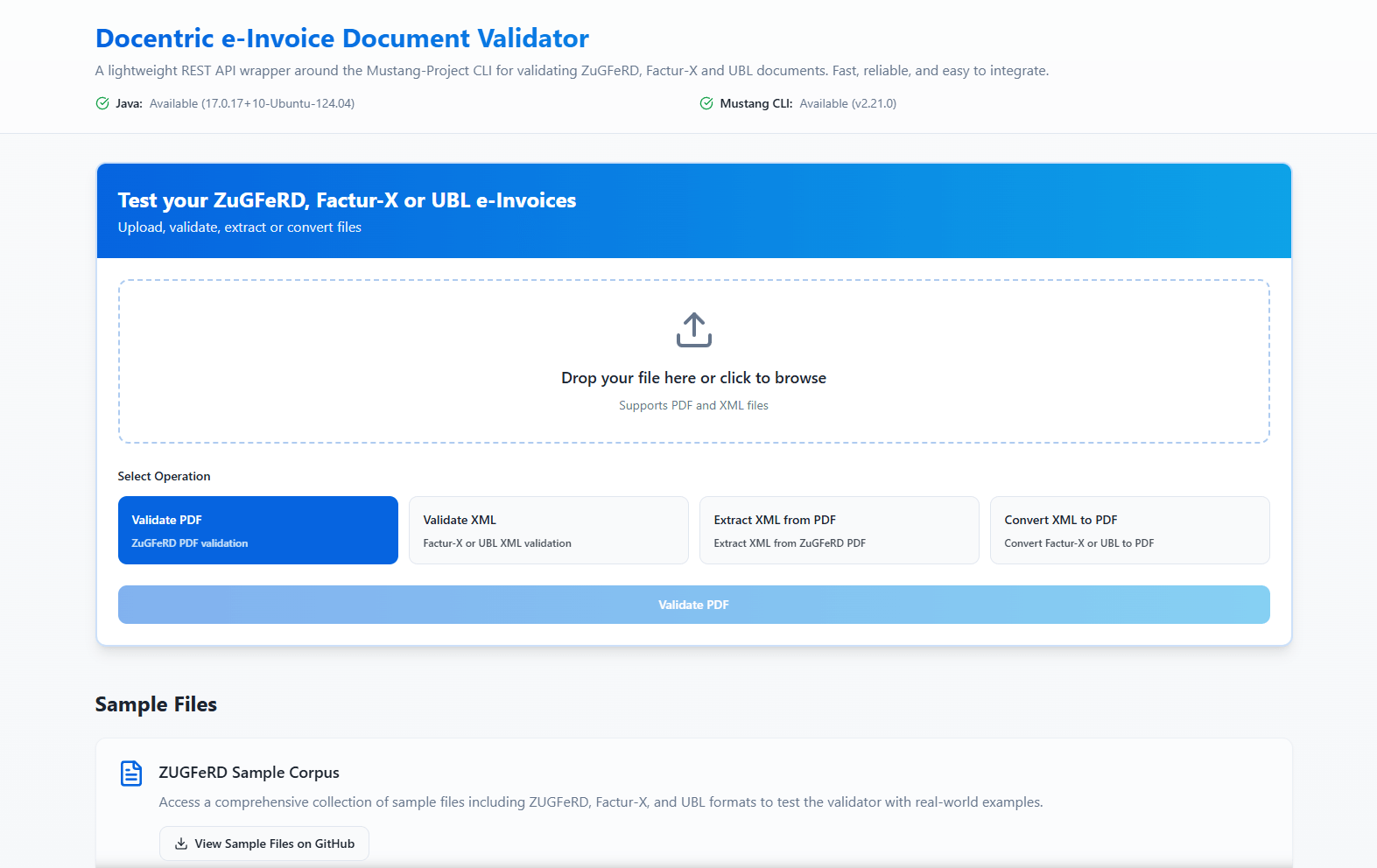
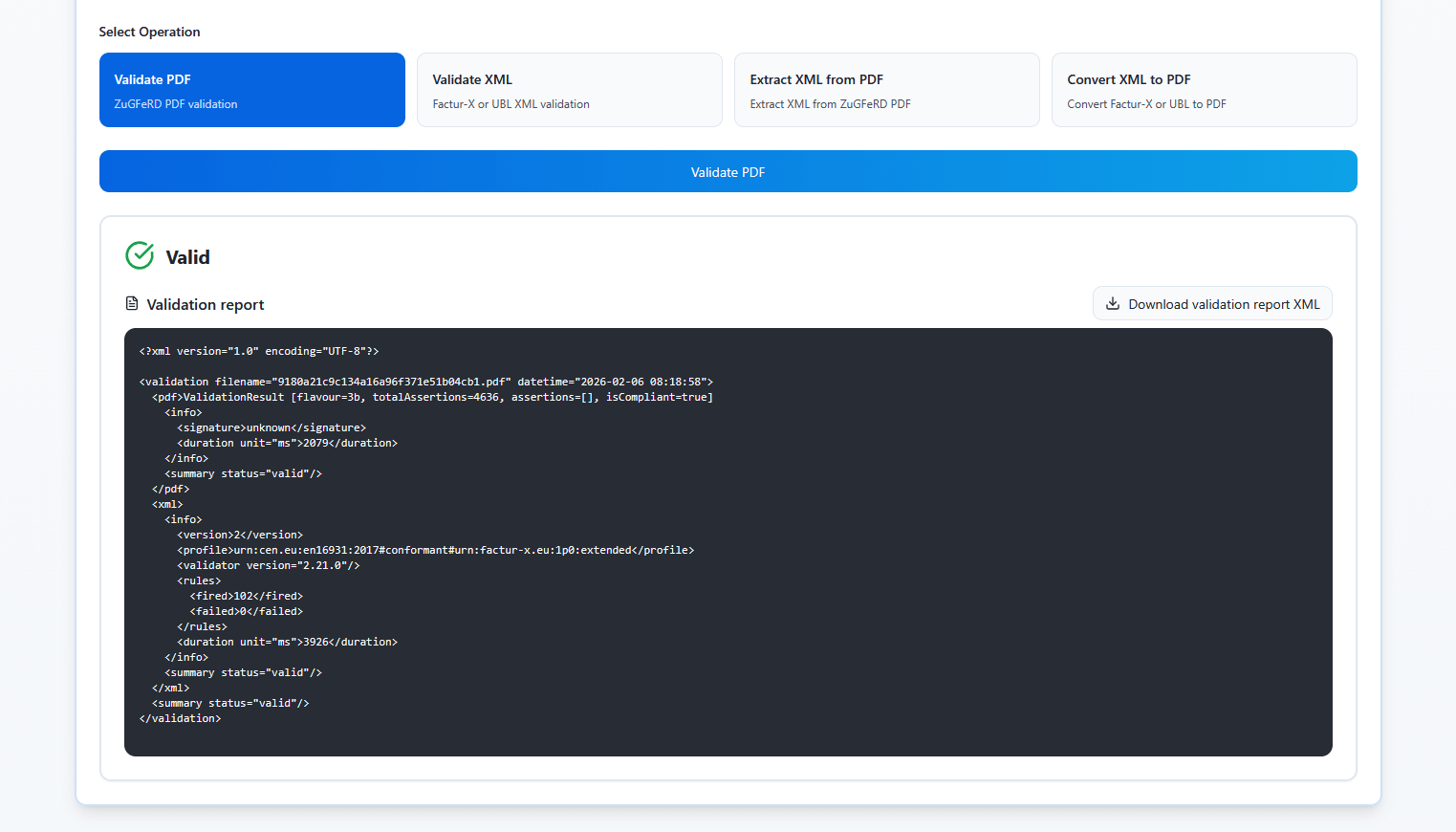
In the Web UI you can see the file upload control and different operations:
- Validate PDF: validates a PDF invoice for ZuGFeRD compliance.
- Validate XML: validates an XML file for Factur-X or UBL XML compliance.
- Extract XML from PDF: extracts the XML from a ZuGFeRD PDF file.
- Convert XML to PDF: converts a Factur-X or UBL XML file to PDF.
After you select an operation and upload a file, the validation results appear in the pane below:
Using the REST API
The web UI is useful for manual validation. If you want to validate invoices in bulk or automate validation in pipelines, use the REST API instead.
Swagger UI is available at http://localhost:18889/api/docs/swagger/index.html.
The ReDoc documentation is also available at http://localhost:18889/api/docs/redoc/index.html.
Typical usage scenarios of the REST API are:
- CI/CD e-invoice validation
- Automated compliance checks
- Internal QA tooling
- Integration testing during development
What’s next?
You now have the Docentric e-Invoice Validator running locally using Docker and can validate e-invoices through the web UI or the REST API.
👉 Next step: Validate one of the sample invoices from the repository, either through the web UI or via the REST API.