
 Tags: D365FO, e-Invoice, Full Edition

As you saw in a previous article, Docker is the fastest way to get started with the Docentric e-Invoice Validator.
But Docker isn’t the only option. Depending on your environment and deployment preferences, you can also run the validator:
- Locally using IIS
- In Azure using container apps
- As a standalone app with the exe file
This article walks you through the options.
Running the validator locally with IIS
The Docentric e-Invoice Validator is an ASP.NET Core 10 application with a React frontend. It already includes a web.config file, so it can be hosted directly in IIS.
This setup is useful if:
- You’re on Windows
- IIS is already part of your local setup
- You want to run the validator without Docker
Prerequisites
Before you start, make sure the following are installed:
- .NET 10 SDK: required for building the application.
- .NET 10 Hosting Bundle: required for IIS integration. This installs the ASP.NET Core Module (AspNetCoreModuleV2).
- Node.js 20 or later: required to build the React frontend.
- Java / OpenJDK 11 or later: the validator invokes a Java-based validation engine (Mustang CLI).
- IIS enabled on Windows: enable it via Turn Windows features on or off if it’s not already enabled.
Publish the application
Open a Terminal window as administrator and run the command:
|
1 |
dotnet publish src/Server/RestServer.csproj -c Release -o C:\inetpub\einvoice-validator |
This builds the:
- ASP.NET Core backend
- React frontend
- web.config file
And places all the output results in the publish folder (C:\inetpub\einvoice-validator)
Create an IIS site
You will host the validator as a standalone IIS site.
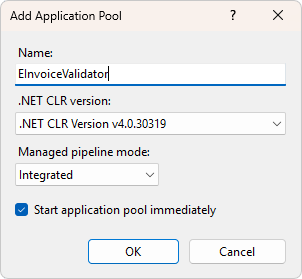
- Go to Application Pools
- Create a new pool
- Set:
- Name: EInvoiceValidator
- .NET CLR version: No Managed Code
- Managed pipeline mode: Integrated
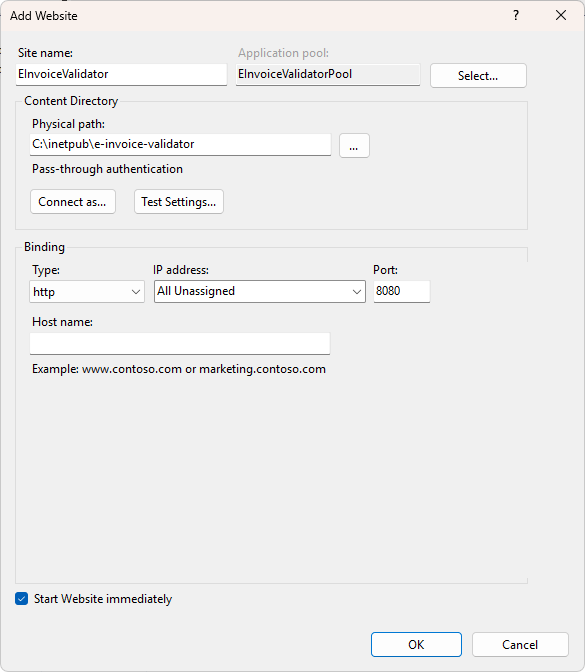
Next, create a new site:
- Right-click Sites → Add Website
- Set:
- Site name: EInvoiceValidator
- Application pool: select the one you've just created
- Physical path: C:\inetpub\einvoice-validator
- Binding: HTTP on a free port, for example, 8080
Ensure Java is available
The validator runs the Mustang CLI using Java.
Make sure:
- Java (OpenJDK 11+) is installed
- The java command is available on the system PATH, not just the user PATH
This is important because IIS app pools use system-level environment variables.
Test and run
Browse to http://localhost:8080.
The web UI should load, and you can start validating invoices.
Troubleshooting IIS issues
- HTTP 500.19 error: usually means the .NET Hosting Bundle is missing. Install it and run
iisreset. - 502.5 / process failure: the .NET runtime is not found. Verify the Hosting Bundle installation.
- Java not found: confirm
java -versionworks from a system command prompt.
Running the validator in Azure
If you want to run the validator in the cloud, containers are the most reliable option.
The Docentric e-Invoice Validator is already published as a Docker image on Docker Hub, with all dependencies included. This makes it a good fit for Azure Container Apps.
Deploying to Azure Container Apps (using Docker Hub)
This approach requires no local builds and no Azure CLI scripting if you prefer the Azure Portal.
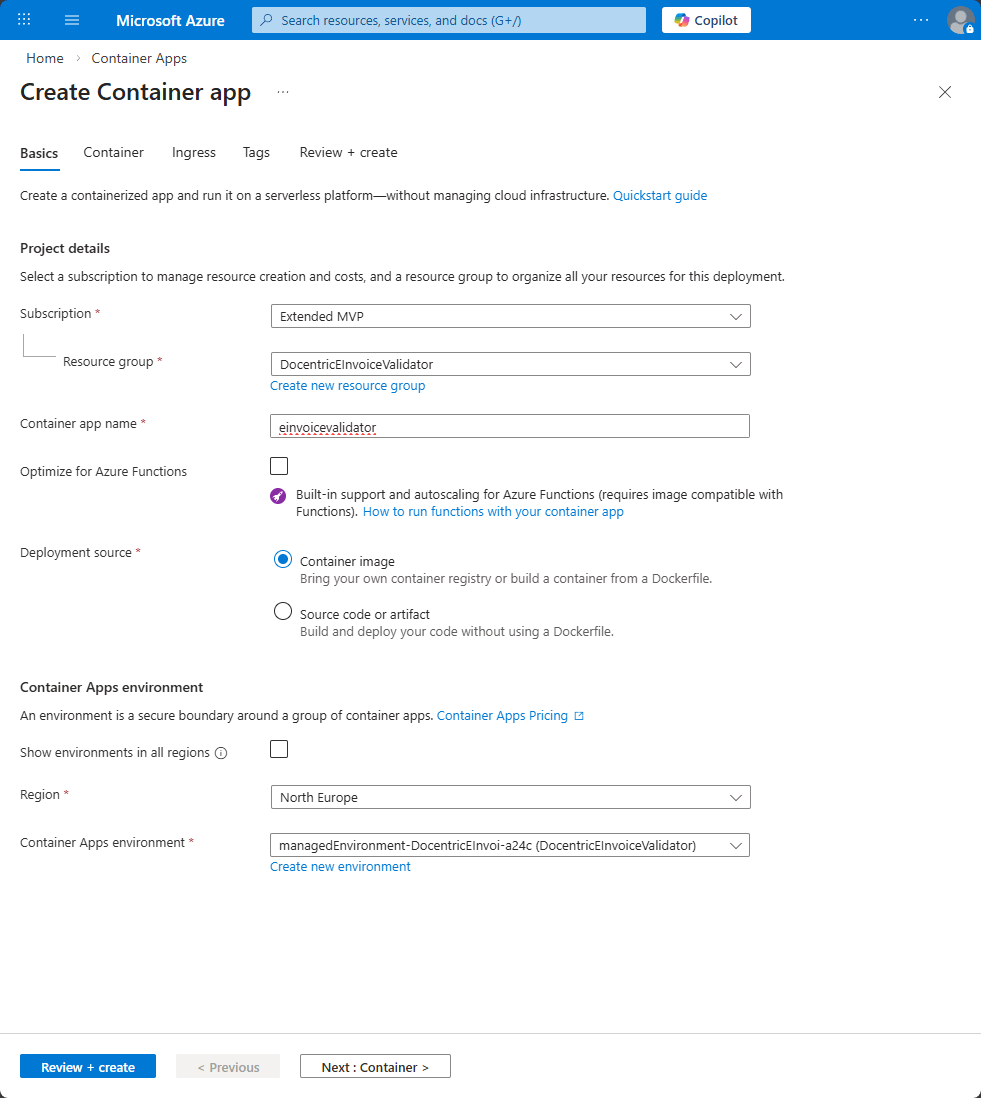
Create a Container Apps environment
- Open the Azure Portal
- Search for Container Apps
- Click Create > Container App
- Set:
- Resource group: create a new one, for example, rg-einvoice
- Container app name: einvoicevalidator
- Region: choose your preferred region
- Click Next
Configure the Container App
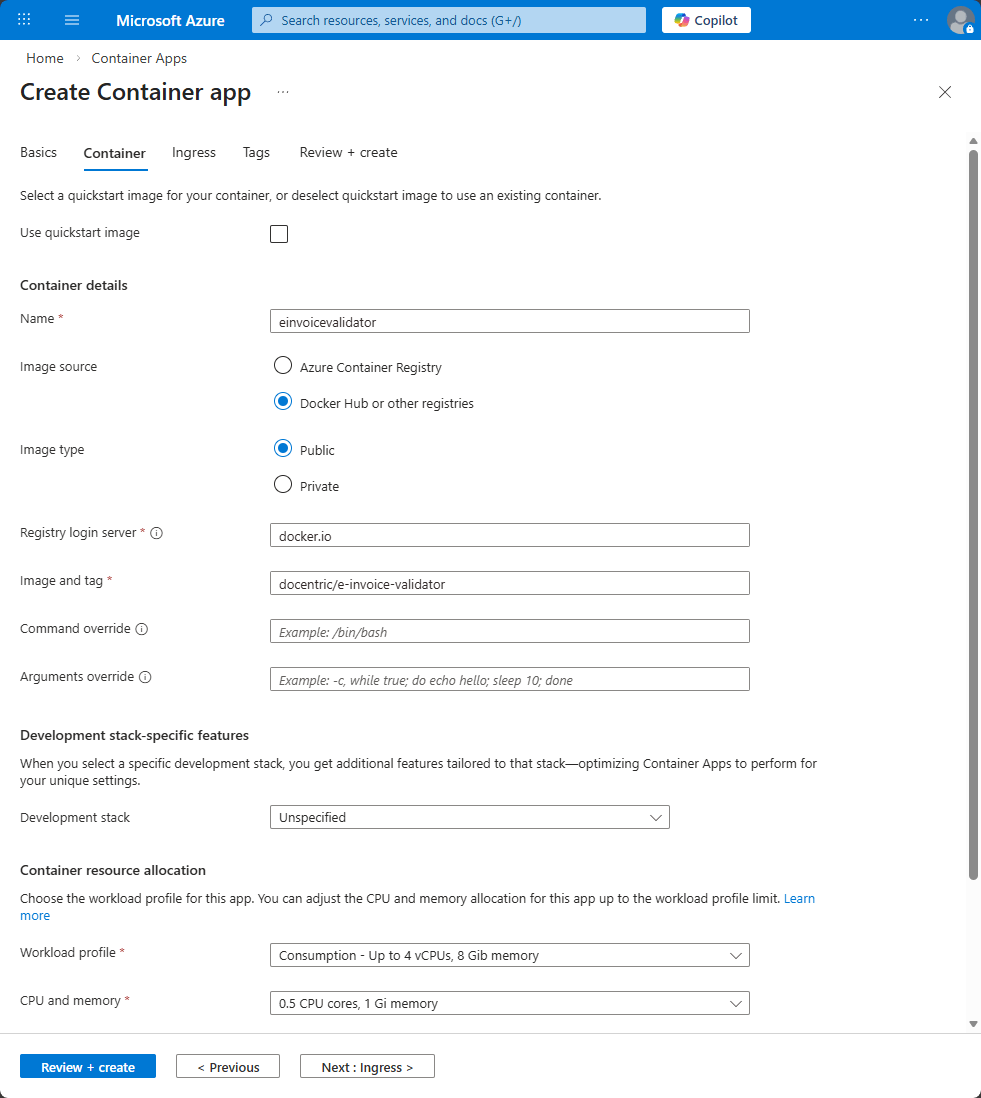
In the Container tab:
- Container:
- Disable Quickstart image
- Image source: Docker Hub or other registries
- Image: docentric/e-invoice-validator
- Tag: latest
- CPU and memory:
- 0.5 CPU cores, 1 Gi memory
Ingress
In the Ingress tab:
- Ingress:
- Enable ingress
- Allow traffic from anywhere
- Target port: 8080
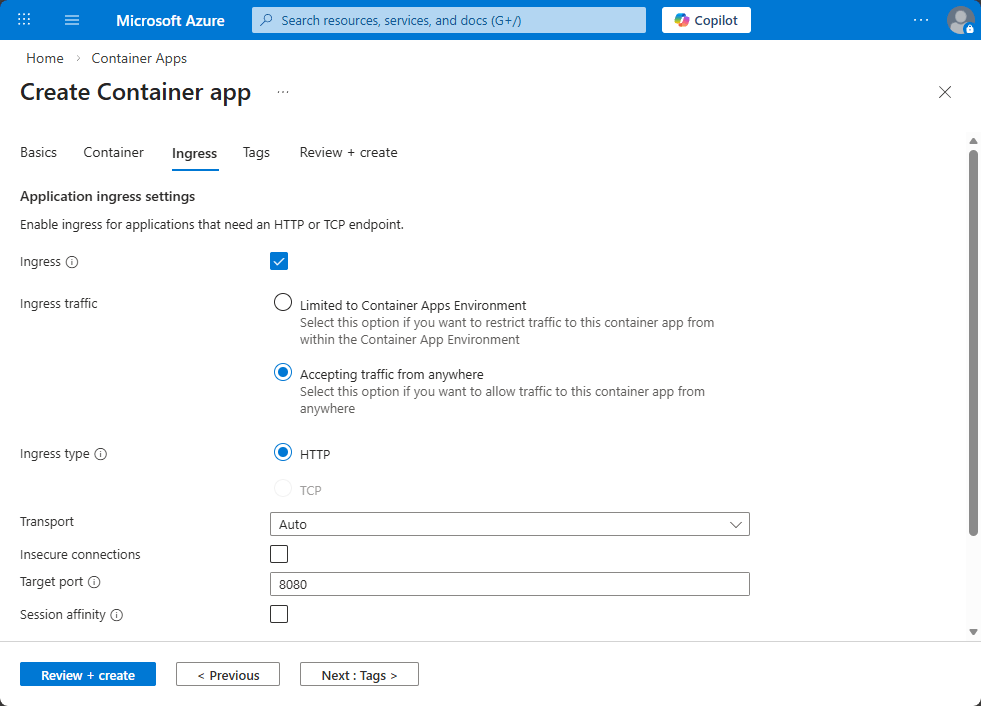
Finally, click Review + create, and once it validates, click Create.
Access the application
Once deployment completes, open the Container App in the portal. The Application URL is shown on the Overview page, for example:
|
1 |
https://einvoicevalidator.<random>.<region>.azurecontainerapps.io |
Open the URL and the validator will load.
Use the standalone EXE
After running the publish command from the IIS section, a EXE file is created. You can run this file locally.
What’s next
You’ve now seen several supported ways to run the Docentric e-Invoice Validator:
- Locally with Docker
- Locally with IIS
- In Azure using managed containers
👉 Next step: Pick the deployment option that fits your environment and validate a sample invoice end to end.