
When copying a D365FO environment with Docentric to a new tenant, or when performing a corporate domain change, we recommend reviewing the following configuration. The same steps apply to migration to a new tenant when it will be supported for D365FO environments.
A tenant or domain change by itself does not require:
- A new Docentric license file
- Reinstallation of Docentric
- Redeployment of Docentric components
However, some Docentric settings and external connections may need to be updated depending on what is changing. Therefore, we recommend going through the checklist below. Some steps may be relevant and others may not.
-
Validate Docentric reports
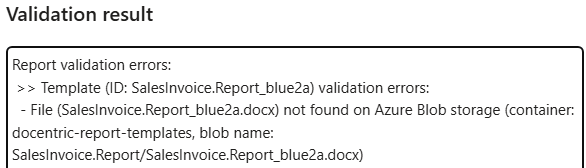
Open Docentric AX reports, select all reports and click Validate.
Check reports where Is report valid = Invalid. If a report template file cannot be found, proceed with the relevant template storage sub-steps below.
-
Report template files stored on internal Azure Storage
Download the template files from the source environment and upload them to the target environment.
See: Export Docentric AX report settings and templates and import them in a new environment
Use only the related parts of the guide.
-
Report template files stored on SharePoint
Use Export setup data on the source environment, manually update StorageSharePointSiteUrl in the XML, and use Import setup data on the target environment.
See: Export Docentric AX report settings and templates and import them in a new environment
Use only the related parts of the guide.
-
-
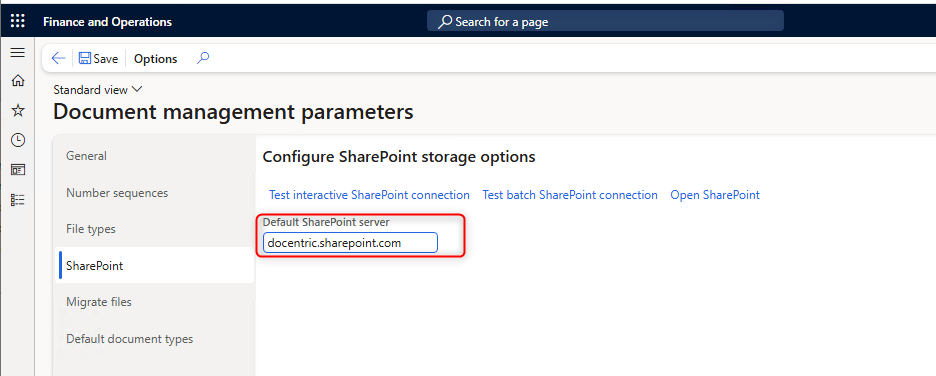
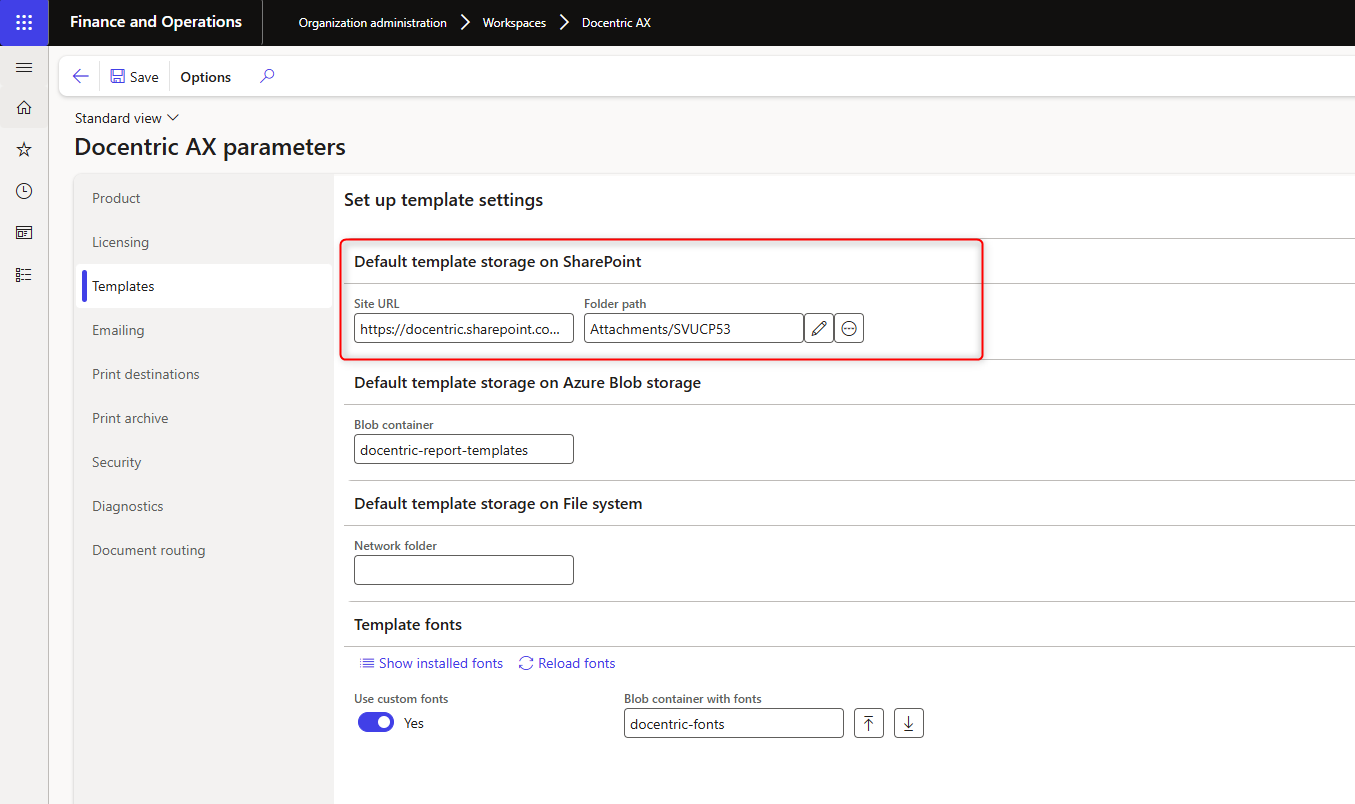
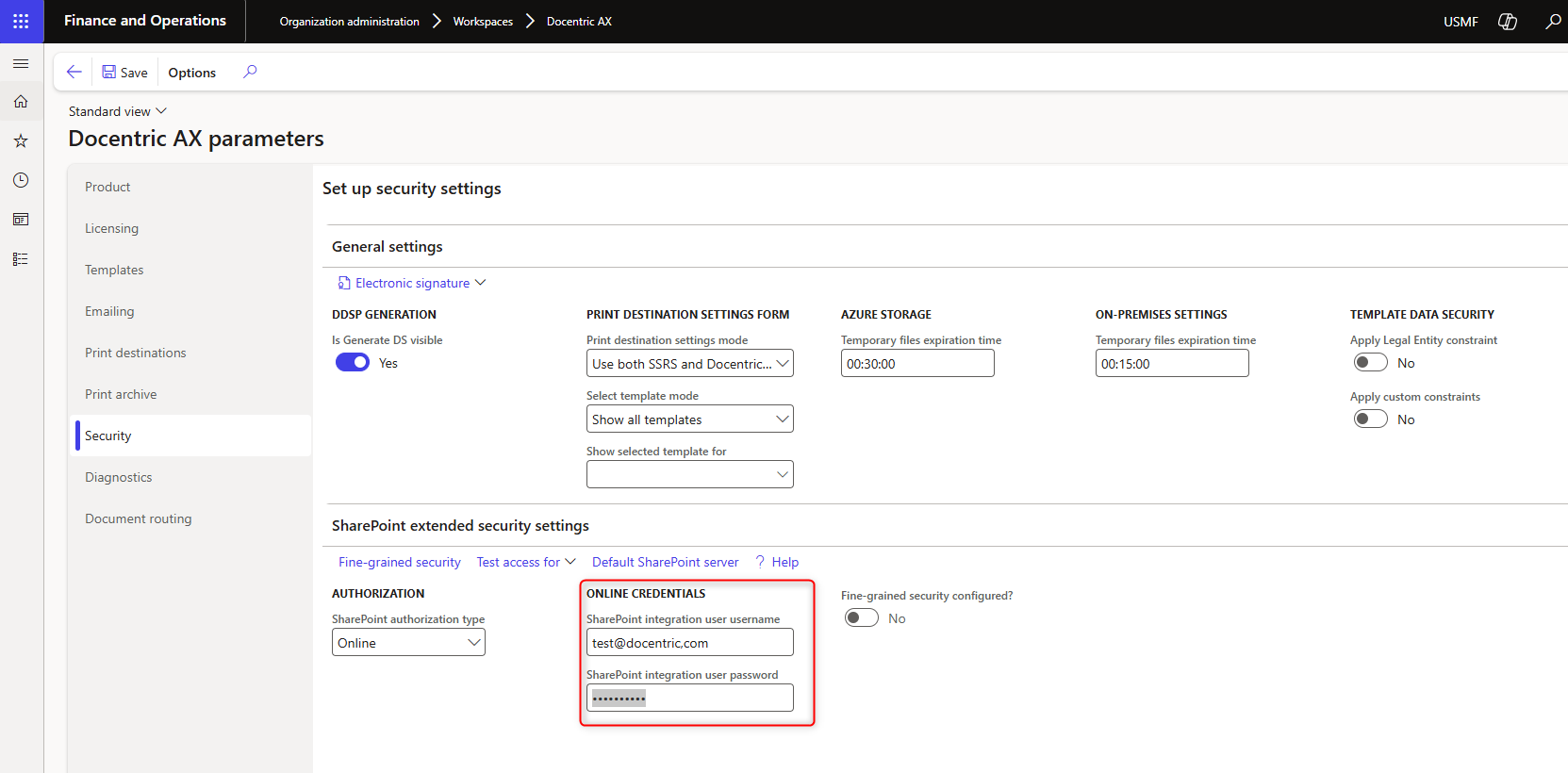
Review SharePoint configuration
-
Document management parameters > SharePoint (standard D365FO form used by Docentric)
-
Docentric AX parameters > Templates > Default template storage on SharePoint
-
Docentric AX parameters > Security > SharePoint extended security settings
-
-
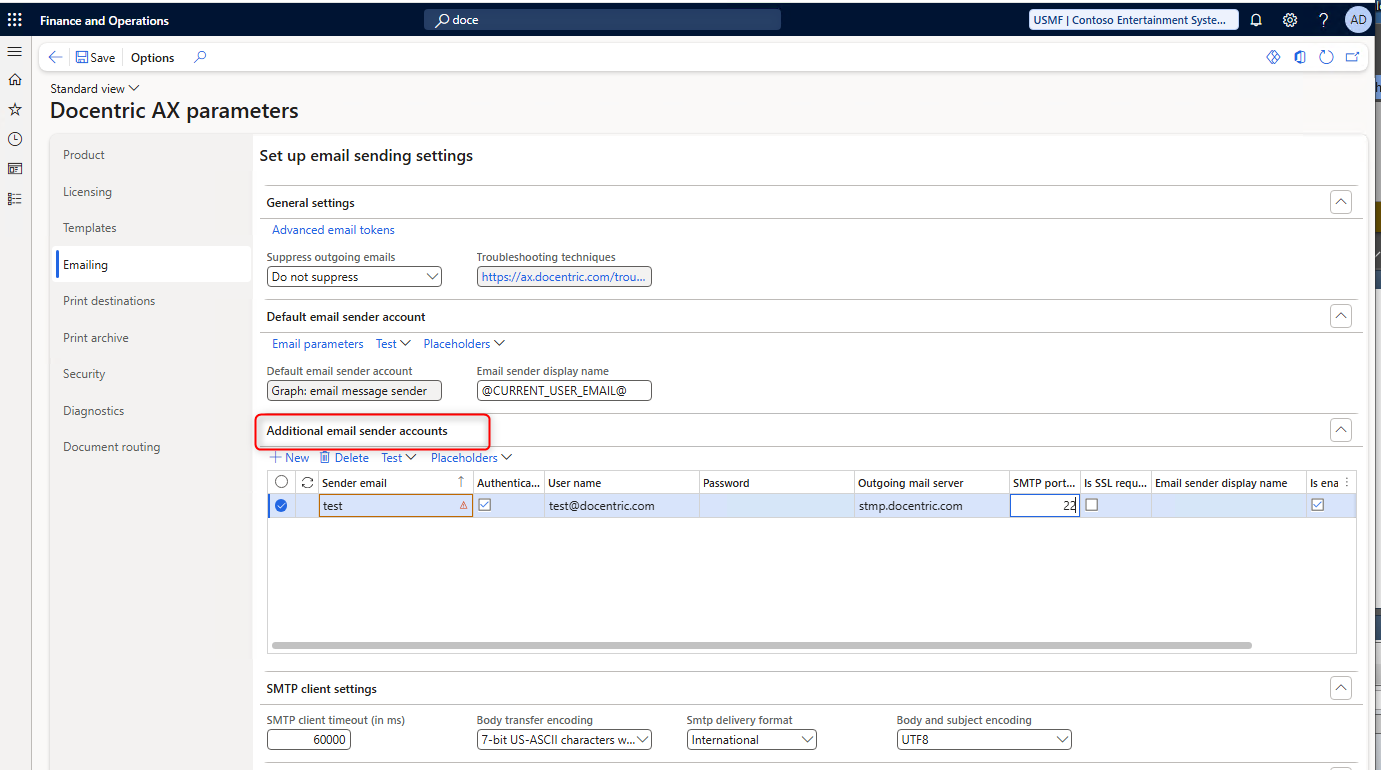
Review email configuration
Check Docentric AX parameters > Emailing and update any settings affected by the migration or domain change.
-
Review other external connections
-
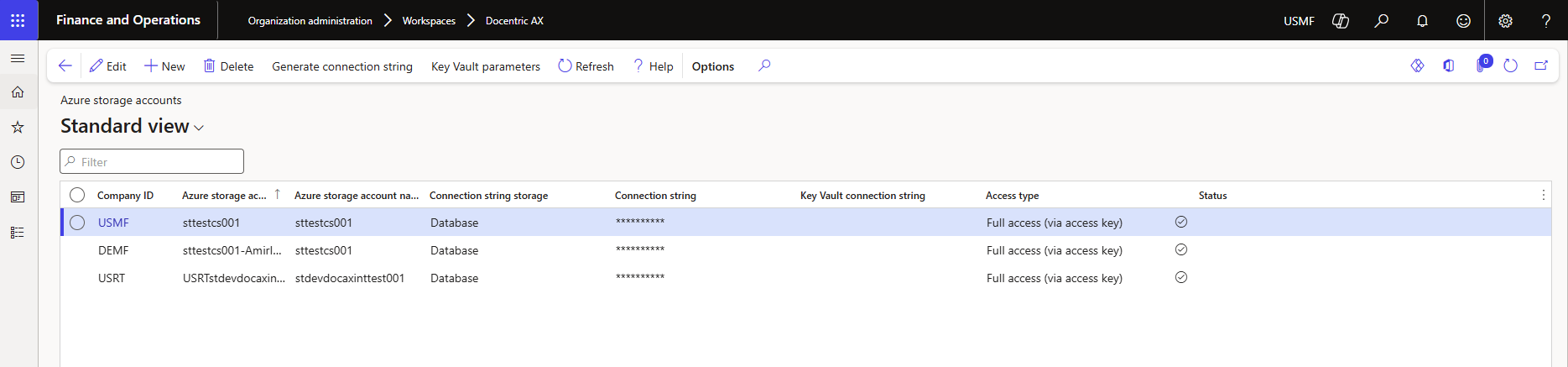
Azure Storage accounts
Docentric AX workspace > Related links > Setup > Azure storage accounts -
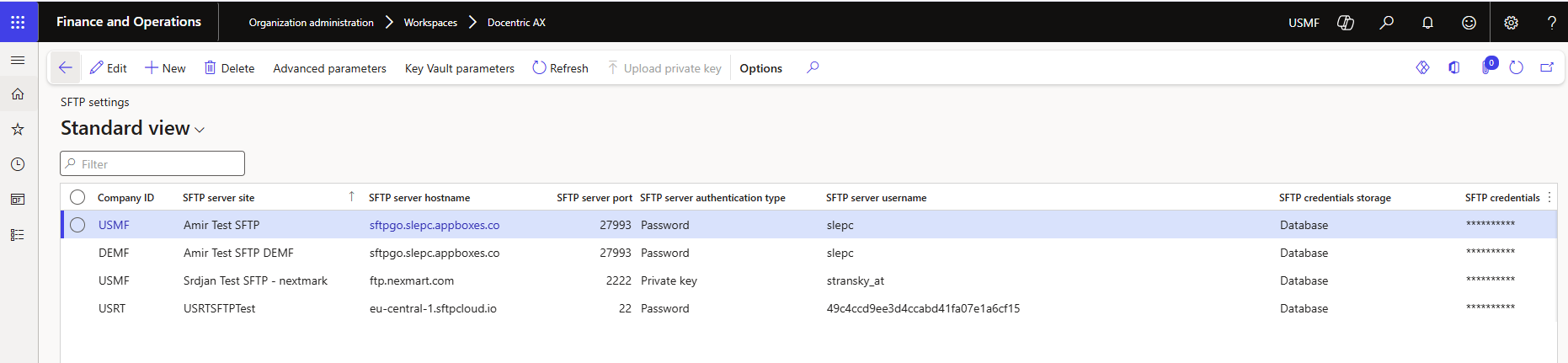
SFTP settings
Docentric AX workspace > Related links > Setup > SFTP settings -
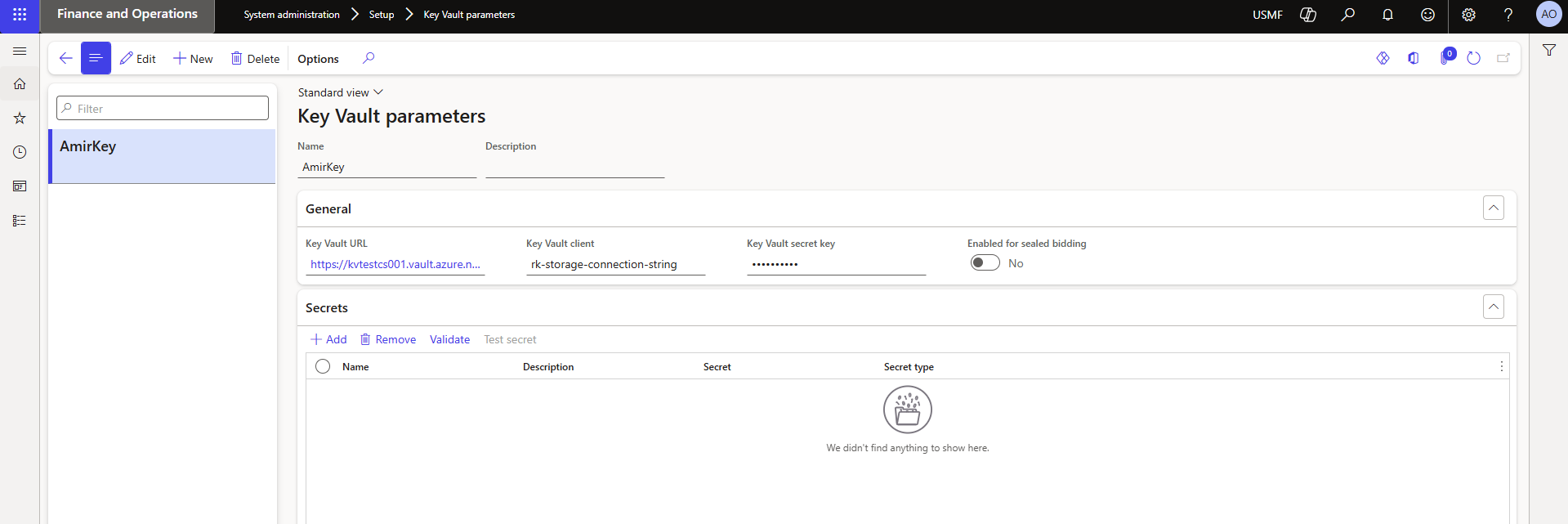
Key Vault parameters (standard D365FO form used by Docentric)
System administration > Setup > Key Vault parameters -
Any configured Docentric File print destinations. For Azure Storage and SFTP the connection comes from the setup above, but the target location is stored on the destination itself: blob container, file share, target folder, output file name, SharePoint site URL or network path. SharePoint and network folder destinations have no central setup, so review those first.
-
-
If the environment hostname changes
Docentric preventively blocks emailing and printing when the hostname changes.
After confirming that the target environment is ready, check and unblock it by setting the following settings:
-
Suppress outgoing emails = Do not suppress
Under Docentric AX parameters > Emailing -
Suppress document routing = Do not suppress
Under Docentric AX parameters > Document routing -
Enter again passwords, connections strings and certificate listed here.
See: Prevent sending of unintended emails while testing in D365FO with Docentric
-
-
Print Management settings
If the Print Management settings are not available in the target environment, they can be copied with Docentric.
See: Import/Export Print Management Settings,
Restore Print Management Settings After a Database Copy from Production to UAT D365FO Environment
Recommendation
We recommend making and testing the required changes in a non-production environment first.
Once the relevant Docentric scenarios have been successfully tested, apply the same changes in Production. After the change, run the report validation from step 1 again and send one test document.