
Intro
In this post we will be using the DocSrsReportGenerator class to print the SalesInvoice.Report to memory, then use the resulting memory stream to save the report to Azure Blob Storage by using the DocAzureBlobHelper::uploadBlob method.
To learn more about the limitations and different use cases (for example, printing the SalesPackingSlip report to a memory stream) of the DocSrsReportGenerator class, you can check out this forum post!
Prerequisite setup
Before we proceed, we first need to set up our Azure storage account so that we can use it in our working example class.
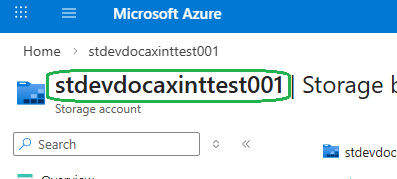
In this example, our Azure storage account setup looks like this:
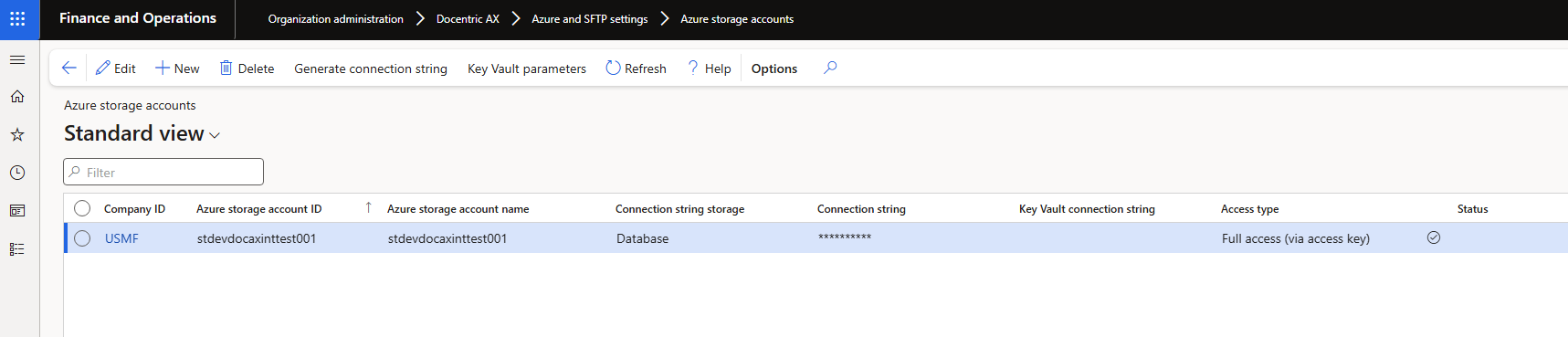
For instructions on setting up your Azure storage account, please check out this how-to manual.
Working example
First we need to create a new class (called DocPrintSalesInvoiceToAzureBlob in this example) and give it a main method so that we can call it directly with SysClassRunner for testing:
Working example code:
public class DocPrintSalesInvoiceToAzureBlob
{
    public static void main(Args _args)
    {
        CustInvoiceJour custInvoiceJour;

        // Pick a random customer invoice from the journal, just as an example.
        select firstonly custInvoiceJour where custInvoiceJour.SalesId != '';

        Args args = new Args();
        args.record(custInvoiceJour);
        args.parmEnumType(enumNum(PrintCopyOriginal));
        args.parmEnum(PrintCopyOriginal::Original);

        SalesInvoiceController salesInvoiceController = SalesInvoiceController::construct();
        salesInvoiceController.parmReportName(PrintMgmtDocType::construct(PrintMgmtDocumentType::SalesOrderInvoice).getDefaultReportFormat());
        salesInvoiceController.parmArgs(args);

        SalesInvoiceContract salesInvoiceContract = salesInvoiceController.parmReportContract().parmRdpContract();
        salesInvoiceContract.parmRecordId(custInvoiceJour.RecId);

        DocSrsReportGenerator reportGenerator = new DocSrsReportGenerator(salesInvoiceController);
        reportGenerator.setPrintDestinationSettings_DocentricReport(DocOutputFileFormat::PDF, 'SalesInvoice.Report');

        SalesInvoiceJournalPrint salesInvoiceJournalPrint = SalesInvoiceJournalPrint::construct();
        salesInvoiceJournalPrint.parmPrintFormletter(NoYes::Yes);
        salesInvoiceJournalPrint.parmUsePrintManagement(false);
        salesInvoiceJournalPrint.parmUseUserDefinedDestinations(true);
        salesInvoiceJournalPrint.parmPrinterSettingsFormLetter(reportGenerator.getPrintDestinationSettings().pack());

        args.caller(salesInvoiceJournalPrint);

        container generatedSalesInvoice = reportGenerator.generateReport();

        using (System.IO.MemoryStream reportMemoryStream = DocGlobalHelper::convertContainerToMemoryStream(generatedSalesInvoice))
        {
            // Parameters for the method: storage container name, blob path and blob (file) name, report memory stream, Azure storage ID.
            DocAzureBlobHelper::uploadBlob('docentric-report-output', 'Test/Customer invoice.pdf', reportMemoryStream, 'stdevdocaxinttest001');
        }
    }
}
This is what the Azure Blob Storage account looks like on the Azure Portal:
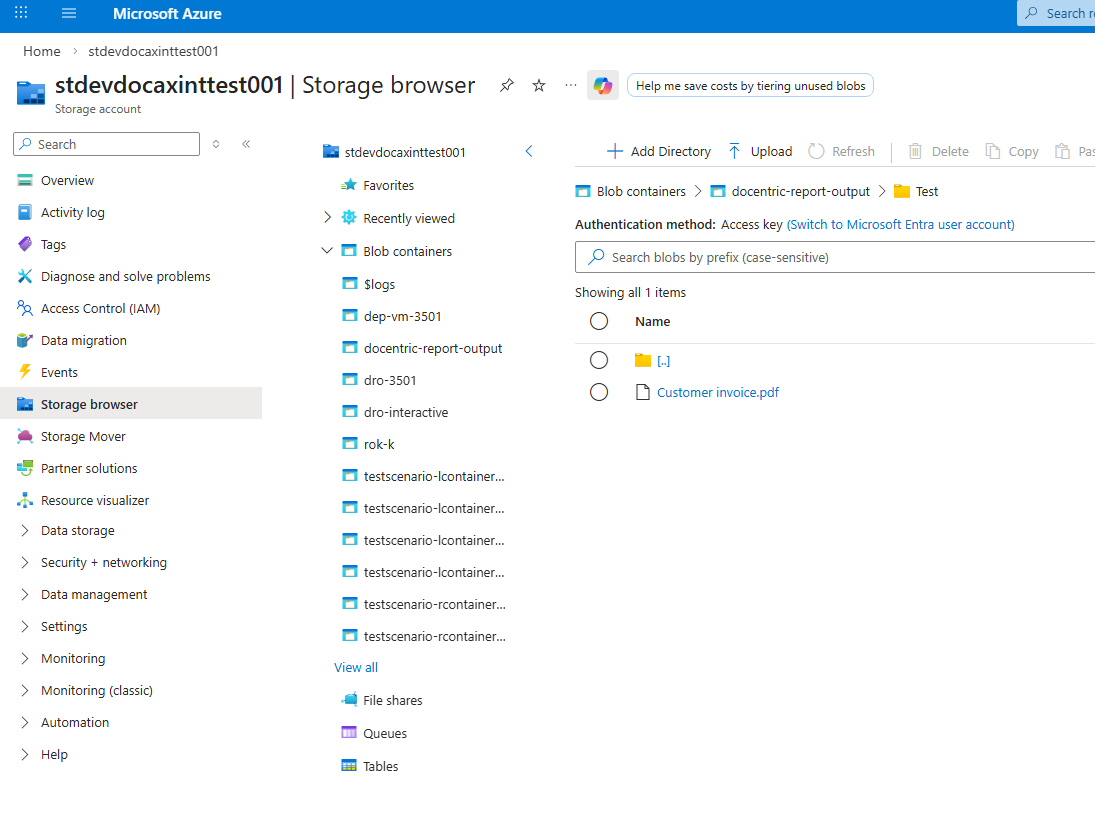
These are the parameters needed for the DocAzureBlobHelper::uploadBlob method:
-
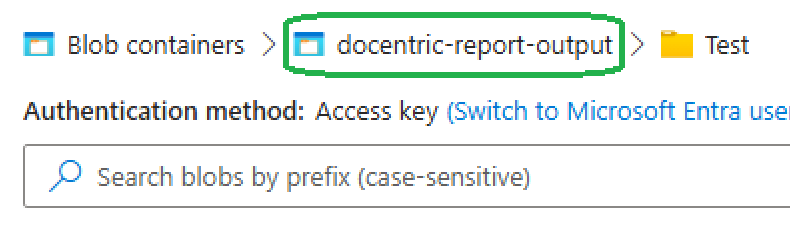
Blob storage container name (if the container does not exist, it will be created):
-
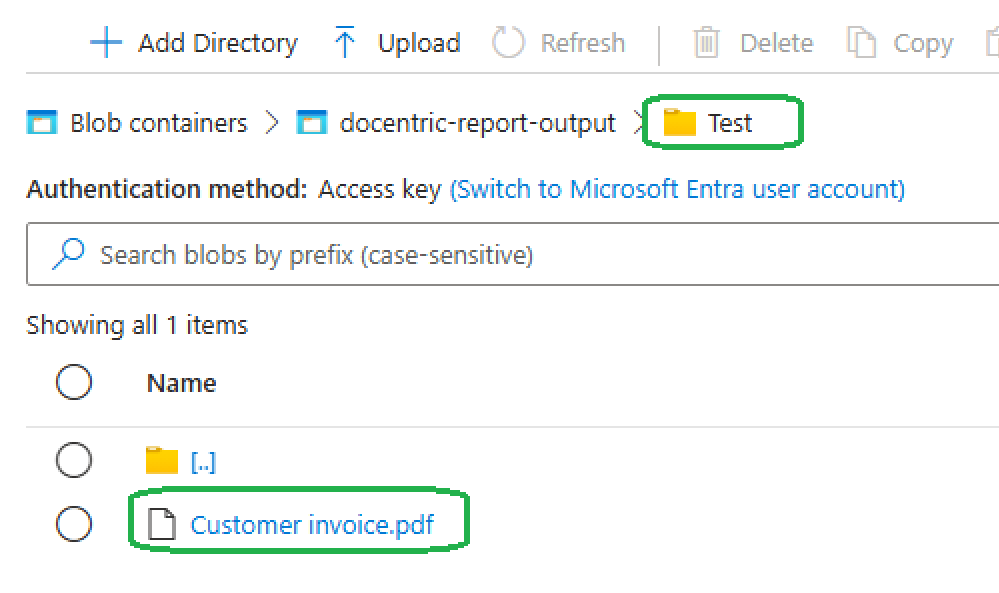
Blob path and blob (file) name (if the file already exists, it will be overwritten)
-
Report memory stream, which you can create by using the DocSrsReportGenerator class. Other memory streams created by other means should also work.
-
Azure Storage ID
Once we have created the class, we can then build the code and try it out on our DEV machine by using the SysClassRunner menu item.
We can do this by adding the following to our D365FO URL:
?mi=SysClassRunner&cmp=USMF&prt=initial&debug=vs&cls=DocPrintSalesInvoiceToAzureBlob
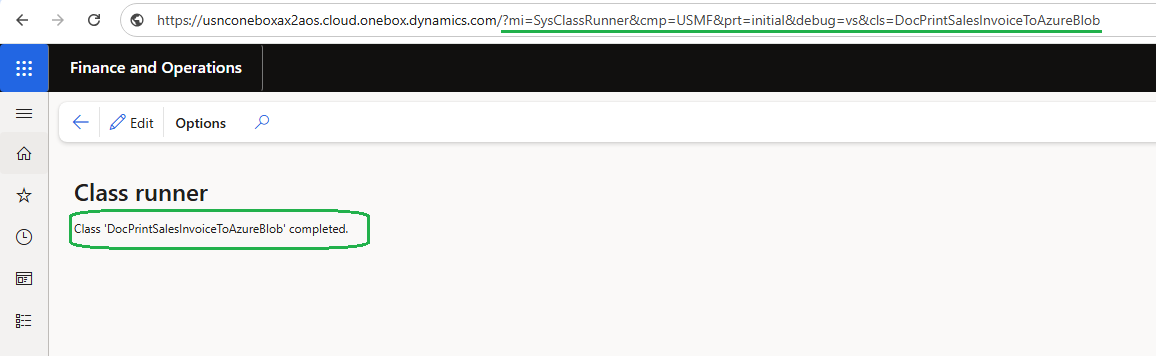
After the DocPrintSalesInvoiceToAzureBlob class completes, the file should now be visible on the Azure Portal:
