
A client wrote that in the Collection letter report they have configured the Docentric Email print destination as follows:

But the outgoing email message looked like this (I replaced the actual client email address with sender.address@company.com):
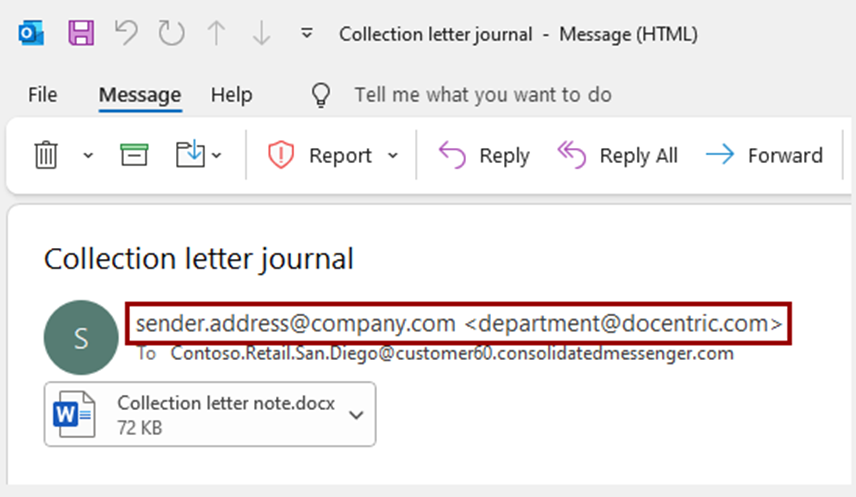
Client was wondering how they got this “combo” email and what it means, so here is the explanation:
Left part of the “combo” is so-called Email sender display name. By default, it is the same as sender email address, though in your company adminstrator would typically configure it to be something more descriptive, for example your name and your surname for your email account, “Purchasing” for your company purchasing department, and so on. And because Email sender is always the user who initiated printing, default Email sender display name will be the email address of the user who initiated printing. In this example it turns out to be sender.address@company.com.
Right part of the “combo” is the sender email address, which is by default the email address of the user who initiated printing, but can be overwritten by the email address typed in the From field in the Docentric Email print destination. In client’s configuration they used this email address: Collection department@company.com (notice a SPACE character in its left part), so validation just cut it into department@company.com.
Now when it is clear what each of the “combo” parts mean, let’s see how you can configure the Email sender display name in Docentric. Here is how the outgoing email message looks on my environment, based on the default setting. Notice that I am using test@docentric.com in the From field, that’s why it appears as sender email. For now don’t mind the “background” form Batch email sending status, I will explain it later. I used it because its labels Sender email and Sender display name nicely explain what is what in this image.

As I worte above, this message is a resault of the default setting. And what is a default setting, you can see if you go to Docentric report setup for this report, where you need to click the Print destinations > Email sending settings menu item. Notice that Email sender display name field has the following value: @GLOBAL_PARAMETER_VALUE@. Docentric will resolve this token as email address of the sender.

While we are at this form, notice how I set Email sending mode = Email processing. I find it practical to use this setting when testing, because the outgoing email message won’t be immediately sent out of the system. Instead, it will be added to the Batch email sending status form. This way, I will be able to inspect the email message even before it is sent out from D365FO.
You can change the Email sender display name value directly in the Email sending settings form. For example, when I set it to a fixed value Collection department, the result will be this email message:

A note about testing:
Please have in mind that when an email message is sent out of D365FO, it passes through your outgoing mail server, that can mess with the message. For example, based on how it is configured, your outgoing mail server can decide to insert the Email sender display name that is configured on the mail server and overwrite the value that was already set by D365FO + Docentric. This is something to be solved by your mail server administrator.
Having this in mind, when you test the Email sender display name configuration, I recommend to first make sure that the email message is correctly prepared before it is sent out of D365FO. You can use one of these approaches:
- In Docentric Email print destination enable the Open email before sending flag. Email message will be prepared and automatically downloaded to your Download folder, so that you can open and inspect it.
- Configure the Emai processing sending mode as we have already described earlier.
Next, your incoming email server will probably introduce another complication: if it recognizes the sender (from your company), it will overwrite the Email sender display name with the one configured on the email server. So, when testing this configuration, don’t use your company email address as a recipient, but rather some external email address, e.g. your private account