
We often receive questions about Print management and conditional printing , such as:
Why did only one invoice print to Screen?
Why did my condition not trigger?
Why didnt I get two copies?
Which Print management setting was actually used?
Before troubleshooting, it is important to clarify the scope: Print management is a standard Microsoft Dynamics 365 F&O framework, not a Docentric feature . Therefore, Print management configuration is outside the scope of Docentric support. For configuration-related questions, the right contact is typically your functional consultant or implementation partner.
That said, many Print management issues come down to a few standard behaviors. Understanding them can help you identify the root cause much faster.
How many documents are generated?
Print management output is based on the configured Original and Copy records.
For example:
- Original record → one logical output
- Each Copy record → one additional logical output
So, if you have one Original record and two Copy records, one print action can generate three logical outputs.
Conditional settings do not create additional outputs by themselves. They only determine which version of the parent Original or Copy record is used.
For example, if the Original record has several conditional settings, Print management still uses only one Original setting. It does not generate one document for each matching condition.
How conditional settings are evaluated
Conditional settings are configured under a parent setting, such as Original or Copy .
When the report is printed, Dynamics 365 F&O evaluates the conditional settings from top to bottom, in the order in which they appear.
The logic is:
- The first condition is checked.
- If the condition is true, that setting is used.
- Evaluation stops immediately.
- Later conditions are not checked, even if they would also be true.
- If no condition matches, Print management falls back to the default parent setting.
This means that the order of conditional settings is important .
A common example is when everything prints to Screen . This often happens because no conditional setting matched, so Print management used the default parent setting. If the default destination is Screen, then the report is printed to Screen.
How to troubleshoot which setting was used
A simple way to troubleshoot conditional printing (while removing Docentric from the execution) is to use the standard SSRS File print destination and assign a unique file name to each Print management setting.
For example:
Original default.pdfOriginal conditional setting 1.pdfOriginal conditional setting 2.pdfCopy 1 default.pdfCopy 2 default.pdf
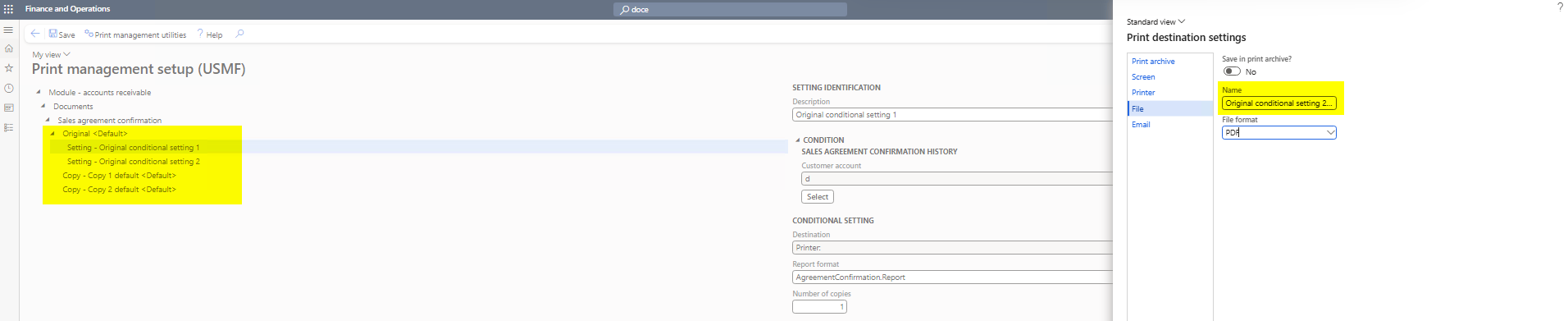
Then run the report and check which file is generated.
This makes the result visible immediately:
- If you get
Original default.pdf, no condition matched and Print management used the default Original setting. - If you get a specific conditional file, such as
Original conditional setting 1.pdforOriginal conditional setting 2.pdf, that conditional setting was used. - If you get a Screen preview instead of a file, the report may not be printed through Print Management. For example, an ad-hoc destination may be used, or a different default SSRS report may run instead of the report format configured in Print Management. In some cases, a print override may also take precedence and change the expected Print Management behavior.
This test is often the fastest way to confirm which Print management setting was actually used.
Setup recommendation
Avoid creating a separate conditional Print management setting for each individual customer account.
Print management has a practical limit of roughly 20 settings per report, and a large number of conditional settings or complex queries can also affect posting performance. For customer-specific or transaction-specific scenarios, Print management overrides are usually the better approach, such as overrides per customer account or per transaction.
Summary
When troubleshooting conditional printing in Print management, first check:
- How many Original and Copy records are configured.
- Whether the conditional settings are ordered correctly.
- Whether any condition actually matches.
- Whether the report is really printed through Print management.
- Which setting was used by testing with the SSRS File destination and unique file names.
If the File destination test shows that a condition is not matching when it should, then the issue is most likely related to the Print management configuration or query criteria. In that case, the next step is to review the setup with your functional consultant or implementation partner.