
When designing, testing, or troubleshooting a Docentric report template in Docentric AX Designer, you need the report data source as a Docentric Data Source Package (DDSP) file, which needs to be generated in D365FO.
A DDSP file can be generated in two ways: by enabling Generate DDSP when report runs or by selecting the special Generate DS print destination. The first option should be enabled only temporarily.
Follow the steps below to enable DDSP generation for a report run. If the DDSP file is still not generated, the same steps serve as a troubleshooting checklist.
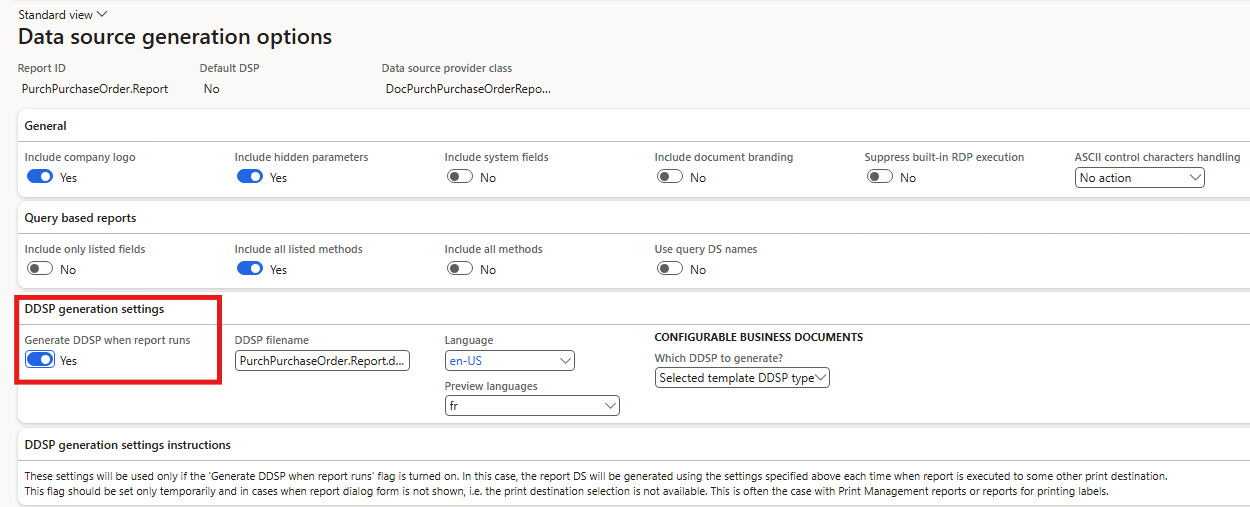
Step 1 : Enable automatic DDSP generation when needed
Enable the Generate DDSP when report runs option.
Navigation: Docentric AX workspace > Reports > select the report > Settings > Data source > Generation options
Step 2 : Verify the Preview settings
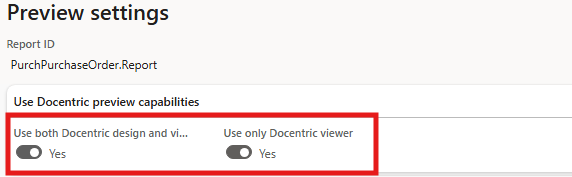
If the report is executed through an action that uses the standard SSRS Screen destination, such as Original preview or Copy preview, verify that the preview is redirected to Docentric. Otherwise, automatic DDSP generation might not be invoked.
Navigation: Docentric AX workspace > Reports > select the report > Settings > Print destinations > Preview settings
Enable one of the following options:
-
Use both Docentric design and viewer: Uses the Docentric viewer and the default Docentric template instead of the built-in SSRS viewer and report design.
-
Use only Docentric viewer: Uses the Docentric viewer while retaining the built-in SSRS report design.
Step 3 : Verify the Print destination
While configuring the print destination, make sure that a Docentric print destination is selected.
For example:
- Generate DS
- Screen
- File
- Printer
- Print archive
Selecting one of these destinations ensures the report is processed through the
Docentric AX pipeline.
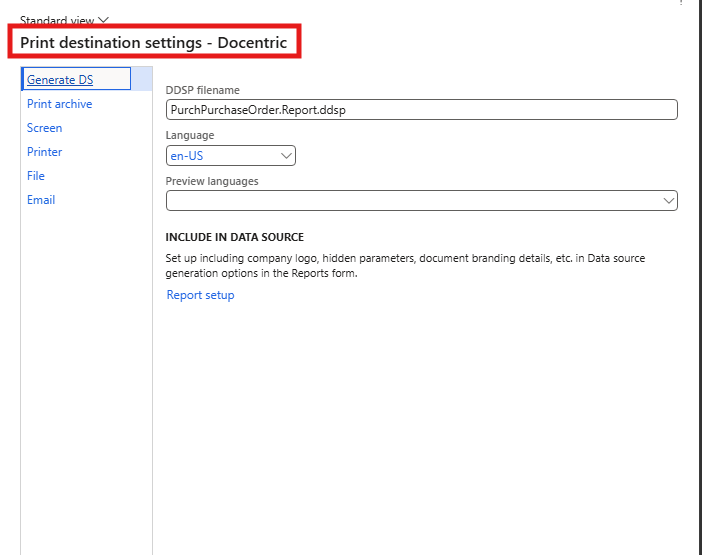
Note: when the Generate DS print destination is selected, a DDSP file is always generated, regardless of the Generate DDSP when report runs setting. All other Docentric print destinations require this option to be enabled.
Step 4 : Check Browser download permissions
If all previous settings are correct but the DDSP file is still not generated, the browser may be blocking automatic downloads.
Check whether your browser displays a download blocked notification and allows downloads for your D365FO navigation.
Summary
By following the steps above, you can identify and resolve the most common causes preventing DDSP file generation. If the issue persists, please contact the Docentric Support team for further assistance.