
Our clients often ask us for recommendations about configuring D365FO so that invoice is emailed only if customer has email address of certain Purpose. If customer doesn’t have such email address, invoice should be sent to some other print destination, for example File.
There are two possible ways to achieve this, one with standard Print management, and one with a Docentric feature called Email tokens redirection.
Option 1: Print management
Standard D365FO Print management allows this kind of logic, through configuring one Conditional setting with a condition query that filters only customers with email address that is marked with certain Purpose. This Conditional setting is then configured for the Email print destination, while the Default setting is configured for the alternative, e.g. File print destination.
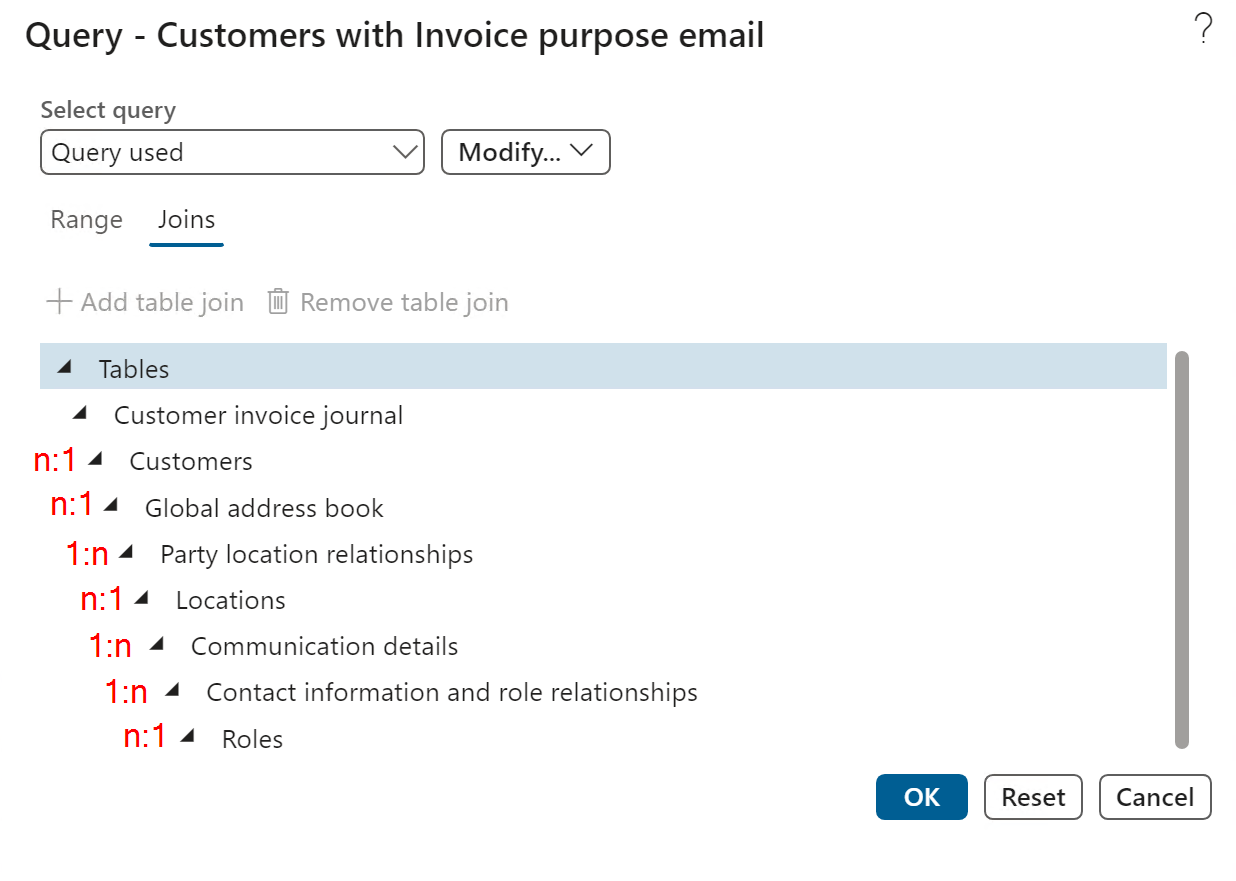
Setting up this query can be a bit tricky, because it requires a solid understanding of the data model around Party, Global address book and Locations. Many years ago I’ve seen the instructions on this link and I regularly revisit it when I need such query. As those instructions are for AX 2012 and it is a very old blog post, I decided to repeat its important parts here, with screenshots made on D365FO.
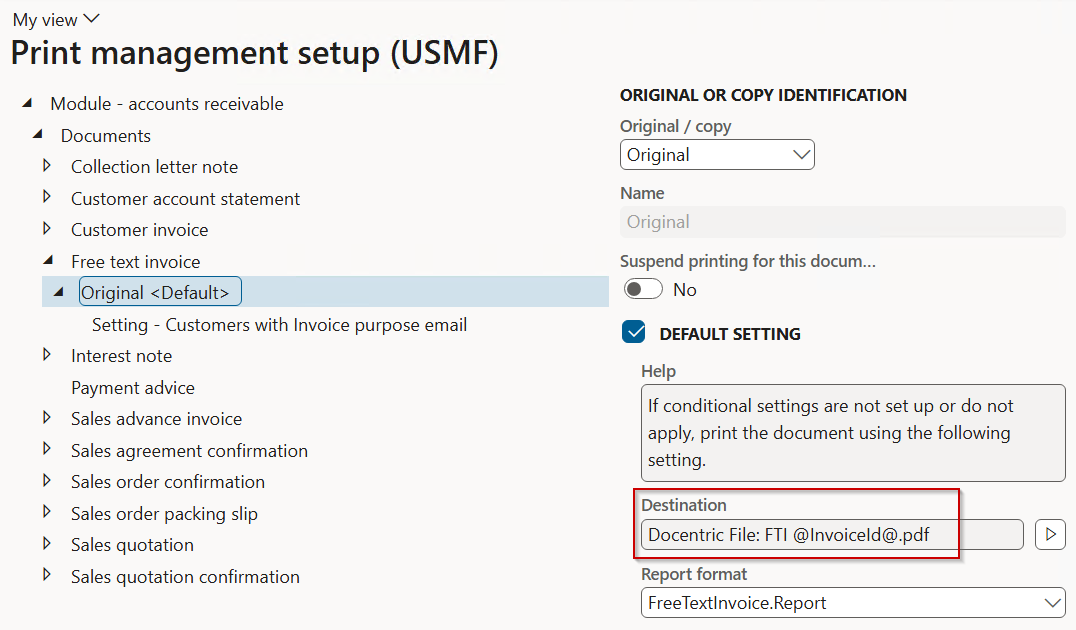
In my example I will configure Print management for Free text invoice, I will use Docentric print destinations, and the Purpose I am interested in is Invoice.
This is the Default setting:
And this is the Conditional setting:
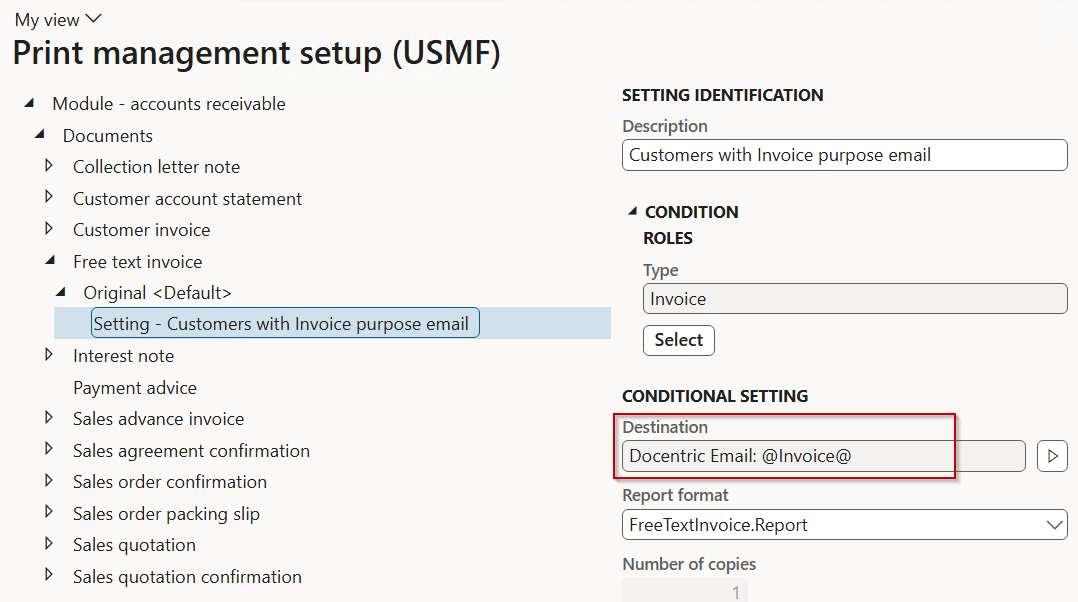
After creating the Conditional setting, you need to specify the condition query in the Query editor, which you open by clicking the Select button. When Query editor opens, its Range tab is initially active and you will see that the only Table initially offered here is the Customer invoice journal. You need to find your way from there to the Roles table where you can filter by the required Purpose. This is how the final Query should look:
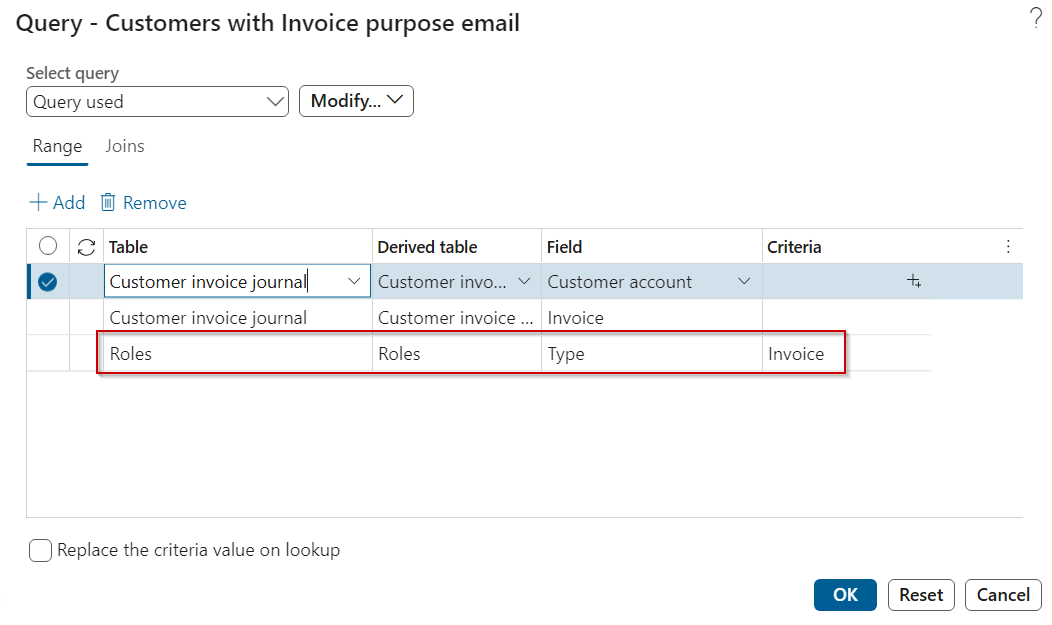
Now in the Range tab you will see all these tables, and you need to select the Roles table, set Field = Type and in the Criteria column select one or more Purposes. I have selected only Invoice:
For the sake of completeness, this is how I have configured the Docentric Email print destination:
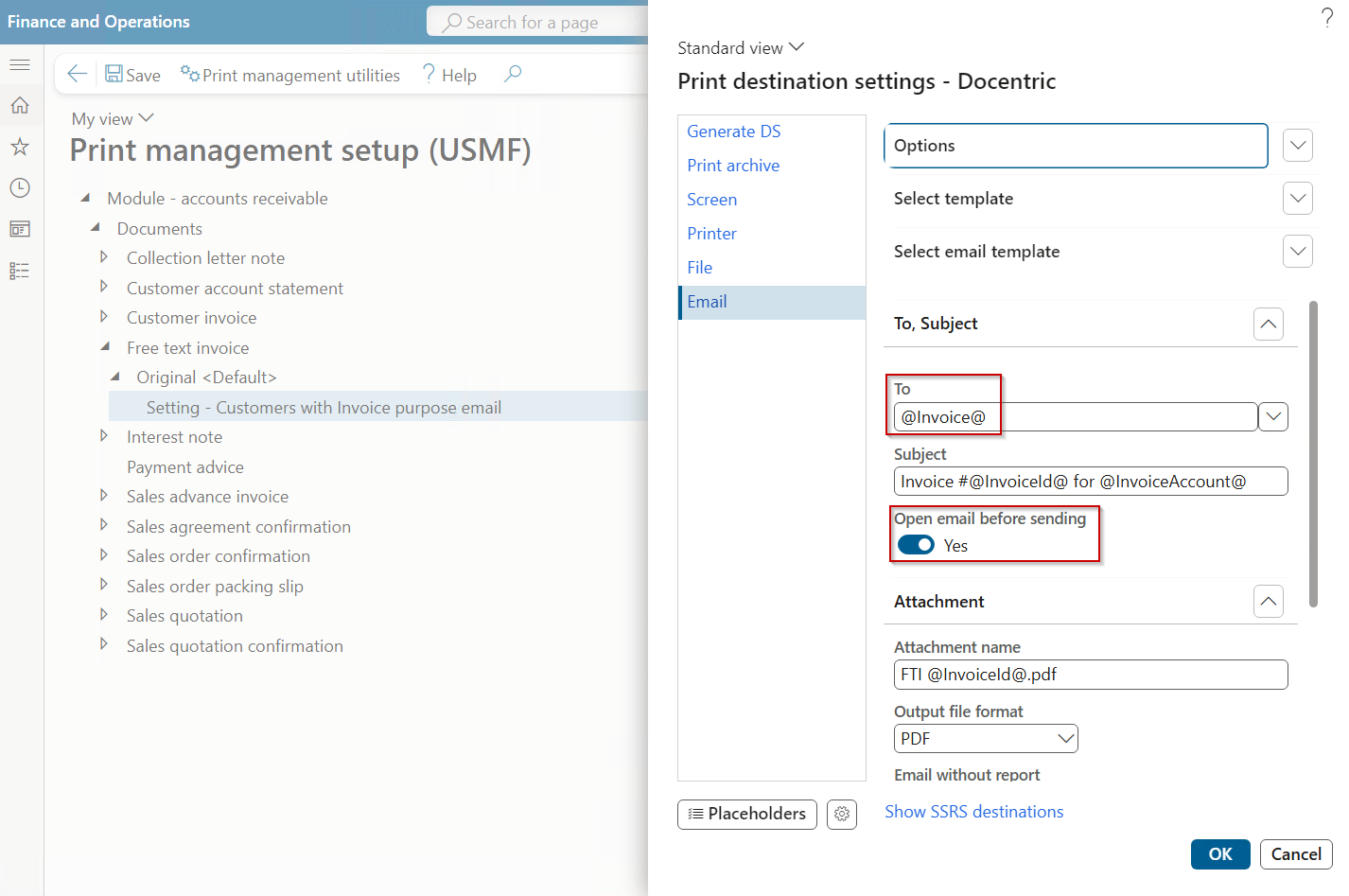
Notice the @Invoice@ email token in the To field, meaning that email is to be sent to the customer email address marked with the Invoice Purpose. Also notice the Open email before sending flag turned ON, which is convenient while testing. Email message will be prepared and downloaded to your Download folder, so you can immediately inspect it, instead of really sending the email and waiting to receive it.
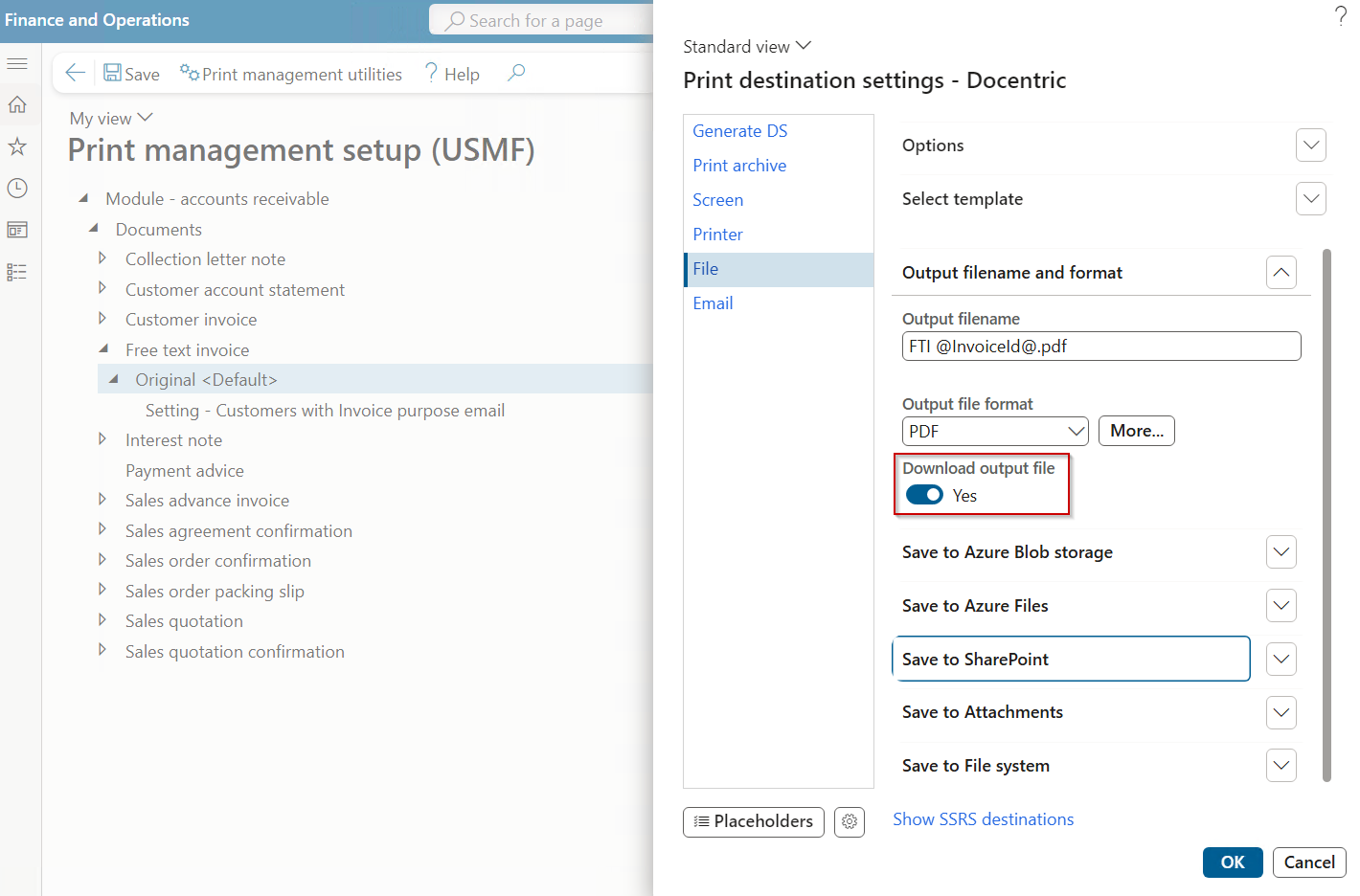
As for the Original (Default) Print management setting, in my example I have configured it for the Docentric File print destination, but you can use any other destination that suits your business process. For the testing purposes, I find it convenient to configure it only for downloading the file, but for the production you can decide to save it to some special folder on SharePoint, or print to the Printer print destination, or display on the Screen print destination.
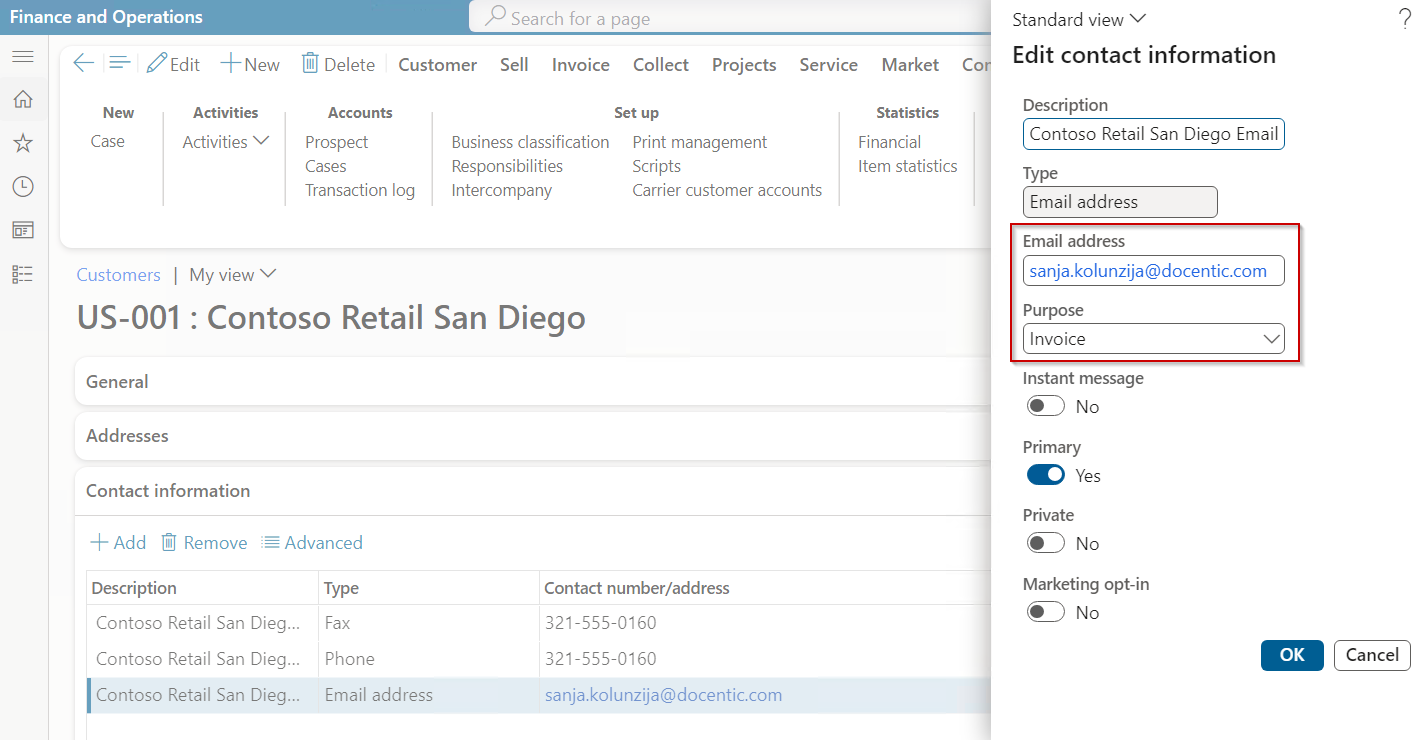
With this setup, if I print through Print management a Free Text Invoice for this customer, invoice will be emailed:
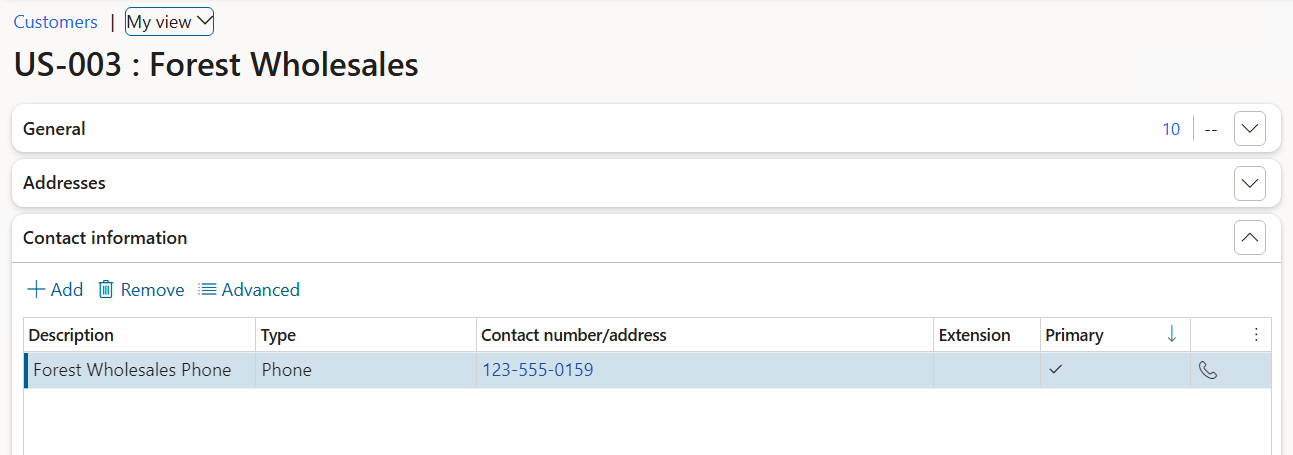
While for this customer, who doesn’t have email address, invoice will be downloaded as a file. It would be the same if customer had an email address, but the address wouldn’t be marked for the Invoice Purpose.
To summarize: standard D365FO Print management allows you to configure the Conditional setting where you provide the condition in the form of a query. This post should help you in creating such query. But if you find this approach too complicated, there is another, rather simple option:
Option 2: Docentric Email tokens redirection
With this option, you would have only one, Default Print management setting, configured for the Docentric Email print destination. In case the Email tokens are not resolved (meaning: customer doesn’t have a matching email address), report will be sent to an alternative print destination.
Please check these resources where this setting is described: