
Overview
Docentric uses the Resource Owner Password Credentials (ROPC) OAuth flow to authenticate against SharePoint Online when using the Username and Password credentials option. By default, Docentric uses its Microsoft CSOM registered Entra ID public application client ID, which is only trusted in the global Microsoft cloud (sharepoint.com).
If your organization uses a sovereign cloud (e.g., China - sharepoint.cn, Germany - sharepoint.de) or if your IT policy requires using a custom Entra ID application registration, you must register your own public application and supply its Client ID to Docentric.
This guide walks you through registering a public application in Microsoft Entra ID, granting the required permissions, and configuring it in Docentric.
Prerequisites
- Access to the Azure portal (portal.azure.com) with at least Application Administrator rights in your Entra ID tenant.
- The Entra ID tenant must be the same tenant as your SharePoint Online site.
- Docentric Full Edition license (this feature requires the Full Edition).
Step 1 - Register a New Application in Entra ID
- Sign in to the Azure portal.
- Navigate to Microsoft Entra ID > App registrations.
- Click New registration.
- Fill in the registration form
- Redirect URI: Leave blank (not required for ROPC)
- Click Register.
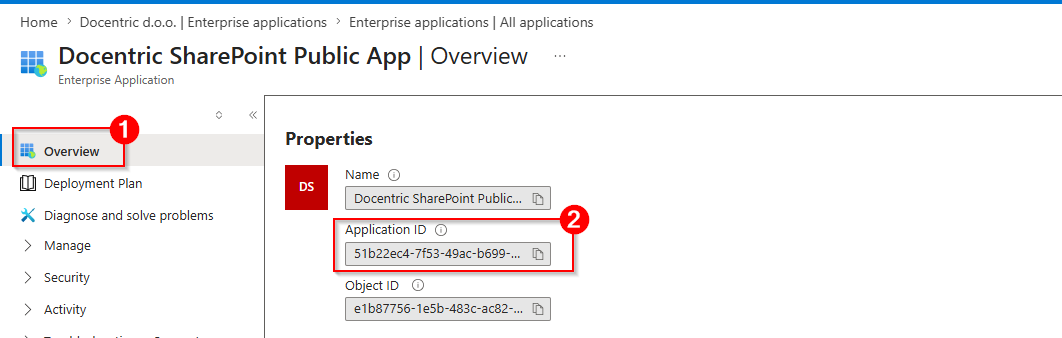
- After registration, copy the Application (client) ID from the Overview page - you will need this later.
Step 2 - Enable Public Client Flows
ROPC authentication requires the application to be configured as a public client (i.e., it cannot securely store secrets, such as a desktop or mobile app).
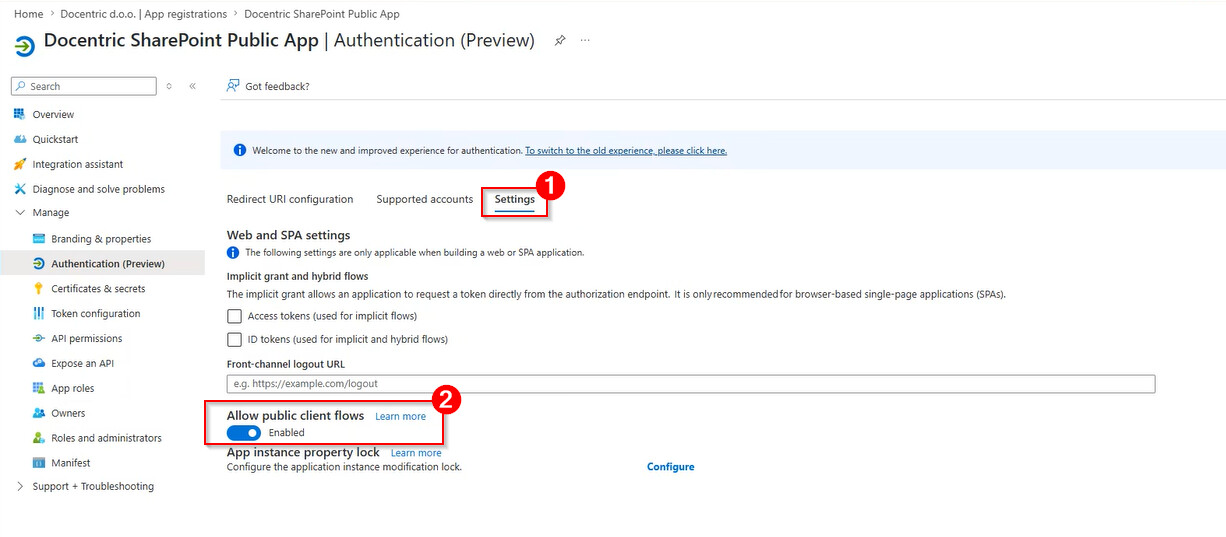
- In your app registration, go to Authentication.
- Open the Settings tab.
- Under Allow public client flows, set the toggle to Yes.
- Click Save.
Why is this required? ROPC does not use a redirect URI or a client secret. It relies on the user’s username and password being passed directly. This is only permitted for public client applications.
Step 3 - Grant API Permissions
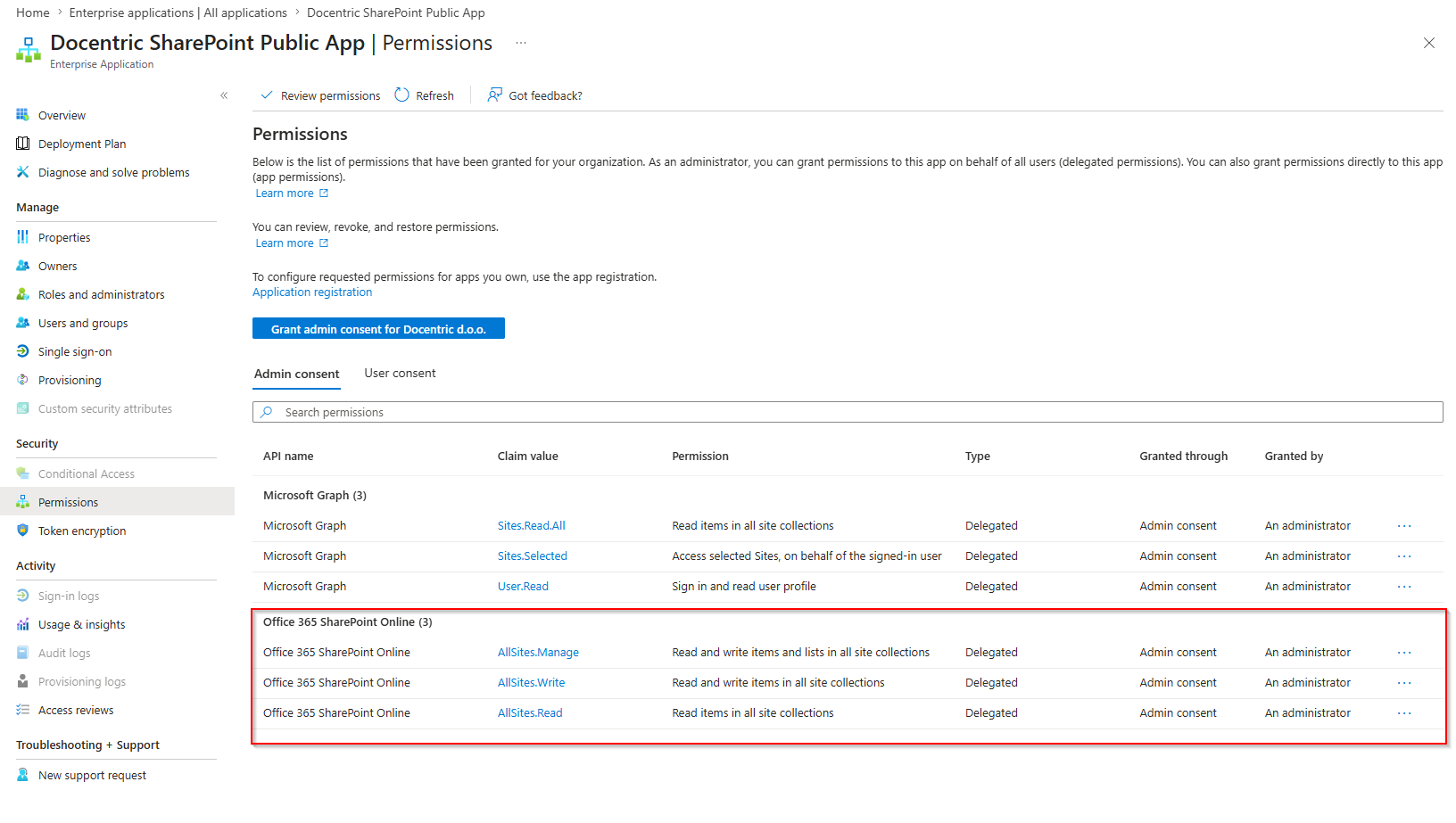
Your application needs delegated permissions on the Office 365 SharePoint Online API.
Step 4 - Configure the Client ID in Docentric AX
Once you have the Application (client) ID from Step 1, you can enter it in Docentric AX Parameters > Security > SharePoint extended security settings when the SharePoint authorization type is set to Online.
There is currently one way to provide it:
Via the username field (legacy workaround format)
If your Docentric version does not yet expose a dedicated SharePoint application client ID field, you can encode the client ID directly into the SharePoint integration user username field using the following format:
<ClientId>||<Username>
Example:
b030d96b-6ab6-4be8-916d-802cf401fdda||your-user@yourtenant.onmicrosoft.com
- The value before || must be a valid GUID (the Application client ID).
- Do not use both the dedicated Client ID field and the || prefix at the same time — this will result in a configuration error.
- This format is a temporary workaround and will be replaced by a dedicated UI field in a future version.
Step 5 - Verify the Connection and test login
After saving the configuration, test the SharePoint connection from within Docentric AX Parameters > Security > SharePoint extended security > Test access for > Default SharePoint server.
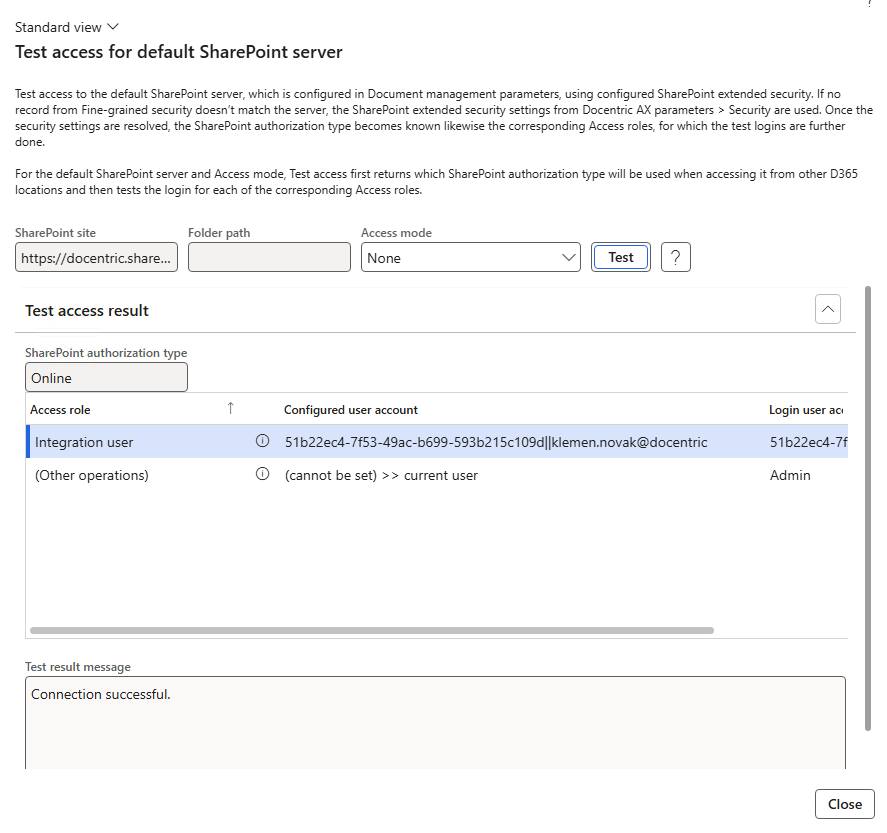
If the test fails, verify:
- Admin consent was granted for all three permissions.
- The Allow public client flows toggle is enabled.
- The correct Application (client) ID was copied.
- The application is registered in the same Entra ID tenant as your SharePoint Online site.
- The user account used has access to the SharePoint site collection.
Sovereign Cloud Authority URLs
Docentric automatically selects the correct Microsoft Entra ID authority endpoint based on the SharePoint host:
| SharePoint domain | Entra ID authority |
|---|---|
| sharepoint.com | login.microsoftonline.com |
| sharepoint.cn | login.chinacloudapi.cn |
| sharepoint.de | login.microsoftonline.de |
| sharepoint.us / sharepoint-mil.us | login.microsoftonline.us |
No additional configuration is required for the authority URL — it is resolved automatically from the SharePoint site URL.
Related
Important: The ROPC flow transmits user credentials directly and is not recommended for new integrations by Microsoft. It should only be used when modern interactive authentication is not possible (e.g., server-to-server automation). Ensure credentials are stored securely and never in plain text.