
In some rare cases, it can happen that you have hidden characters in your report data source. Although they are not immediately apparent, they can give you unexpected results when you print the report later. Below is an example with the Zero Width Non-Joiner character in the postal address, and steps we took to troubleshoot the issue and come to a conclusion.
Scenario
Let’s say that we are looking at a generated report, and we noticed that the postal address field contains a vertical bar character (|) at the end of each address line.
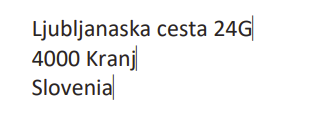
Troubleshooting
The Field tagging element that shows the postal address is bound to the AddressLine field.
However, looking at the value of AddressLine in the Data source pane, we don’t see any vertical bars, only line-break characters (the ‘
’ part is an encoded line feed).

Next, you would do some common troubleshooting techniques, such as changing the font to a commonly used font, such as Arial or Calibri, but that still produces the same output.
Then, creating a new template from scratch with the same DDSP file, produces the same behavior. This suggests the issue is inside the data source, and not on the template design itself.
Now, to inspect the data source more closely, we can view it inside a tool such as the Hex Editor plugin in Notepad++, which allows you to view a file at the raw byte level.
When you view the content of the AddressLine field with the plugin, you find the following hexadecimal sequence after the ‘Ljubljanska cesta’ part of the string:
e2 80 8c
This hexadecimal sequence represents the UTF-8 encoding of Unicode character U+200C, the Zero Width Non-Joiner (ZWNJ).

Basically, it is an invisible character that tells text-rendering software not to join two characters together. This character is invisible in Word, but the Docentric Live Preview and PDF output render it as a vertical bar when it appears before a line break.
Removing this part from the data makes the vertical bar disappear.
That means that this character is indeed responsible for showing the vertical bar in the address, even though we cannot see it directly when looking at the value of AddressLine.
Solution
The first thing is to find out why this character was included in the postal address.
You’d need to check and confirm whether the address was manually entered, imported, copied from Word/Excel or synchronized from another system.
Open the postal address, delete the address lines and re-type them again manually (without copy/pasting) and save. Then, if you generate the document again, you would check if the issue persists.
While arguably the best way to solve this would be to check why the address is entered like this in the D365FO environment, an alternative would be to fix this on the template level. In that case, you could call the translate() function, such as:
translate(
SalesQuotation/Quotation/Delivery/Address/@AddressLine,
‘|’,
‘’
)
This expression removes the hidden ZWNJ character and the vertical bar. Make sure the second parameter contains the ZWNJ followed by the pipe character (|) for it to work correctly.