
Intro
When using Docentric’s printing redirection feature (more info here), we can specify what Docentric report template is used for the redirected Docentric print destination.
But what if we wanted to use one or more different Docentric report templates and not the one that is configured in the Redirection Print destination settings?
In this forum post we’ll learn how to do just that, by using the new Use original template parameter that was added in Docentric version 3.5.1.
Example Scenario
Basic Redirection Use Case
Let’s say that we are printing our Sales Invoices to the Docentric email print destination and we are using the email token for purpose Invoice to get the right email for each customer.
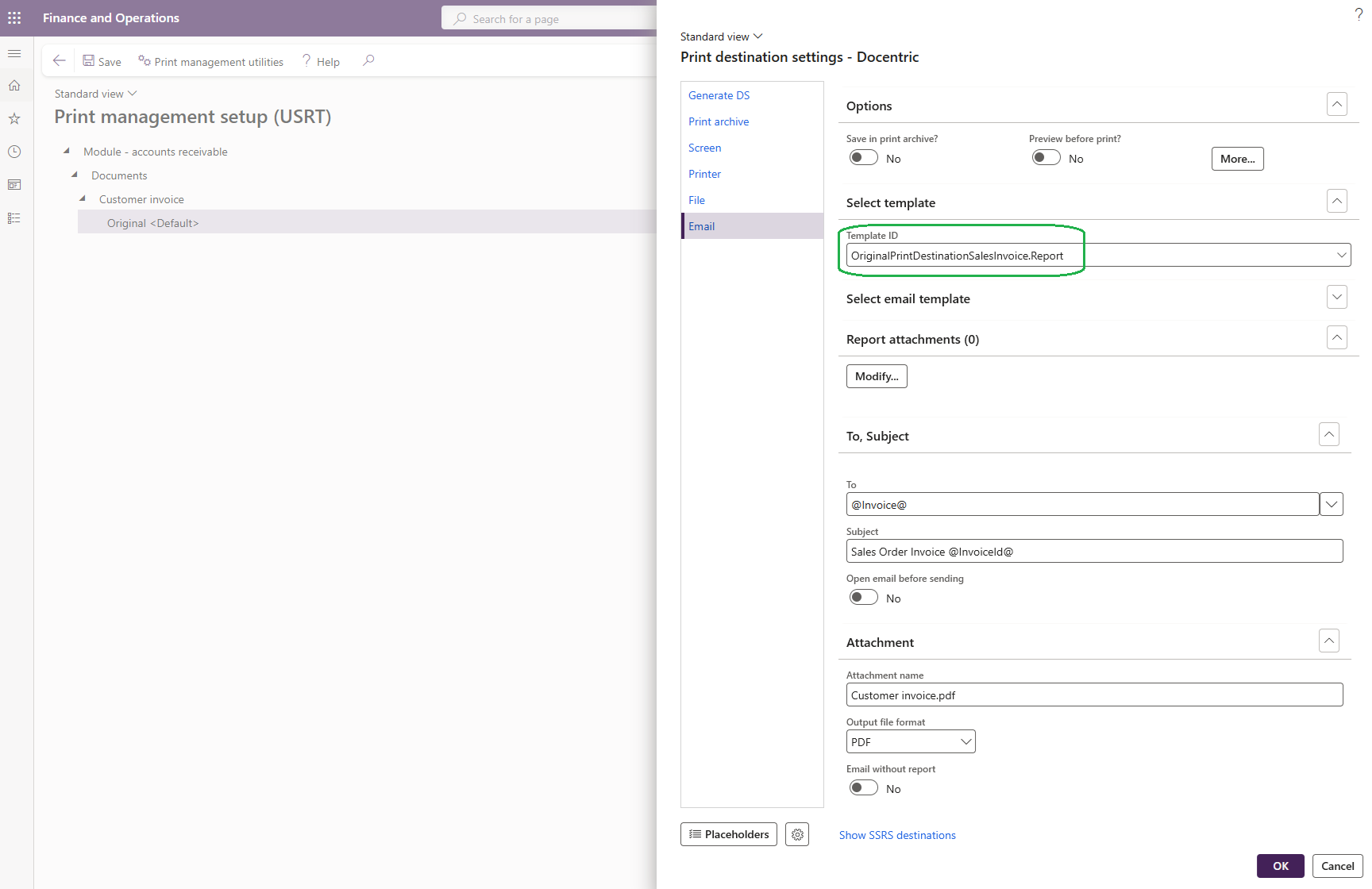
We can see that the Docentric report template that is being used here is OriginalPrintDestinationSalesInvoice.Report:
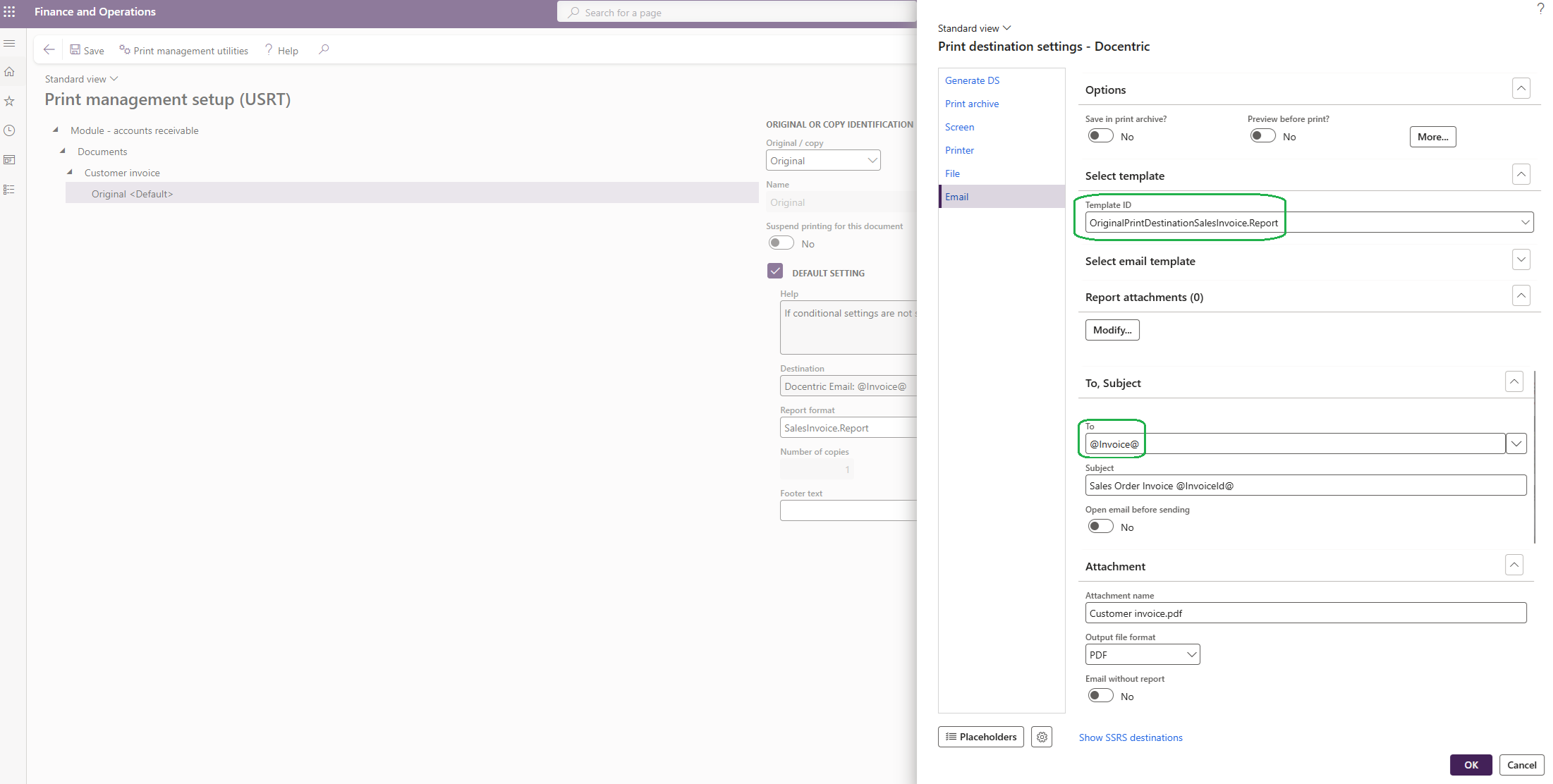
But, what happens if the Invoice email token does not get resolved, for example, if on a customer an email with the purpose Invoice is missing?
Then the email will not be sent out, because the To field will be empty.
To prevent this, we can use Docentric printing redirections to specify another Docentric print destination to be used in cases where email tokens don’t get resolved.
In this example, we’ll say that the redirection Docentric print destination is Docentric screen, just to keep it simple.
Here the Docentric report template with Template ID RedirectionSalesInvoice.Report is being used:
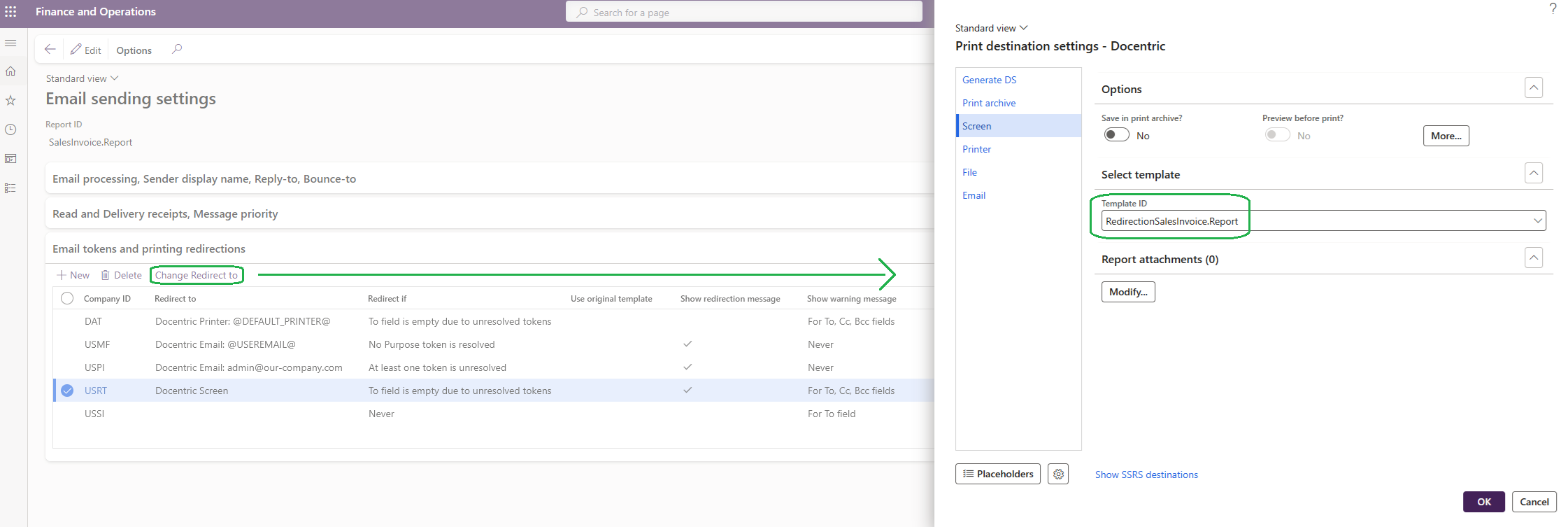
NOTE: Of course, the redirected Docentric print destination can be set to be any Docentric print destination, for example you could make it so that an email is sent to notify someone in your company that a sales invoice was not sent.
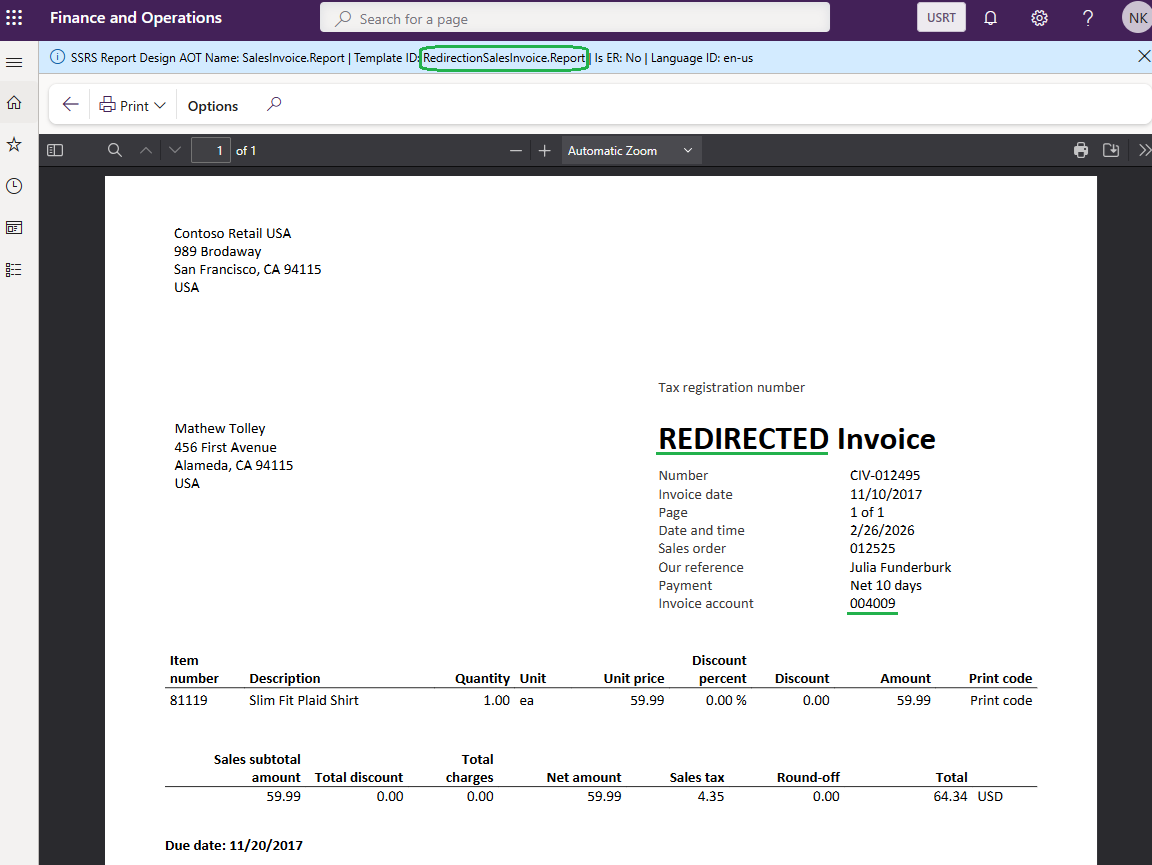
Now, when we print a sales invoice and the email token for Invoice isn’t resolved, we will get the report printed to the screen, using the Docentric report template with the Template ID RedirectionSalesInvoice.Report.
Use Original Template Feature Showcase
Now, let’s say that we want to use a different Docentric report template for every customer that has a Print managament setup override and the original Docentric report template configured on the main Print destination settings in the case where there is no override.
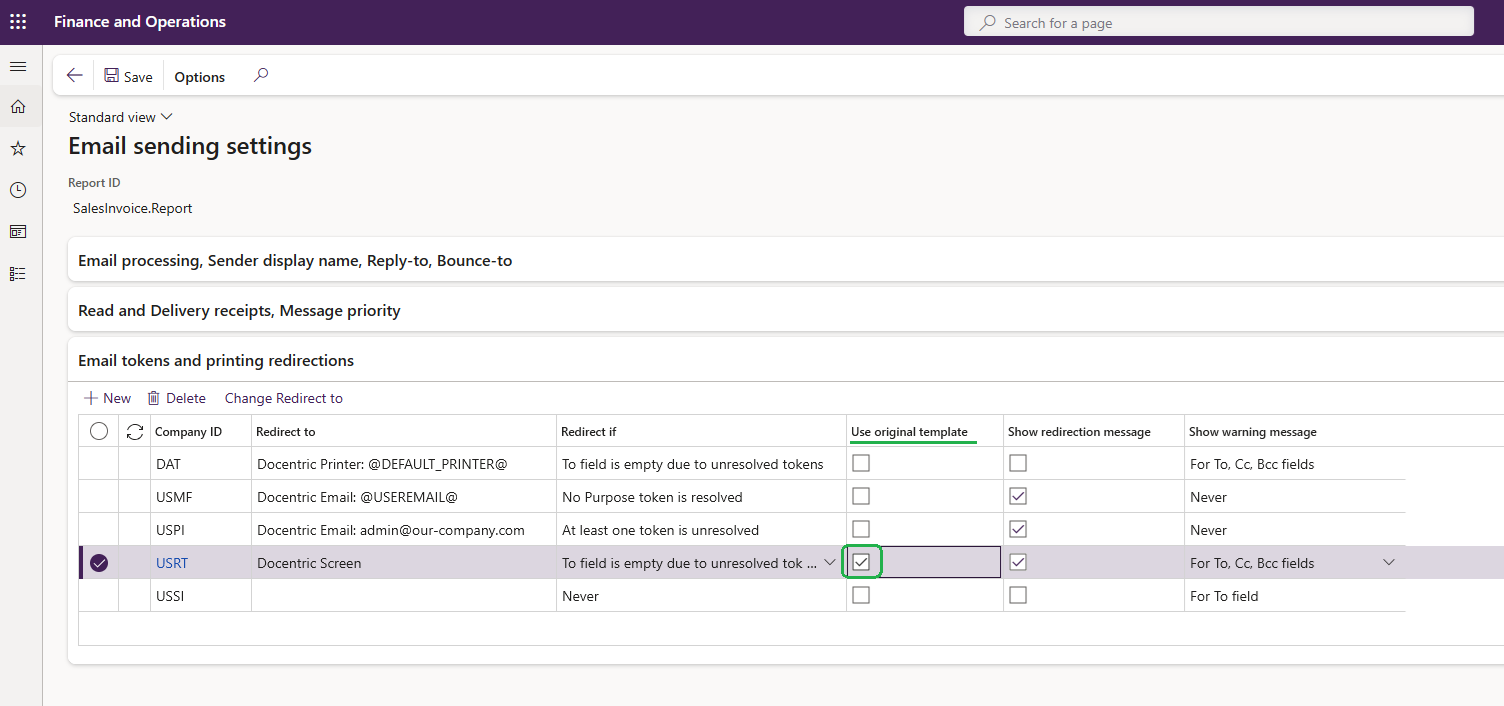
To accomplish all of that, we only need to turn on the new Use original template parameter on the Email tokens and printing redirections section, found on the Email sending settings form:
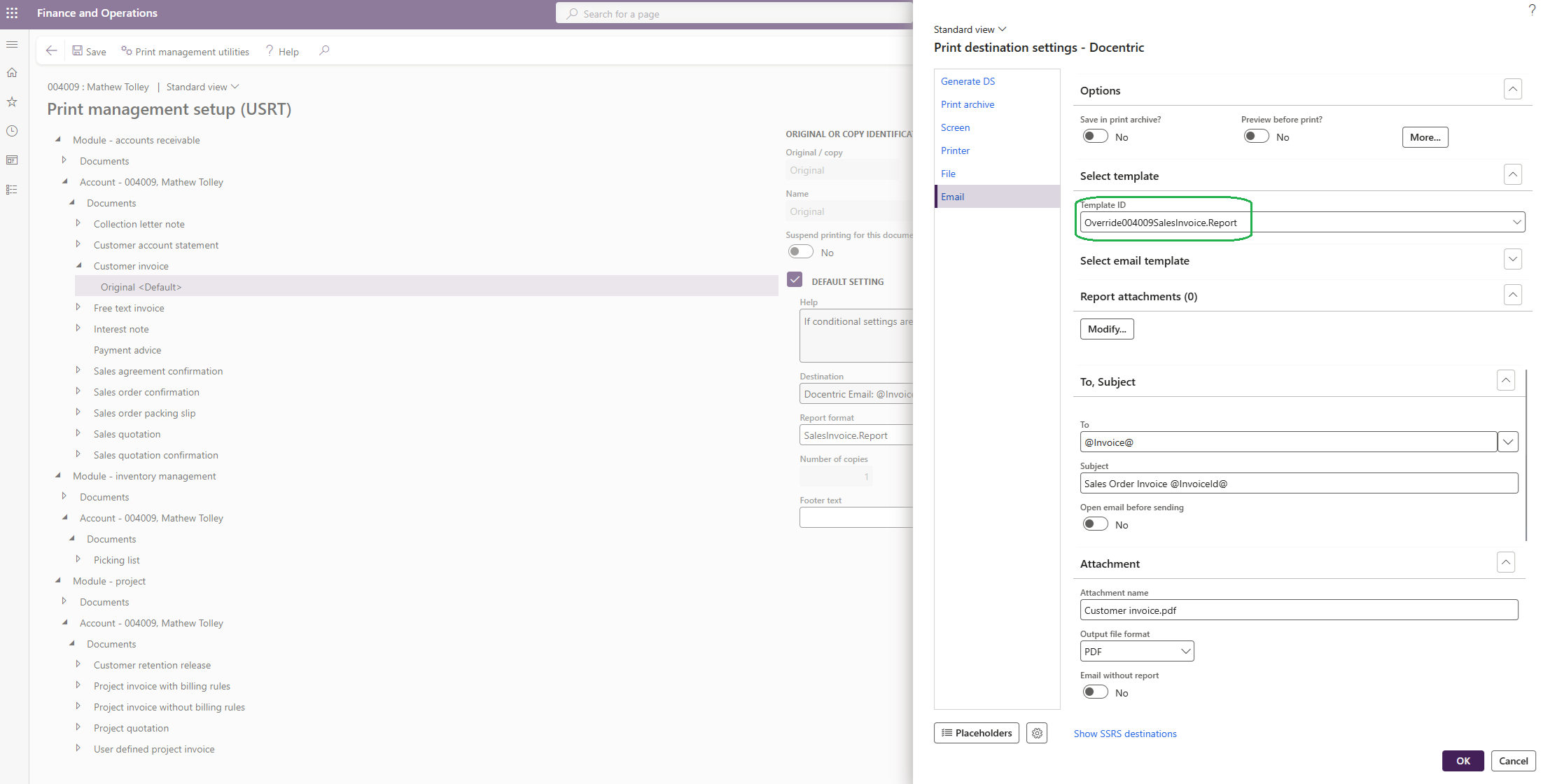
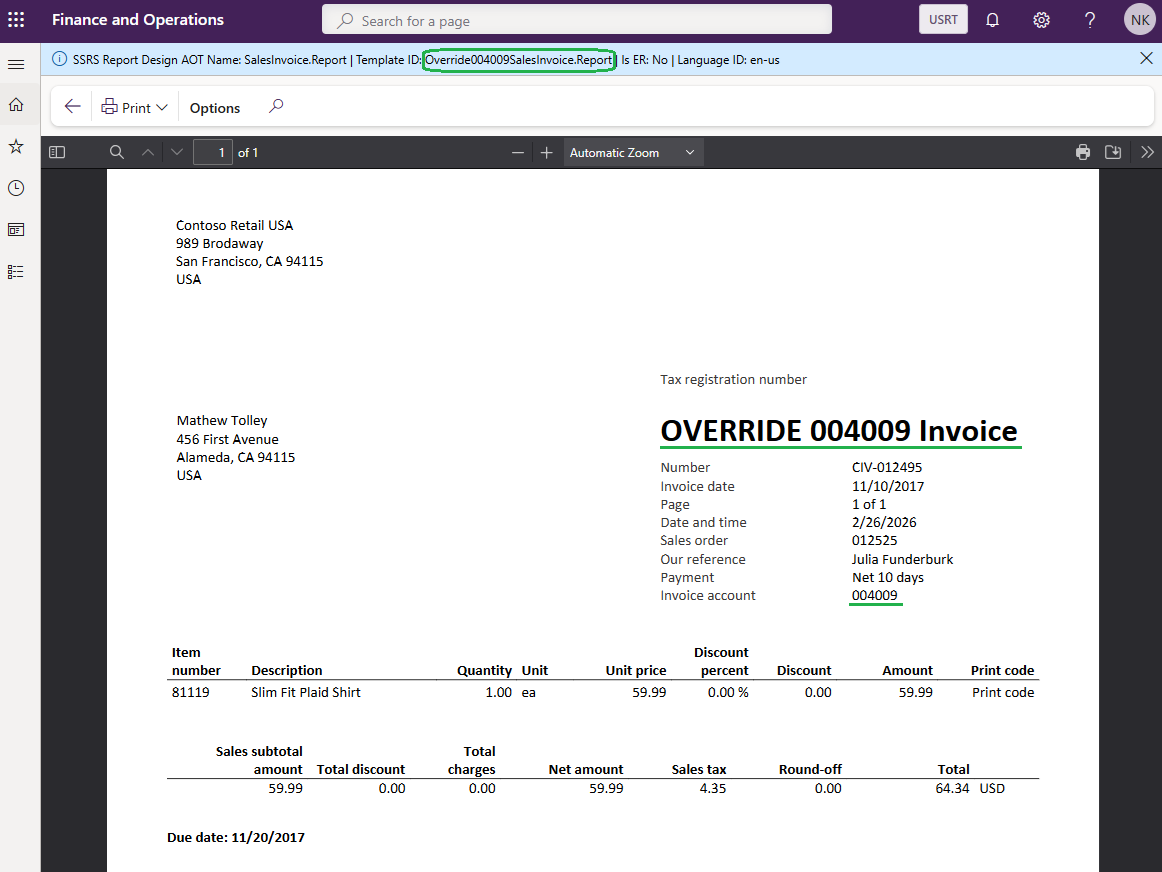
Now when we print the Sales Invoice for the customer with Invoice account 004009, on which we have a Print managament setup override, we will get the Docentric report template with Template ID Override004009SalesInvoice.Report.
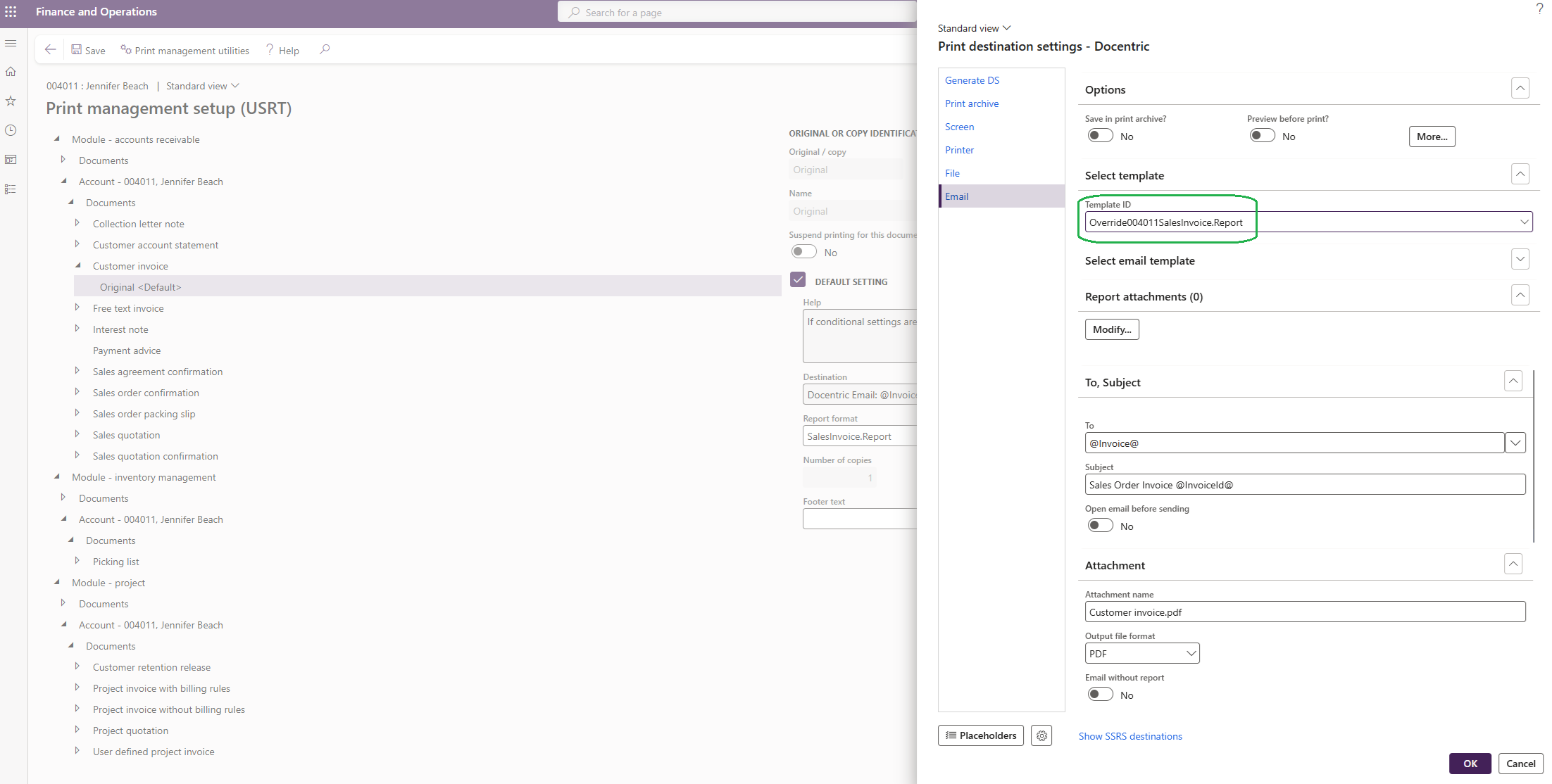
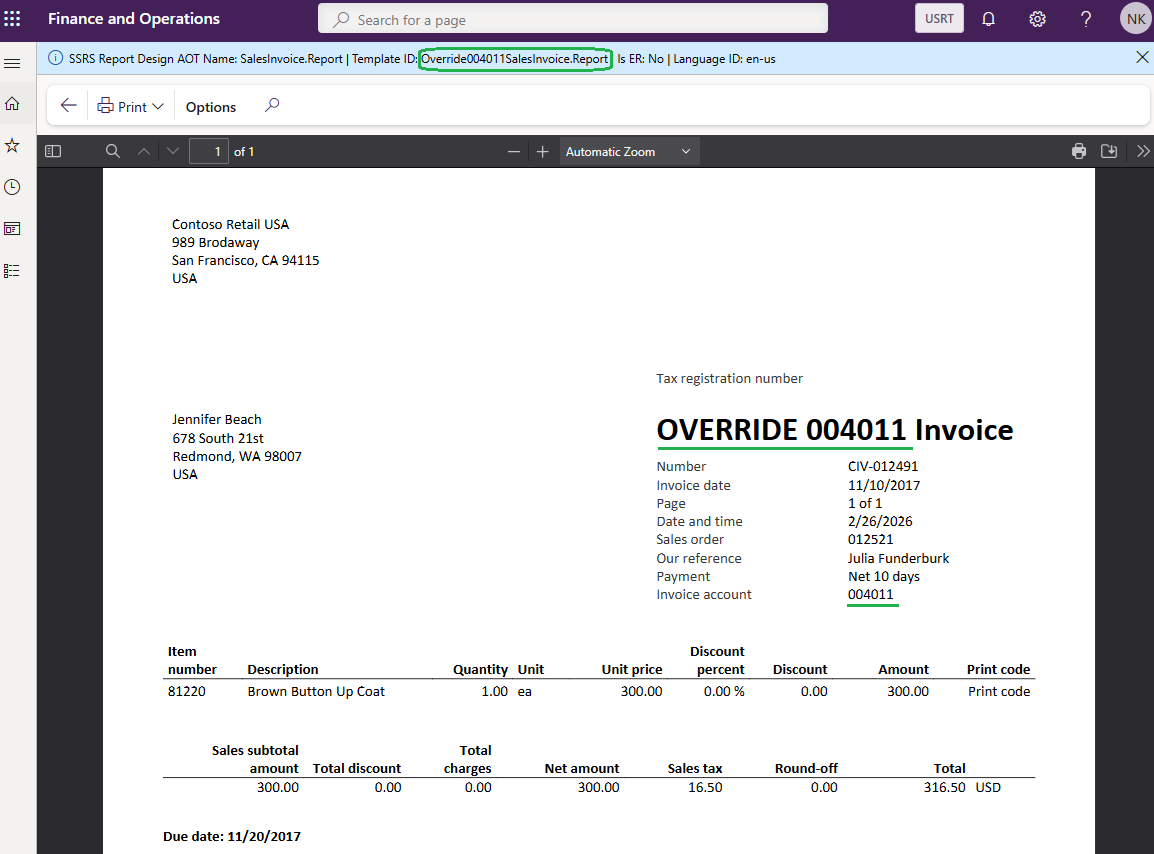
And for the customer with Invoice account 004011, on which we also have a Print managament setup override, we will get the Docentric report template with Template ID Override004011SalesInvoice.Report.
Finally, for customers who don’t have a Print managament setup override, we will get the original Docentric report template, that was configured in the main Print destination settings, with Template ID OriginalPrintDestinationSalesInvoice.Report
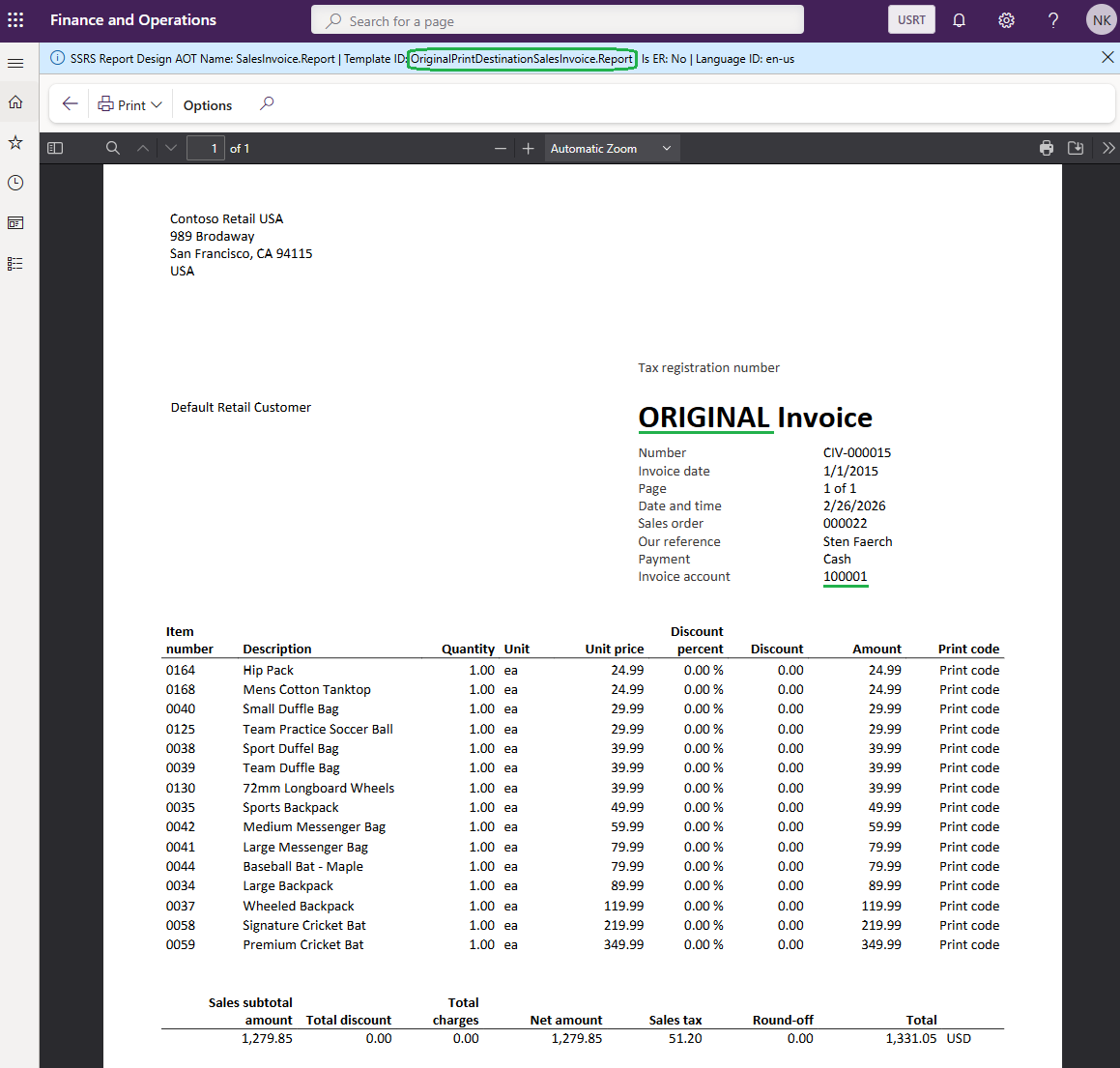
As we can see, even though it’s only a single check box, the new Use original template parameter gives us much more flexibility when using Docentric’s printing redirection feature.
Additional Reading
- How-to manual >> Email tokens and printing redirections
- Blog post >> Email or print an invoice from D365FO, depending on the customer's email address availability - Docentric AX
- Blog post >> Using Email tokens with SSRS Email print destination - Docentric AX
- Blog post >> Check if D365FO Print management overrides are configured