
 Tags:
Tags: 
When a quote or a purchase order is printed in Dynamics 365 for Finance and Operations, it can automatically be emailed to your prospect or vendor. In addition to that, Docentric Free Edition enables you to preview a generated document before letting D365FO continue with the emailing process. Learn how >>
There is one more great emailing feature that you can use completely free of charge – Open email before sending. It will enable you to download, open and edit the outgoing emails automatically generated by D365FO in your Outlook, and manually send them once they are ready. This means that you can double-check the critical emails generated by the system, possibly modify them to look more appealing, add some useful information, additional attachments, images or recipients. Only this way you can make sure that your prospects and customers will get perfectly composed emails.
Let’s see how this works on the example of emailing a quote from D365FO.
Set up Print management settings
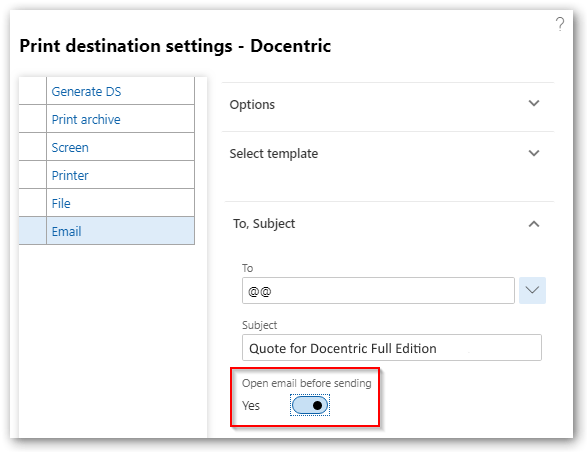
We will set up the email settings for printing a quote in Print management setup as described in this article.
The only thing we will set up differently is the Open email before sending option, which we will turn on.
Email a quote from D365FO
Open Sales and marketing > Sales quotations > All quotations, and click QUOTATION > GENERATE > Send quotation in order to post and print a quote, which is currently selected.


Since we instructed D365FO to download the outgoing email messages in your browser by turning on the Open email before sending option, the generated quotes will not be emailed to the recipients automatically. So when we run the report, the email message with the report attached will be downloaded in the browser as an EMF file.

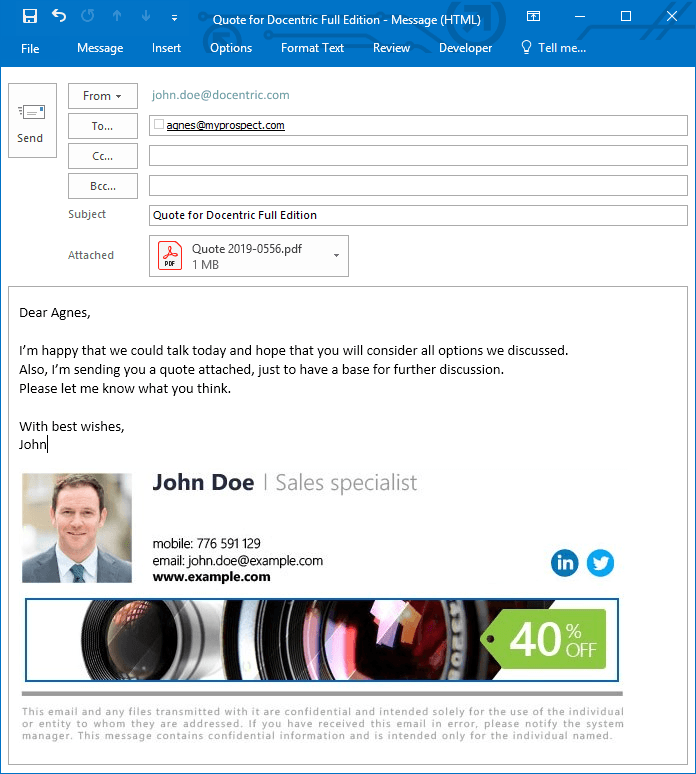
The downloaded EMF file is automatically recognized as the email message, so you can open and edit it in your Outlook. When you finish the polishing of the message to meet your needs, just send it from Outlook as you would send any other email created by hand. As you can see, the Open email before sending feature is a very simple and convenient way of ensuring that professionally looking yet automatically generated emails reach your prospects and customers.
Can we have a preview in D365 and send the email from D365?
No that is not possible. Once the email is downloaded, the printing process is finished in D365FO. The user is responsible for sending the downloaded email.
Hi there
When I download the .eml file and then open it in outlook, i have to forward it there first – otherwise I cannot send it there. Is this right? (so it doesn’t open as a new e-mail rightaway).
Stefan
hi there
when i download the .eml-file i have to forward it in outlook. otherwise i cannot edit the e-mail. right?
stefan
Hi Stefan,
Your last two questions are related, so I will reply here on both of them.
If I understand correctly, you would like to automatically open a downloaded .eml file in your email client, where you can review or modify it before sending it.
If you are using Windows, you can achieve that by following these steps:
Please note, that this feature doesn’t work on Mac computers. There you have to manually forward it, as you are describing in your questions.
I hope this helps.
Kind regards,
Albin